The Sea on a Midsummer Night
The author of this tutorial is Irene Briz from Lake Como, Italy.
This example shows you how to use NatureArt to add nature effects to custom shapes. You can create images for a unique photo album, cards for friends, and much more. Just use your imagination.
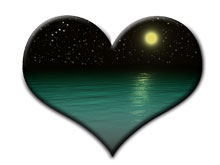

Adobe Photoshop was used for this tutorial, but a similar result can be achieved using other graphics editors which are compatible with the AKVIS NatureArt plug-in.
- Step 1. Open the graphics editor, create a new image, and add a shape using the Custom Shape Tool
 . I chose the Heart Card for this tutorial. Since the night sky will be applied, choose the color black for the shape.
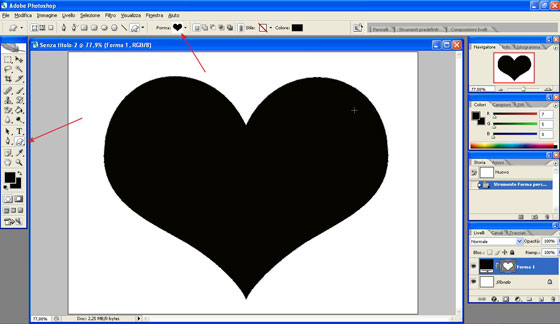
Creating a Shape - Step 2. The shape needs to be converted to a layer. To do this use the command Layer -> Rasterize -> Shape from the graphics editor's main menu.
First we will create a moon. Start the plug-in with the command AKVIS NatureArt (Filter -> AKVIS -> NatureArt). The shape will appear in the program's window on a transparent background. Choose Sun from the list of effects, then select the AKVIS Moon preset from the presets window and adjust the parameters to your taste.
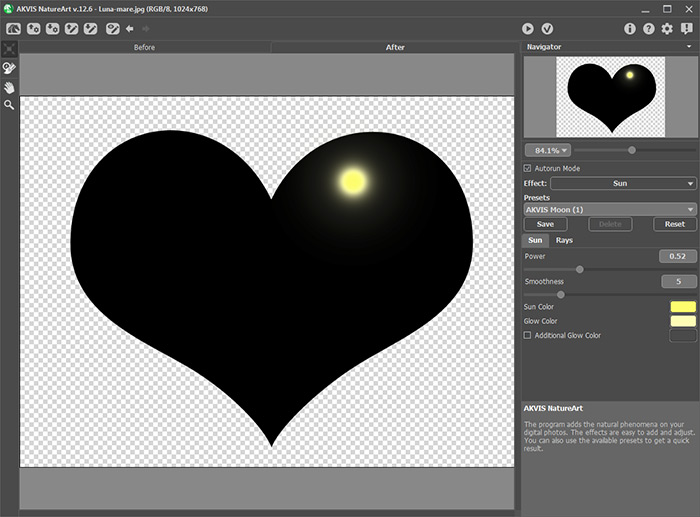
Creating the MoonPress
 to apply the result and close the plug-in.
- Step 3. Now add a sea. Once again start the AKVIS NatureArt plug-in and choose Water from the list of effects. Use the Move
 tool to set the horizon...
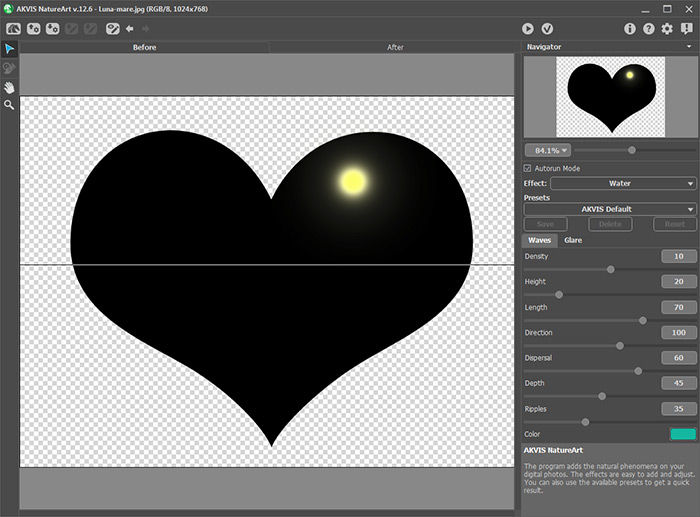
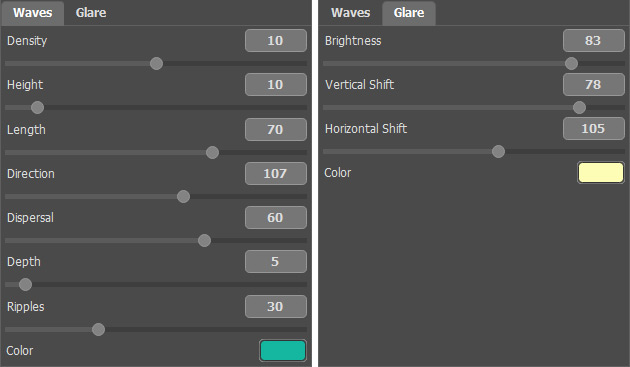
Horizon's Position...and adjust the parameters as shown below, paying attention to the position of the moon's reflection on the water and its color.
Creating the SeaPress
to apply the result and close the plug-in.
- Step 4. Next create a starry sky. Start the AKVIS NatureArt plug-in once again. Choose Night Sky from the list of effects. Use the
 and
and  to select an area where the stars will appear. Change the parameters as shown below...
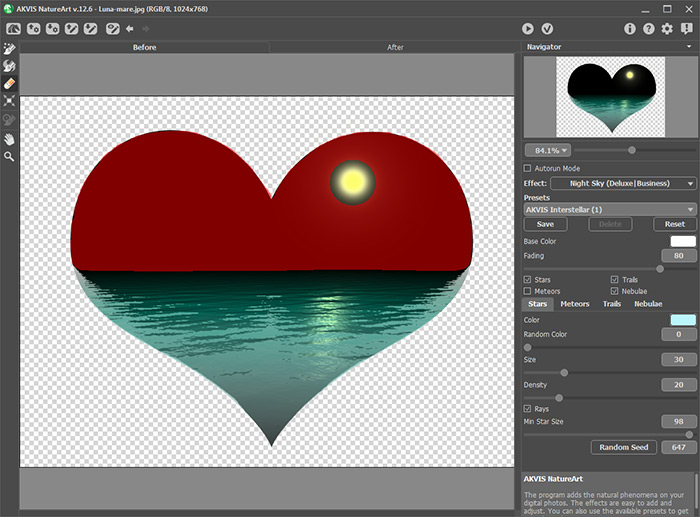
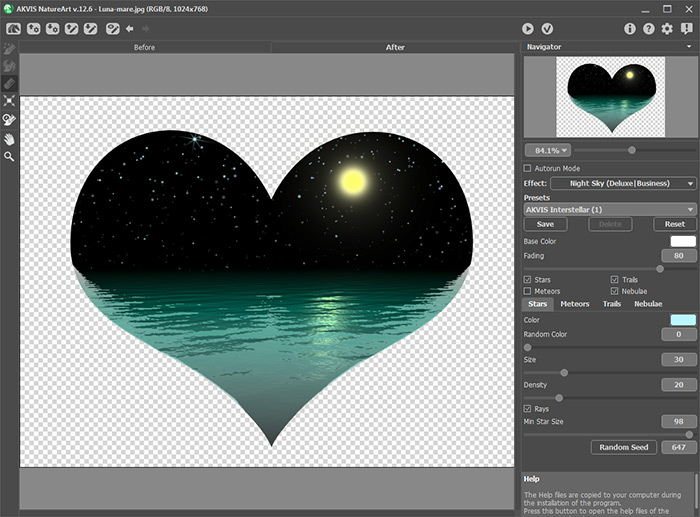
Area Selected...and you will see a lovely landscape:
Creating StarsPress
to apply the result and close the plug-in.
- Step 5. The result is good but I would like to add more stars, for example, as in the Big Dipper constellation. To do this activate AKVIS NatureArt again. Choose Sun from the list of effects, AKVIS Star from the list of presets, and adjust the paramters as you wish. Use the Transform
 to change the size and position of the stars in the sky so as to create the desired figure.
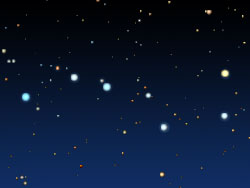
The Big Dipper ConstellationRepeat the process 10 to 11 times to add other constellations. Press
each time to apply the result and close the plug-in. Then restart again.
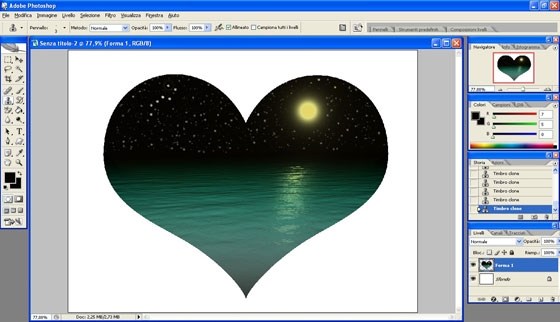
Creation of Stars Complete - Step 6. The heart with a romantic evening landscape is complete. To get a transparent backround, delete the background layer using the Layers palette.
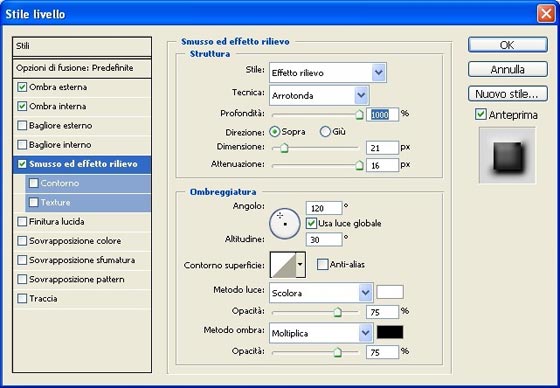
Since the shape looks too flat, use the following effects to change it. Do this by selecting the command Layer -> Layer Style -> Blending Options. Select check boxes and set the parameters as you wish. The author chose these settings:
- Step 7. The creation is complete...
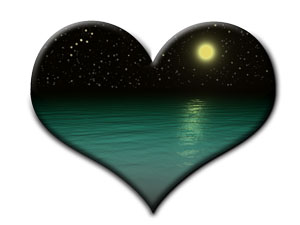
...now just save the image and it is ready to use, with a little imagination. In a similar way you can create objects of different shapes and sizes. Here's another example:

NatureArt v. 12.7 - Free 10-day Trial
