Restoring a Picture of a Boy
In the following example we will show you how to restore images using AKVIS Retoucher. Later you can learn how to add colors to this picture with AKVIS Coloriage.
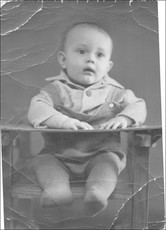
- Step 1. We have an old photo covered with numerous scratches and creases. It also has faded.
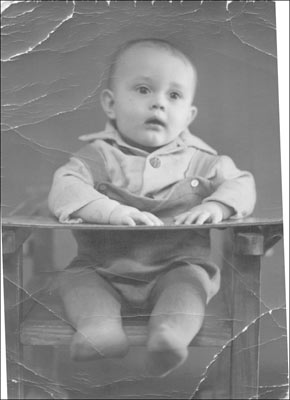
First we should increase the photo's contrast, for example, using the Levels command (Image -> Adjustment -> Levels or Auto Levels in AliveColors).
As a result contrast in the photo has increased and the edges of scratches have become more distinct which will make the restoration process easier.
- Step 2. Launch AKVIS Retoucher plugin: select in AliveColors menu Effects -> AKVIS -> Retoucher.
We can classify the scratches on the photo as follows:
- the first group are the scratches on the background which can be removed by the Clone Stamp
 and/or Chameleon Brush
  ;
;
- the second group are the scratches that cross different objects, for example, the child's legs and the legs of the chair. Retoucher can be helpful when restoring this type of scratches automatically. It saves you time and can also restore the texture of the damaged area without blurring it.
Below is the original photo after constrast was increased and background scratches were removed by stamp tools:
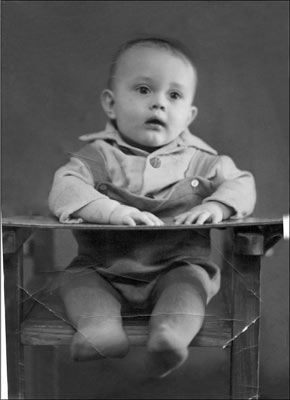
- the first group are the scratches on the background which can be removed by the Clone Stamp
- Step 3. Now we can proceed to the restoration of the second group of scratches.
Select all the defects with the Selection Brush tool
 .
.
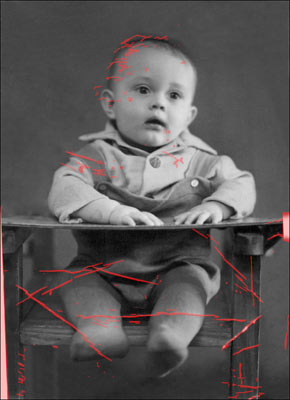
Start the restoration process of all selected areas by pressing
 in the Control Panel (top menu).
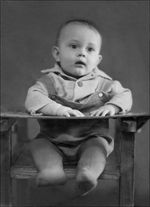
When the restoration process is over you will see the following photo:
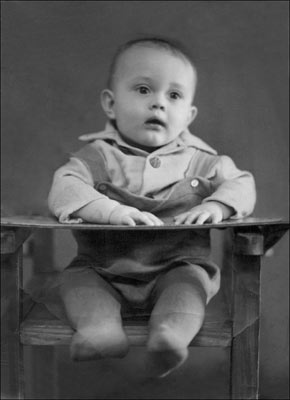
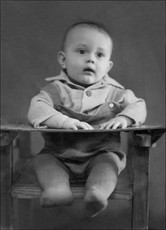
AKVIS Retoucher helped us to restore the photo of a child. We can stop here, but there is a way to make the image more expressive by adding color to it.
You can colorize the photo using AKVIS Coloriage.
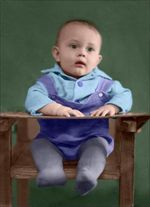
Learn how to add color to this photo using Coloriage.
Retoucher v. 12.2 - Free 10-day Trial
