Black and White Photo Restoration
This example of photo restoration has been sent by Laval Yan.
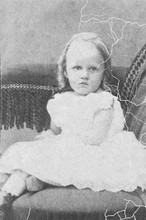
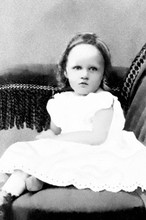
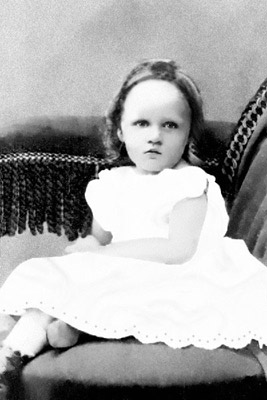
Laval Yan applied AKVIS Retoucher AI at the initial step of retouching to remove scratches from a black and white photo. At the second step of the photo restoration he used the retouching tools of AliveColors.
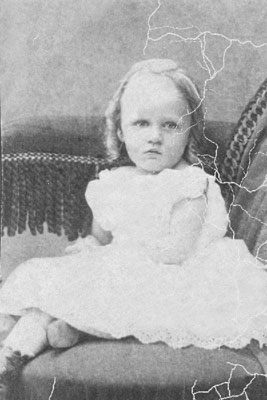
- Step 1. Let's look into the initial stage of the photo restoration in detail.
To remove the scratches with AKVIS Retoucher AI you need to define the area for retouching, i.e. select all the defects of the black and white photo. Activate the Selection Brush
 and paint over the scratches.
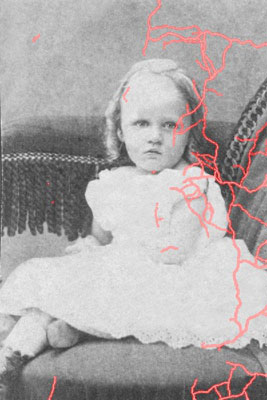
- Step 2. Press the button
 to start the process of photo restoration.
- Step 3. When AKVIS Retoucher AI is through with its job, click on the button
 to save the result of the photo restoration. After the first step we obtain a photo with no scratches:
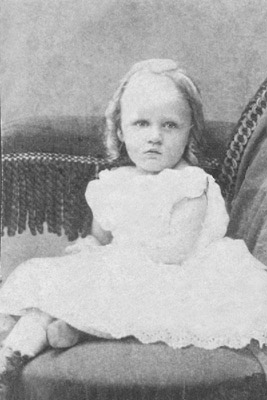
- Step 4. At the last step of the photo restoration we use AliveColors retouching tools. To remove small defects you can apply Stamp
 , to darken some parts of the image you can use Darken
  , to brighten some fragments you can use Lighten
  , to blur some areas activate Blur
  .
.
Retoucher AI v. 13.0 - Free 10-day Trial
