Building Up Images' Borders With AKVIS Retoucher


Please enter your email to be kept posted on updates and discounts:
 
 
  Products     Download     Online Store     Tutorial     Support     Company      Customer Room
en  fr  de  es  pt  it  jp  ru    
 

Tutorial: AKVIS Retoucher

Building Up Images' Borders


The author of this tutorial is Irene Briz (Lake Como, Italy).

Quite often we must deal with photos that have been cropped incorrectly, where objects within them are off-center, or very close the edges of the image.

The perception of such images will change if the image is restored, extending the edges of the image. A correctly positioned object will look more appealing, and most importantly – it will no longer be a fragment. It will achieve perfection.

Here is how to restore missing parts of an image with AKVIS Retoucher.

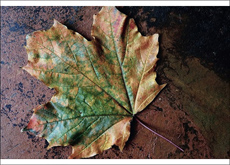
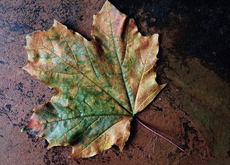
    Original Image Result: Image With Restored Edges
  • Step 1. Open image in the graphics editor.
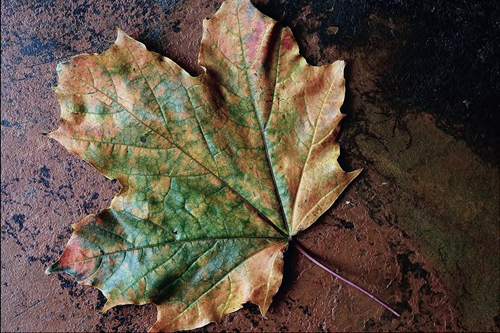
    Original Photo
    Original Photo
  • Step 2. Go to Image -> Canvas Size and increase the size of the canvas on the side where you want to extend the image - in this case the top and bottom side by 40 pixels.
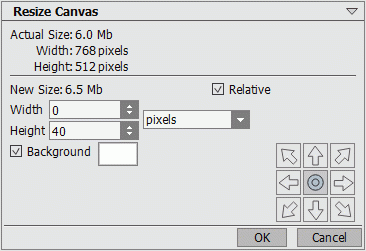
    Changing Canvas Size
    Changing Canvas Size
  • Step 3. Use the Rectangular Selection tool to select an empty area, along with a bit of the pattern of the edge.

    Run the AKVIS Retoucher plug-in: Filter -> AKVIS -> Retoucher, and switch to Advanced mode.
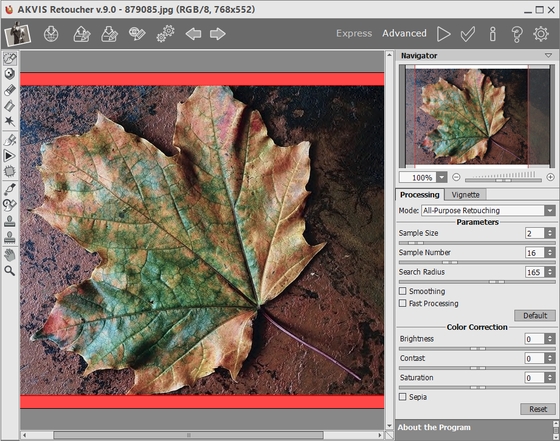
    AKVIS Retoucher Workspace
    AKVIS Retoucher Workspace
  • Step 4. Reduce the value of Search Radius to 40, disable the Fast Processing check box, and start processing the image by pressing . Here is the resulting image:
    Image With Restored Edges
    Image With Restored Edges
  • Step 5. Details in the image can be corrected using the Clone Stamp and Chameleon Brush tools. Once you are satisfied with the result, press to apply the result and close the plug-in's window.
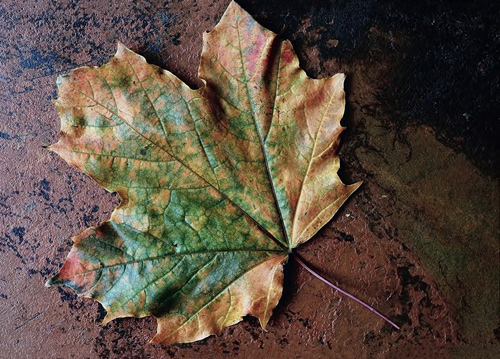
    Result: Image With Restored Edges
    Result
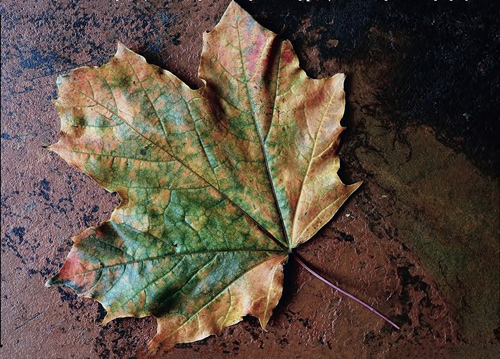
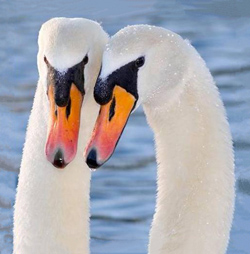
  • Here are some other examples of images with built up edges:
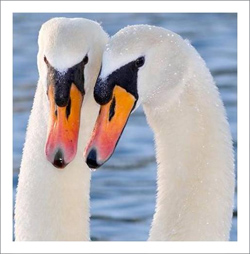
    Original Image Result: Image With Extended Edges

    Original Image Result: Image With Extended Edges

 
How It Works How It Works
   — Workspace — Workspace
   — How To Use The Program — How To Use The Program
   — Toolbar — Toolbar
   — Parameters — Parameters
   — Preferences — Preferences
Examples Examples
   — Removing Large Objects — Removing Large Objects
   — Restoration of an Old Family Photo — Restoration of an Old Family Photo
   — Lioness in a Cage: Removing Rods — Lioness in a Cage: Removing Rods
   — Restoring a Picture of a Boy — Restoring a Picture of a Boy
   — Prepress Processing — Prepress Processing
   — A Daguerreotype — A Daguerreotype
   — Portrait of a Child — Portrait of a Child
   — Historical Photo: a Gypsy Band — Historical Photo: a Gypsy Band
   — Badly Damaged Photo — Badly Damaged Photo
   — Remove Stains from Grandpa Photo — Remove Stains from Grandpa Photo
   — For the Mother's Day — For the Mother's Day
   — Restoration of a Boy's Photo — Restoration of a Boy's Photo
   — Retouching Photos in 7 Steps — Retouching Photos in 7 Steps
   — Old Photo from Photoshop Samples — Old Photo from Photoshop Samples
   — Ukrainian Family — Ukrainian Family
   — Baby Photo Restoration — Baby Photo Restoration
   — Black and White Photo — Black and White Photo
   — Removing Unwanted Details — Removing Unwanted Details
   — Removing Tattoos — Removing Tattoos
   — Building Up Images' Borders — Building Up Images' Borders
   — Repairing An Old Torn Illustration — Repairing An Old Torn Illustration


back to top


   Privacy Policy | Site Map | Search at AKVIS    
   Contact Us | Twitter | Facebook | YouTube Channel    
| English  |Français  |Deutsch  |Español  |Português  |Italiano  |日本語  |Pусский  | © 2004-2012 AKVIS. All rights reserved.