Removing Unwanted Details
The author of this tutorial, Silvano Dotti (Apple Distinguished Educator of the Italian ADE Team) explains how to restore an image using the AKVIS Retoucher AI plugin in Photoshop Elements.
Silvano Dotti writes:
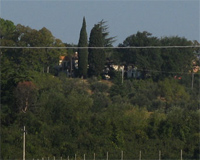
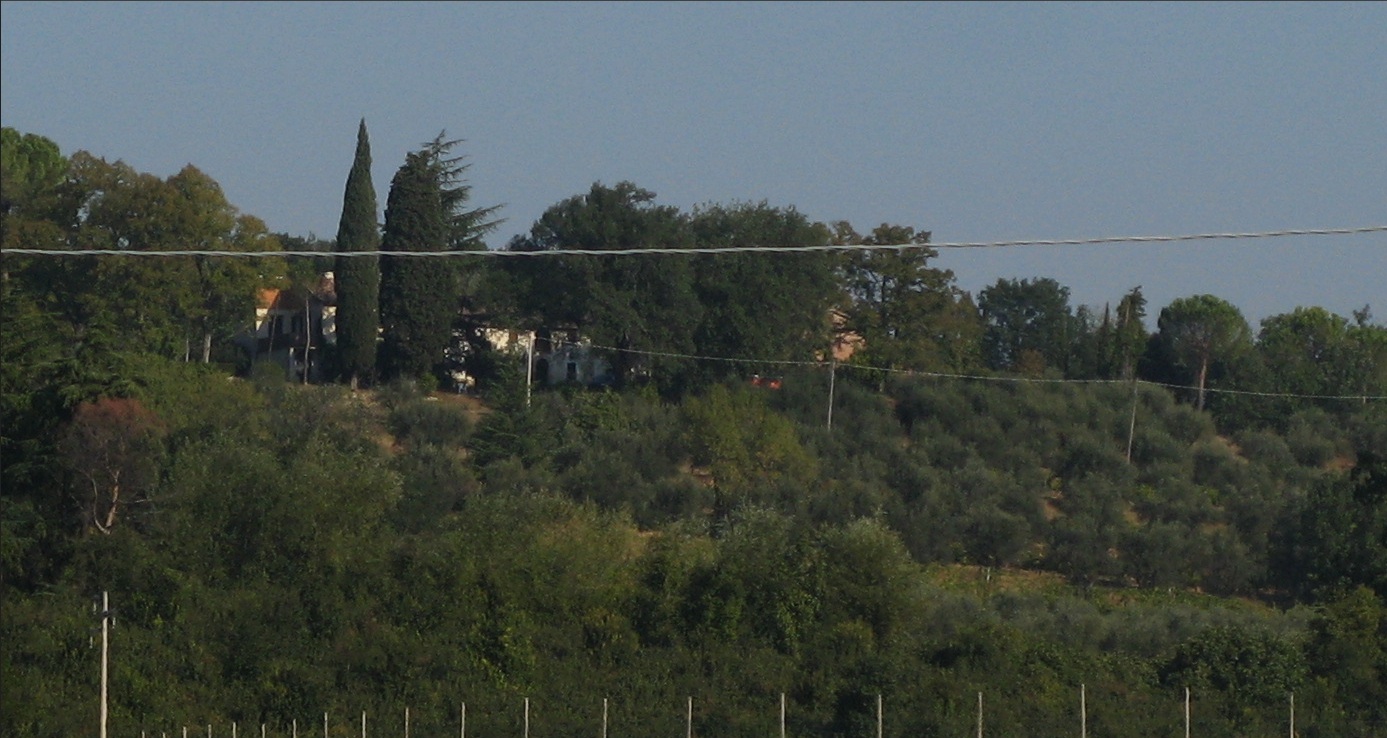
- Step 1. Open the image to be restored. It's obvious that there is a horizontal wire running across the image as well as some poles at the bottom.
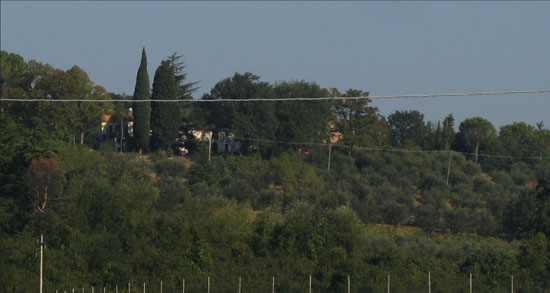
- Step 2. Unfortunately, though PhotoShop Elements has the Quick Selection and Selection Brush tools (very useful for restoring old photos), it does not have Quick Mask mode, which would be very useful here. I'll use a different method - selection in AKVIS Retoucher AI.
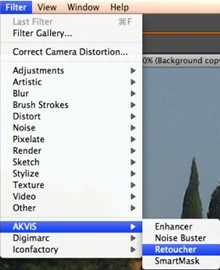
Launch AKVIS Retoucher AI from the Filter menu in PS Elements:
- Step 3. Choose a Selection Brush tool
 (hot-key B) to indicate areas that are selected. Then I begin to mark the "defects".
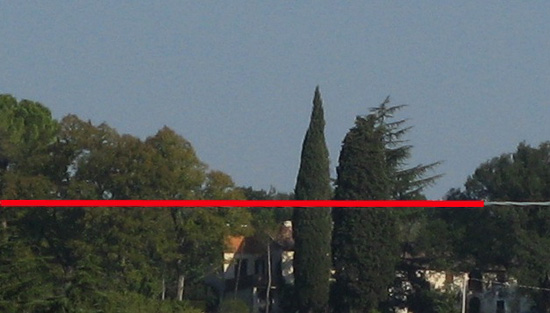
Just the poles remain...
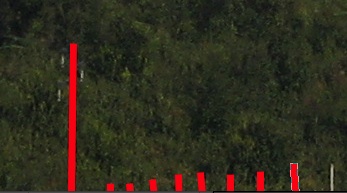
...all the defects have been marked:
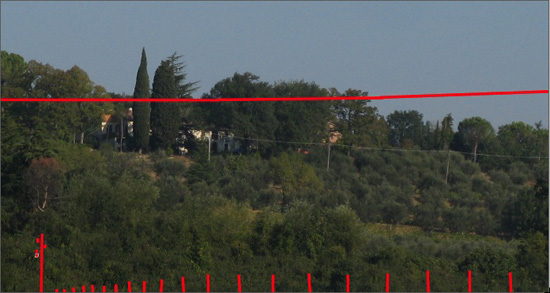
- Step 4. Start processing by pressing the
 button, and like magic, the areas I want to remove from the photo disappear!
If you are satisfied, press the
 button to apply the result to the image.
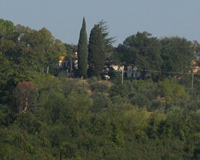
Here's the result:
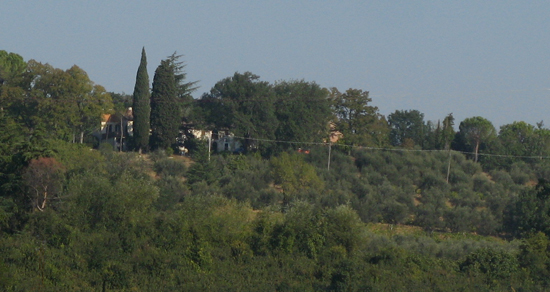

Retoucher AI v. 13.0 - Free 10-day Trial
