Preferences
Open the Preferences dialog by pressing on  . The dialog window looks like this:
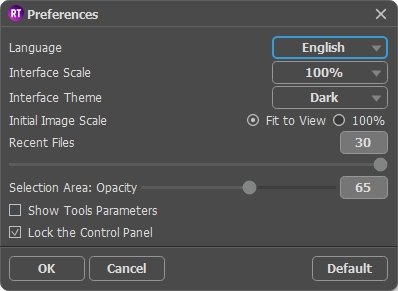
- Language. To switch the interface language, select another language from the drop down list.
- Interface Scale. Choose the size of the interface elements. When it is set to Auto, the program workspace will automatically scale to fit the screen resolution.
- Interface Theme. Select the style of the program interface: Light or Dark.
- Initial Image Scale. This option defines the way the image is scaled in the Image Window.
- Fit to View: the image is completely visible in the window;
- 100%: the image doesn’t scale (generally, only a part of the image is visible). - Recent Files (available only in the standalone version). The number of recent documents. The list of the recent files, sorted by time, become visible by right mouse clicking on
 . Maximum: 30 files.
- Selection Area: Opacity. The parameter allows you to adjust the opacity of the color used when a selection is created.
- Show Tools Parameters. When the check-box is enabled, the parameters of the tools are displayed in the Settings panel.
- Lock the Control Panel check-box. It disables the possibility to hide/show the top panel. If the check-box is selected the panel is always visible. Uncheck the option to unlock the panel, and you will be able to hide/show it by clicking on the small triangle button (in the middle of the panel). The minimized panel will be shown when moving the cursor over it.
To apply changes made in the Preferences window press OK.
If necessary, you can return to the default settings by pressing Default.
Retoucher v. 12.2 - Free 10-day Trial
