How To Use The Program
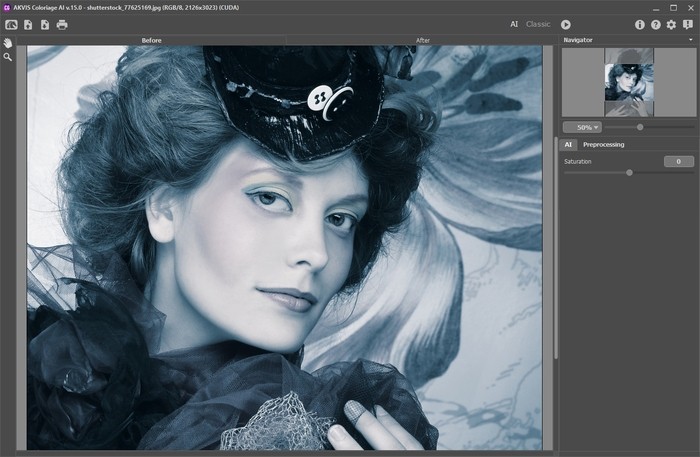
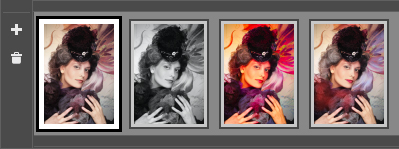
AKVIS Coloriage creates natural-looking colorization in a quick and entertaining manner. Coloriage manipulates colors of an image: from colorizing old black and white photos from your family archive to replacing colors in your color photos. Coloriage can work independently as a standalone program and as a plug-in to a photo editor.
Follow the instructions to colorize a photo with the AKVIS Coloriage:
-
Step 1. Run the standalone edition of AKVIS Coloriage or open your photo editor (if you work with the plugin version of AKVIS Coloriage).
-
Step 2. Open an image.
- If you work with the plugin:
- Open an image in your photo editor by calling the command File -> Open or using the key combination Ctrl+O on Windows,
+O on Macintosh.
- If you work with the standalone edition (with file in BMP, JPEG, PNG or TIFF format):
- The dialog box Select File To Open appears if you double-click on the empty workspace of the program or if you click on the button
on the Control Panel. You can also drag the required image into the workspace of the program.
-
Step 3. In plug-in version only: if the image in Grayscale mode, switch it to RGB. For example, in Adobe Photoshop use command: Image -> Mode -> RGB.
-
Step 4. In plug-in version only: call the AKVIS Coloriage plug-in:
In Adobe Photoshop select the menu item Filter –> AKVIS –> Coloriage; in Corel Paint Shop Pro select Effects –> Plugins -> AKVIS –> Coloriage; in Corel Photo-Paint select Effects –> AKVIS –> Coloriage.
Hint: A selection made in the graphics editor will be transferred to the plug-in and displayed as the outline made with the Keep Color Pencil .
-
Step 5. Select the color for the object you want to colorize.
AKVIS Coloriage offers several ways to select colors: in the Color Library, in the palettes: Color, Swatches, Multicolor, in the Select Color standard dialog or from the image itself with the Eyedropper tool .
-
Step 6. Select the Pencil tool
from the Toolbar and draw an outline within the object that you want to paint in the selected color.
-
Change the brush size of the Pencil tool.
Hint (for all tools): You can open the tool's options dialog by clicking on that tool's icon or by right-clicking anywhere in the image window.
-
Draw an outline within the object following the shape of it's boundaries. If the object has several colors, you should draw a line along the boundary of the object that should be painted into the selected color.
-
If the object is rather large or there are sharp visible boundaries within it (lighter and darker areas, for example), draw several strokes inside the object.
-
If there are details inside the object that will be painted in other colors, outline them with the main color of the object. For example, you should outline lips, eyes, buttons on a coat, etc.
Hint: If you want a smooth transition of color, draw the strokes farther apart from each other (the farther the strokes are apart, the smoother the transition). If the transition needs to be sharper, draw the color strokes closer together. This is why it is necessary, for example, to draw around the eyes and mouth with the color chosen for the skin.
Selective colorization
If you want to change the color of a particular object on a color photo while keeping other areas unchanged, use the Pencil tool to set the color for the object and then draw a closed outline around this object using the Keep Color Pencil .
 |
| "Keep Color Pencil" used |
 |
"Keep Color Pencil" not used |
Multicolor mode
It's possible to draw several colors at once with the Pencil tool using the Multicolor mode. It's helpful for complex patterns and objects with clear boundaries. This mode appreciably saves you time.
Note: This mode is only available for advanced licenses of AKVIS Coloriage (Home Deluxe and Business).
Activate Multicolor mode in the options of the Pencil tool.
Upon doing so, the Settings Panel will automatically switch to the Multicolor palette.
In Multicolor mode a stroke changes its color according to the initial color field over which it passes.
The colors used are set by adding them to color plates. The left plate shows the color that will be replaced, the right plate shows the new color. The colors in the color plates can be set in the following ways:
- from the image with the Eyedropper tool (click on the color plate and then on the desired point in the image);
- from the Color Library which contains colors that are difficult to pick out: the color of skin, hair, lips, grass, trees, stones, etc;
- from the Select Color dialog, which is activated by double-clicking the left mouse button on the color plate.
Adjust the Sensitivity for each pair of colors. At higher values of this parameter, more shades of the source color are taken into account when drawing strokes.
 |
 |
The Sensitivity of the color pairs:
dark-gray — red = 75
light-gray — white = 75 |
The Sensitivity of the color pairs:
dark-gray — red = 30
light-gray — white = 90 |
Fast color changing
If you want to change the color of the drawn stroke you do not need to re-draw the lines. Just activate the Tube tool and left-click on the stroke.
If you want to change the color of several strokes having one color (for example, from red to blue), activate the Magic Tube tool and left-click on one of these strokes.
 |
| |
 |
| Changing the strokes from red to blue |
-
Step 7. You can change the brightness range of the selected color.
Note: The resulting color of the colorized object depends on the brightness of the original color. For example, if you apply a dark color to a bright area, the resulting color will be bright, as the program will adjust the new color to the brightness of the original image.
If you are not satisfied with the result you can make the final color lighter or darker. Change the brightness range of the selected color using the gradient line above the Color palette.
Attention! The brightness range compression can result in deterioration of the detail and deepness of an image. Change the brightness range carefully.
To change the brightness range for a drawn stroke you should select the required brightness range, take the Tube tool and left-click on this stroke. If you want to recolor strokes having one and the same color and brightness, select the Magic Tube tool and left-click on one of the strokes. To recolor all strokes having the same color regardless of the brightness range, use this tool with the Ctrl-key pressed on the keyboard ( on Macintosh).
In the Normal Preview mode all strokes are displayed in the chosen color, regardless of the selected brightness, i.e. various tones of the same color will look the same. When the Brightness Preview is activated, you can see how the strokes will look on the resulting image.
 |
 |
| Normal Preview |
Brightness Preview |
-
Step 8. Repeat steps 5, 6 and 7 until you set colors for all objects. If you do not select a color for an object, it will be painted in the color(s) of the nearest area.
You can use the Eraser tool to erase the drawn strokes.
To remove a stroke, press the Alt-key on Windows, Option-key on Mac, and left-click with the Eraser tool on the stroke.
If you want to remove all strokes, press the keys Alt+Ctrl on Win, Option+ on Mac, and click on the picture.
You can change the size of the Eraser tool in the pop up window which appears when clicking on the tool's icon and/or right clicking on any place on the image.
If you want to cancel the last action made with the tools, press the key combination Ctrl+Z on Win, +Z on Mac. You can cancel the last operation with the button Undo and restore the changes with the button Redo .
-
Step 9. Press the button
to start the colorization process. The colorized image is shown in the After tab.
-
Step 10. If you want to edit the colorization result (remove some strokes, add new strokes, change the color of the objects), activate the Before tab again and make the necessary corrections. Press the button
again.
-
Step 11. In the last stage of work you can manually edit the processed image using the soft semitransparent Recolor Brush
. It will be possible on the After tab.
Attention! If you switch to the Before tab and click on the button , the changes made with the Recolor Brush will be lost.
Click the left mouse button on to see the settings of the Recolor Brush in a floating window. This window will also appear if you right click anywhere on the image. To adjust a parameter, enter a new value into the corresponding field or move the slider.
-
Diameter (1-200). The stroke width of the brush (in pixels).
-
Hardness (0-100). The hardness of the outer edge of the brush. The higher the value of the parameter, the harder the brush edge is. At Hardness = 100% the brush is as hard as a pencil; at a low value of the parameter the brush strokes are soft.
-
Strength (0-100). The intensity of the strokes. The higher the value of the parameter, the more intense the colors of the applied strokes are.
-
Keep Brightness check-box. When the check-box is enabled, the brightness of the drawn stroke is changed to comply with the background and with the overall brightness of the image (the strokes get lighter on the light zones of the image and darker on the dark zones). When the check-box is disabled, the brightness of the strokes does not depend on the brightness of the image.
Edit the strokes using the Eraser tool . The tool's options are the same as for the brush except Keep Brightness.
-
Step 12. You can save the color strokes drawn on the original image into a file. To do this press the
button.
Later you can edit the strokes by loading them with the button from the file.
-
Step 13. In plug-in version only: press the button
to apply the colorization result to your picture and close the plugin window. The AKVIS Coloriage plugin will close and the colored image will appear in the workspace of the photo editor.
 |
| Click the image to open its larger copy in a new window |
-
Step 14. Save the processed image.
- If you work with the plugin:
- Call the Save As dialog box using the command File -> Save As, enter a name for the file, choose the format and indicate the target folder.

- If you work with the standalone edition:
- Click on the button
to open the Save As dialog box. Enter a name for the file, choose the format (TIFF, BMP, JPEG or PNG) and indicate the target folder.
-
Step 15. The standalone edition of AKVIS Coloriage can print the image. For this purpose press the button
and adjust print settings in the Print dialog box.
Want to learn more? As the saying is "a diagram worths many words". Watch our video below or download it as mp4 (3.38 Mb).
Also watch a flash movie demonstrating the technique of image colorization with AKVIS Coloriage. It was made with an old version of the program. Coloriage looks a bit differently now, but the process is the same in the new version. Click here to start! (flash-movie, 9.2 Mb)
| |
|