Print Images in AKVIS Coloriage


Please enter your email to be kept posted on updates and discounts:
 
 
  Products     Download     Online Store     Tutorial     Support     Company      Customer Room
en  fr  de  es  pt  it  jp  ru    
 

Tutorial: AKVIS Coloriage

Print Images in AKVIS Coloriage


The standalone version of AKVIS Coloriage lets you print the image. Just press the button on the Control Panel. The Print dialog box will be opened.

Print dialog box
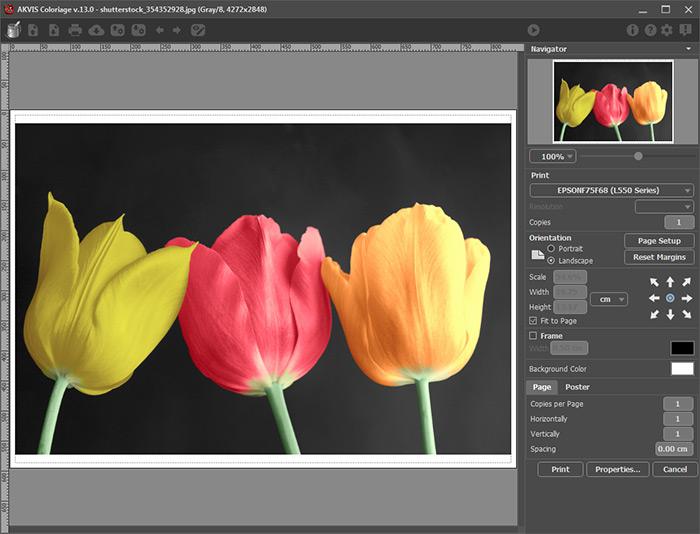
Print dialog box in AKVIS Coloriage

The left part of the Print dialog box is the preview area where the current position of the image on the page is shown. On the right side of the dialog window the following print settings can be adjusted:

  • Printer. If your computer is connected to a local network with many printers or if it is connected to many output devices itself, you will need to choose one of the available printers to print your image. Choose the desired print resolution from the Print Resolution drop-down list. The available choices will be based on those available for the printer you have chosen.
  • Orientation of the printed image. There are two types of orientation available - Album and Portrait. Album corresponds to the horizontal page orientation (width is greater than height), while Portrait - corresponds to the vertical orientation of the paper.
  • Print Size. To change the size of the printed image, adjust the parameters Scale, Width, Height and Fit to Page. These parameters have no effect on the image itself, just on the printed version. You can change the size of the printed image by entering any value in % (any value less than 100% will result in a smaller print size, and any value larger than 100% - will result in a larger print size), or by entering new values in Width and Height. If you want the size of the image to be adjusted to the paper size, then just select Fit to Page.
  • Move To. Choose the position of the image on the page by clicking on one of the the eight arrows.

    The size of the printed image and its orientation can also be selected manually. A frame with markers is displayed around the image in the preview window. To change the size of the image move the cursor to one of the corner markers or to a side (the cursor changes in shape to a double sided arrow) and drag the marker or side. To change the position of the image on the page, bring the cursor over the image, press the left mouse button, and move the cursor.

Clicking the Page Setup button opens a dialog window in which you can choose the size of the paper and its orientation, as well as the print margins. To print an image with the chosen parameters, press the Print button. To cancel and close the printing dialog window press the Cancel button.

 
How It Works How It Works
   — Workspace — Workspace
   — How To Use The Program — How To Use The Program
   — Select Colors — Select Colors
   — Colorization Tips — Colorization Tips
   — Load Strokes From File (*.strokes) — Load Strokes From File (*.strokes)
   — Preferences — Preferences
Examples Examples
   — Adding Color To An Old Postcard — Adding Color To An Old Postcard
   — Changing Color of Your Car — Changing Color of Your Car
   — Selective Desaturation — Selective Desaturation
   — Selective Colorization of B&W Photos — Selective Colorization of B&W Photos
   — Make White Whiter — Make White Whiter
   — Photo Coloring Tricks — Photo Coloring Tricks
   — Colorizing a Black and White Photo — Colorizing a Black and White Photo
   — Colorizing a Portrait of a Gentleman — Colorizing a Portrait of a Gentleman
   — Technique of Reiterative Colorization — Technique of Reiterative Colorization
   — Colorize Your Memories — Colorize Your Memories
   — A Present for the Mother's Day — A Present for the Mother's Day
   — Color Correction of a Portrait — Color Correction of a Portrait
   — Canadian Settlers — Canadian Settlers
   — Add Color to the Photo of a Child — Add Color to the Photo of a Child
   — Color Options for Interior Design — Color Options for Interior Design
   — Colorize a Family Portrait — Colorize a Family Portrait
   — Change the Color of Clothes — Change the Color of Clothes
   — Colorize a Group Photo — Colorize a Group Photo
   — Creating a Colorful Background — Creating a Colorful Background
   — Paint Your House — Paint Your House
   — Raise Spirits — Raise Spirits
   — Expressive Cat Eyes — Expressive Cat Eyes
   — A Portrait of a Geisha — A Portrait of a Geisha
   — Colorize a Bas-Relief — Colorize a Bas-Relief
   — An Old Postcard with a Geisha — An Old Postcard with a Geisha
   — Touching Up a Colorized Photo — Touching Up a Colorized Photo
   — Colorizing an Anime Girl — Colorizing an Anime Girl
   — Colorize a Photo for a Collage — Colorize a Photo for a Collage
   — A Flower Show — A Flower Show
   — A Pencil Sketch: Self-Portrait — A Pencil Sketch: Self-Portrait
   — Creating a Christmas Postcard — Creating a Christmas Postcard
   — Love Story — Love Story
   — Desktop Wallpaper with a Pet — Desktop Wallpaper with a Pet
   — Colorize a Photo in Paint Shop Pro — Colorize a Photo in Paint Shop Pro
   — How to Get a Nice Sepia Photo — How to Get a Nice Sepia Photo
   — A Castle in Scotland — A Castle in Scotland
   — How to Achieve a Natural Colorization — How to Achieve a Natural Colorization
   — Christmas Card: B&W to Color — Christmas Card: B&W to Color
   — Movie Star Ayshwarya Ray — Movie Star Ayshwarya Ray
   — Adding Detail and Color a Drawing — Adding Detail and Color a Drawing
   — Coloring Old Black-And-White Drawing — Coloring Old Black-And-White Drawing
   — Flower Meadow — Flower Meadow
   — Children’s Photo — Children’s Photo
   — Medieval Engraving — Medieval Engraving
   — Wedding Album — Wedding Album
   — Full Dress Uniform — Full Dress Uniform
   — A Lovely French Couple — A Lovely French Couple
   — Simple Approach for Coloring Pictures — Simple Approach for Coloring Pictures


back to top


   Privacy Policy | Site Map | Search at AKVIS    
   Contact Us | Twitter | Facebook | YouTube Channel    
| English  |Français  |Deutsch  |Español  |Português  |Italiano  |日本語  |Pусский  | © 2004-2012 AKVIS. All rights reserved.