Multicolor Painting: Examples and Possibilities
AKVIS Coloriage AI is as easy to use as a coloring book. Indicate the desired colors using the Pencil tool and press the Run button; the program does the rest of the work: it recognizes the object's border and tailors the new color to the original tones.
The Pencil tool used to draw color strokes to assign a color to every object can also draw with several colors simultaneously to select more details quickly. To activate this feature, click on Multicolor Mode in the tool's parameters. Please note that this feature is only available under the Home Deluxe and Business licenses.
We'll take a look at three cases where this feature would be useful:
- Coloring a contrasting B&W image with many small objects which are difficult to select;
- Quickly recoloring a color image;
- Creating shade and color variations.

Coloring a Contrasting Image
In some cases, Multicolor mode can help you avoid the laborious task of selecting several small objects in an image: flowers in a meadow, dots on a dress, stars in the sky, etc. Ideally, the objects should contrast well with the background.
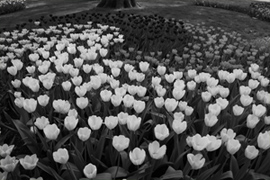
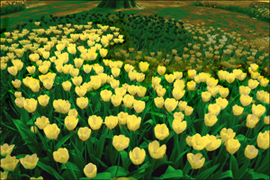
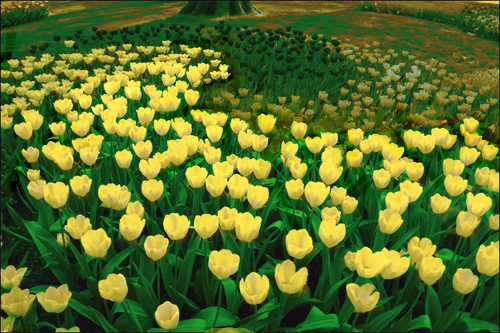
For example let's use a photo of tulips in flower beds:
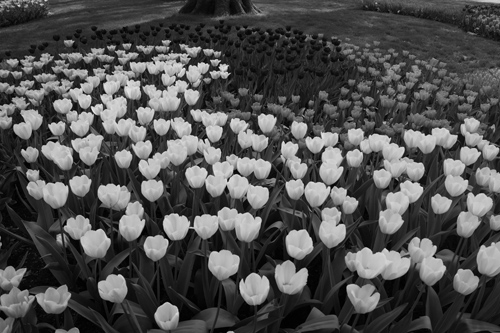
- Step 1. Open the photo.
- Step 2. Choose the Pencil tool
 , then go to the menu for this tool's parameters and activate the Multicolor check box (after which the color selection tab will automatically be switched to Multicolor).
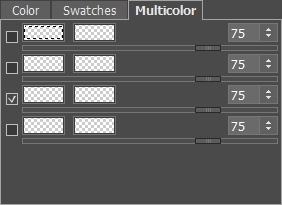
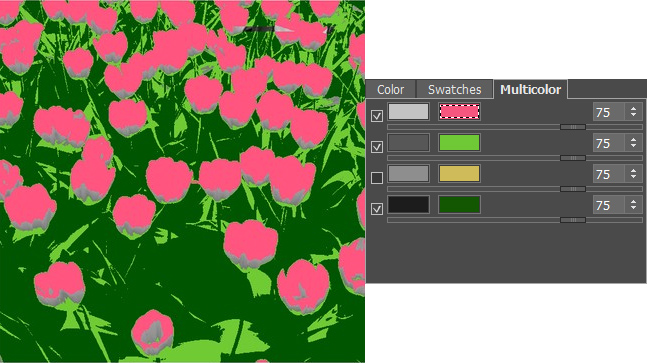
- Step 3. Now let's fill in the empty color plates. The color placed in the left plate will be that which you wish to recolor, and in the right plate - the new color.
Click the first plate. The cursor will become a pipette, which will then be used to select the color of the tulips (light gray). Choose any bright color for the next plate - we will use yellow.
In a similar fashion, select the color of the leaves (dark gray), and then in the next plate choose the desired shade of green.
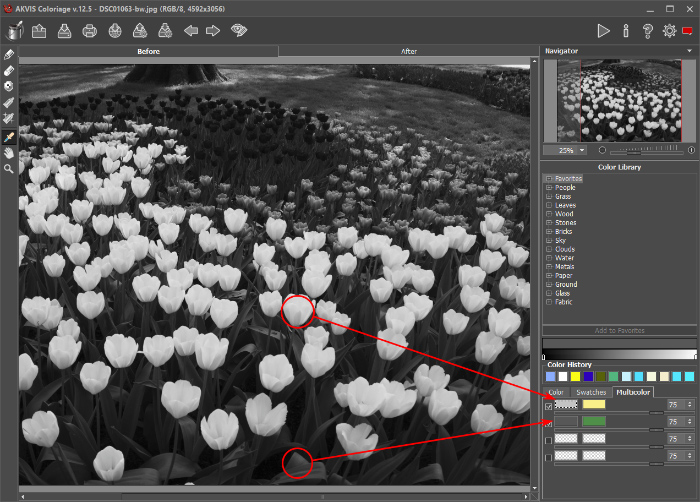
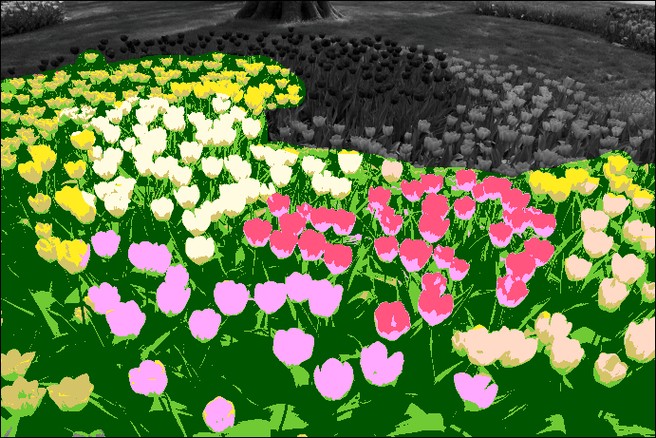
- Step 4. Next increase the pencil's diameter and draw over the zones you want to recolor. The chosen colors (green and yellow) are distributed across some parts of the image but some areas remain unchanged. Don't worry: during processing color will "flow" into the photograph, filling these "empty" areas.
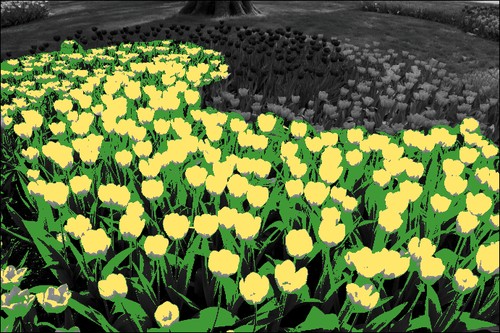
To get a better idea how the chosen colors would affect the result, switch from the Normal Preview mode
 to the Brightness Preview mode
  . In this mode the strokes are displayed taking into account the brightness of the original image that helps to see quickly the result, without processing of the entire image.
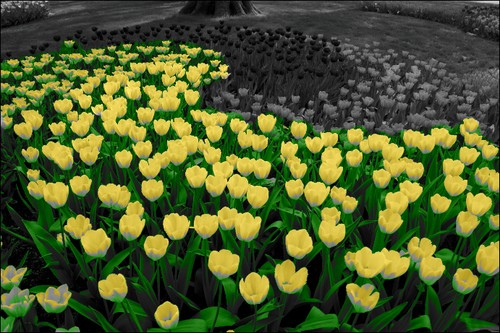
- Step 5. If desired, you can improve the coloring effect by adding additional shades of color,
but remember that the objects must be colored over again to see the improvements.
Press
 to undo the shades of green and yellow on the image and replace them with other colors.
Proceeding as in step 3, choose darker colors for some parts of the flowers and leaves. Choose mustard as the third color to colorize the lower part of the corolla. The fourth color will add more variety to the shades of the grass. You can slightly increase the amount of bright yellow, by moving the top slider to 90.
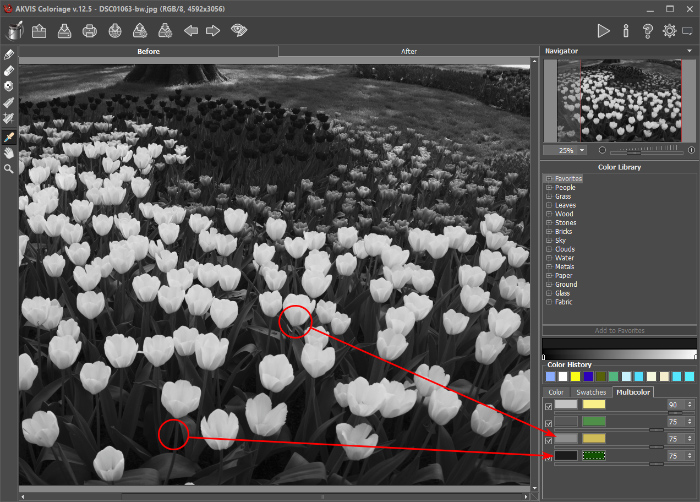
Recolor the flower bed with the pencil:
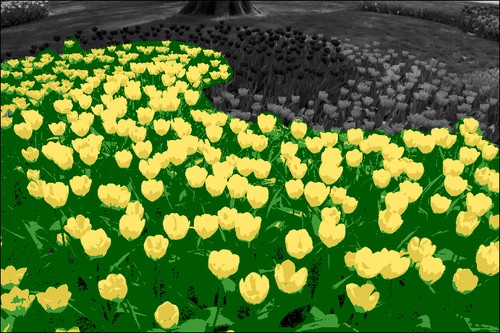
Note:
You can choose other color options - for example, in place of the yellow, you could add a dark shade of pink. Areas must be painted anew! This time the tool will take into account the new colors in the Multicolor tab.
First press to return to the black and white image (to see the original gray tones), then select new colors, and paint over the image with the tool again. If this is not done, then the previous colors will be used instead of the new ones.
The tool can be used to paint over some of the areas with the new color:
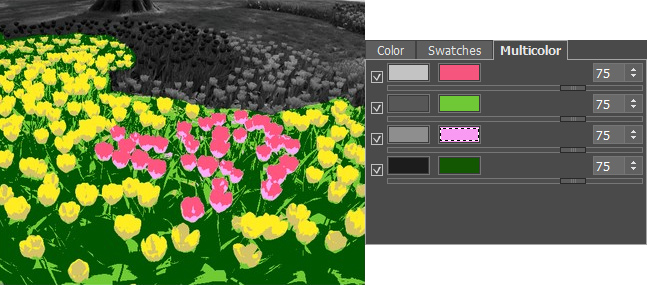
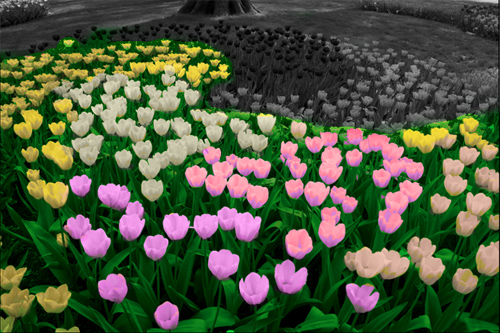
The more color zones are added, the more attractive the image will appear.
- Step 6. Process the image by pressing
 . The colorization effect will be shown in the After tab. Small errors can be corrected with the soft Recolor Brush
  , and then the result can be saved (in the standalone version) or applied (in the plugin).
Recoloring a Color Image
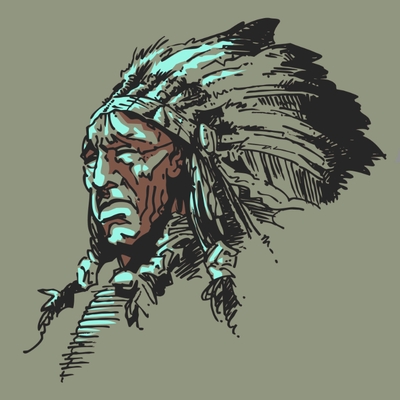
Multicolor mode can replace one set of colors with another. This is very useful when working with complex geometric patterns composed of a limited number of colors.
- Step 1. Open the photograph.

- Step 2. Choose the Pencil , activate the Multicolor mode and add the colors to the plates which will replace colors in the image. After the colors have been set, increase the diameter of the tool and paint over the image.
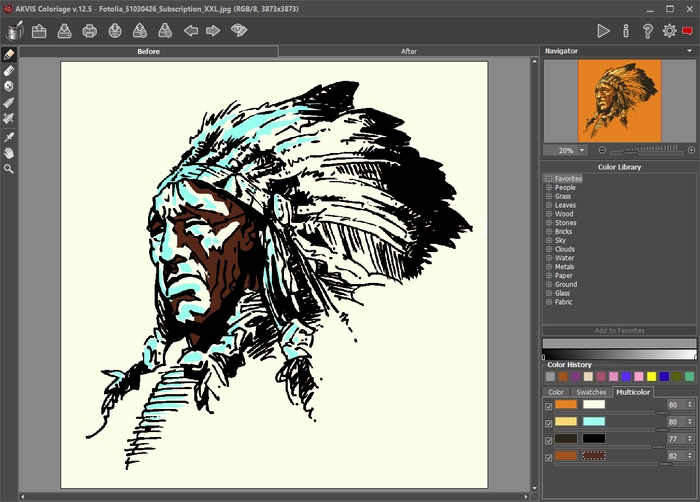
Switch to Brightness Preview mode
to see how the changed colors will appear after processing.
Note:
If you only want to color part of an image, you can use a special pencil
 to protect adjacent areas.
So in this case the colors don't "flow" into adjacent areas.
- Step 3. Press to process the image. The result will be shown in the After tab. Save (in the standalone version) or apply (in the plugin) the final result.
Creating Shade and Color Variations
Artists are able to convey the color and volume of objects with a variety of shades and tones. AKVIS Coloriage AI has its own tricks to achieve masterful coloring, when one color is not enough.
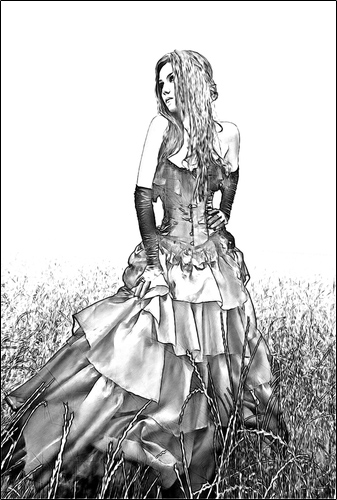
- Step 1. Open an image.
- Step 2.
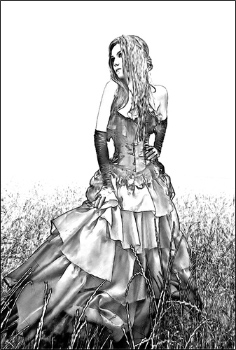
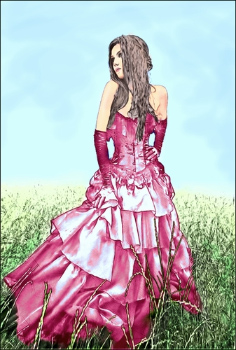
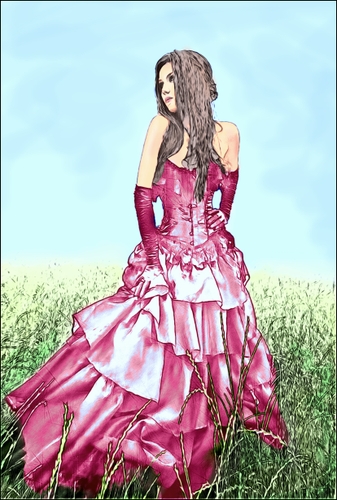
The dress will be pink, but we want a more interesting look - to play with its various shades. To do this, activate the Multicolor mode and select colors for the plate to apply to the dress.
After the colors for the dress have been set, increase the diameter of the pencil and draw over the dress.
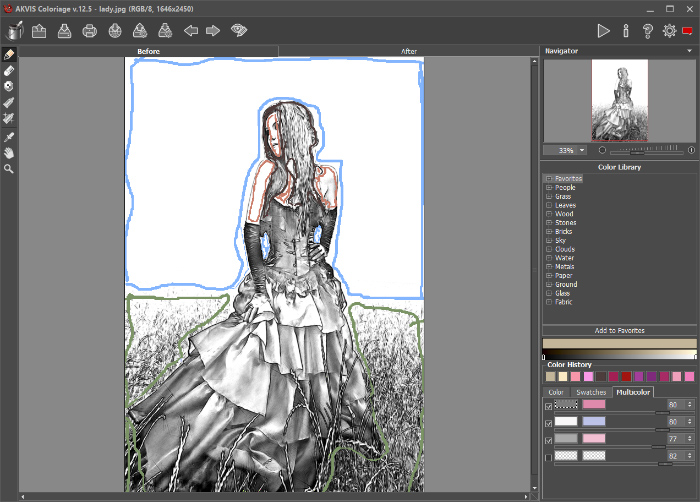
- Step 3. Process the image by pressing . The result will be shown in the After tab. Save (in the standalone version) or apply (in the plugin) the final result.
Coloriage AI v. 15.7 - Free 10-day Trial
