Graphic software for Windows Mac graphic software
Please enter your email to be kept posted on updates and discounts:
 
  
  Products     Download     Online Store     Tutorial     Support     Company
en  fr  de  es  pt  it  jp  ru    
 

Tutorial: AKVIS Coloriage

Paint your house


You can colorize this photo yourself using the half-finished materials that we give you. Download the archive containing the original image and the file with the strokes (*.strokes). Read the instruction here to see how AKVIS Coloriage works.

Earlier, in the example "Interior design", we showed how to use AKVIS Coloriage to change the color scheme of an interior design. Now we will deal with an exterior design. We will change the color of the house walls.
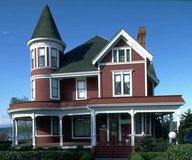
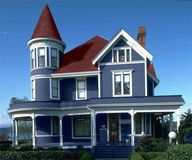
    Original image Colorized image

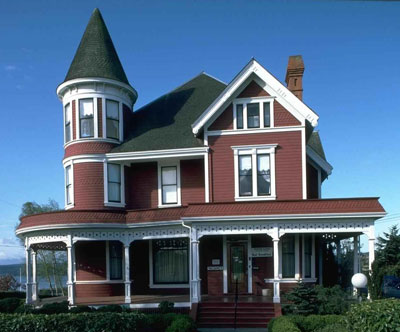
We have chosen the following photo as an example:

    the exterior design in red
  • Step 1. Open the photo in your photo editor and call the AKVIS Coloriage plug-in.
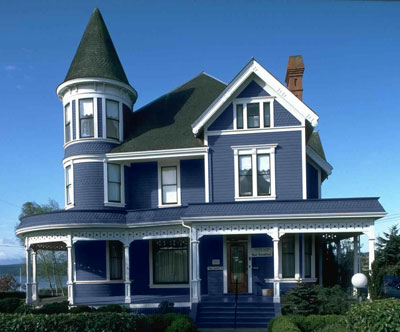
  • Step 2. Select a color for the walls, for example, blue.
  • Step 3. Activate the Pencil tool in the Toolbar and draw a contour inside every red element of the house front.
  • Step 4. Draw a closed contour around every red element with the Keep-Color Pencil and draw lines on all elements of the front that should not change their color.
    To adjust the brush size of the Pencil, Keep-Color Pencil and Eraser tools you can either use the fall-out scale that appears when you press their corresponding icons on the toolbar or use the hot keys [ and ] in the keyboard.
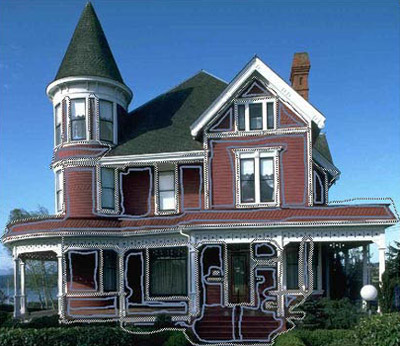
    Draw a contour with the blue pencil within the walls
  • Step 5. Start the colorization process by pressing the button Colorize.
    the color of the walls has changed
  • Step 6. Apply the colorization result by pressing the button Apply the colorization.
    Blue walls

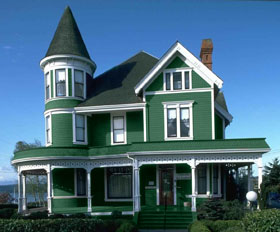
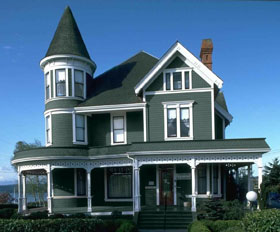
Below are some other versions of the walls colorization.

green walls grey walls

You can also change the color of the roof.
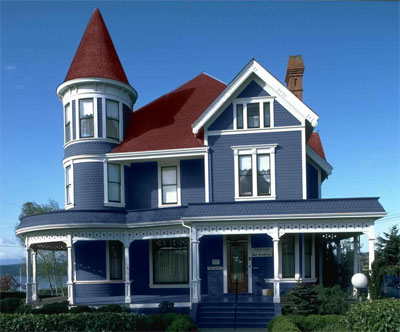
the color of the roof became red
 
How It Works How It Works
   — Workspace — Workspace
   — How To Use The Program — How To Use The Program
   — Colorization Tips — Colorization Tips
   — Load strokes from file (*.strokes) — Load strokes from file (*.strokes)
Examples Examples
   — An Old Postcard — An Old Postcard
   — Changing Color of the Car Body — Changing Color of the Car Body
   — Colorizing a Black and White Photo — Colorizing a Black and White Photo
   — Selective desaturation — Selective desaturation
   — A romantic photo — A romantic photo
   — Color correction — Color correction
   — Colorizing a portrait — Colorizing a portrait
   — A technique of reiterative colorization — A technique of reiterative colorization
   — A present for the Mother's Day — A present for the Mother's Day
   — Canadian Settlers — Canadian Settlers
   — Add color to the photo of a child — Add color to the photo of a child
   — Interior design — Interior design
   — Colorize a family portrait — Colorize a family portrait
   — Change the color of clothes — Change the color of clothes
   — Colorize a group photo — Colorize a group photo
   — Creating a colorful background — Creating a colorful background
   — Colorize your memories — Colorize your memories
   — Paint your house — Paint your house
   — Raise spirits — Raise spirits
   — Partial coloring of B&W photos — Partial coloring of B&W photos
   — Expressive cat eyes — Expressive cat eyes
   — A portrait of a geisha — A portrait of a geisha
   — Colorize a bas-relief — Colorize a bas-relief
   — Photo colouring tricks — Photo colouring tricks
   — An old postcard with a Geisha — An old postcard with a Geisha
   — Touching up a colorized photo — Touching up a colorized photo
   — An anime girl — An anime girl
   — Colorize a photo for a collage — Colorize a photo for a collage
   — A Flower Show — A Flower Show
   — A pencil sketch: self-portrait — A pencil sketch: self-portrait
   — Creating a Christmas Postcard — Creating a Christmas Postcard
   — Love Story — Love Story
   — Desktop Wallpaper with a Pet — Desktop Wallpaper with a Pet
   — Colourize a Photo in Paint Shop Pro — Colourize a Photo in Paint Shop Pro
   — How to get a nice sepia photo — How to get a nice sepia photo
   — A Castle in Scotland — A Castle in Scotland
   — How to achieve a natural colorization — How to achieve a natural colorization
   — Christmas Card: B&W to Color — Christmas Card: B&W to Color
   — Movie Star Ayshwarya Ray — Movie Star Ayshwarya Ray
   — Coloring old black and white drawing — Coloring old black and white drawing
   — Flower meadow — Flower meadow
   — Children’s Photo — Children’s Photo
   — Beautiful Nataly (three plugins) — Beautiful Nataly (three plugins)
   — A Gift For The Wife — A Gift For The Wife
   — Medieval Engraving — Medieval Engraving


   Privacy Policy | Site Map | Search | English  |Français  |Deutsch  |Español  |Português  |Italiano  |日本語  |Pусский  | © 2004-2009, AKVIS Software Inc. All rights reserved.