A Portrait of a Geisha
The author of the tutorial is Laura Mabee.
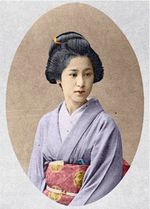
Laura decided to colorize a photo of a geisha taken at the beginning of the XX century. She used the Coloriage AI plug-in (in the Classic mode) in the AliveColors graphics editor to breathe new life into the portrait by adding color to it. It's possible to use the standalone version of Coloriage AI to achieve this result.
-
Step 1. Open a photo in your image editor.
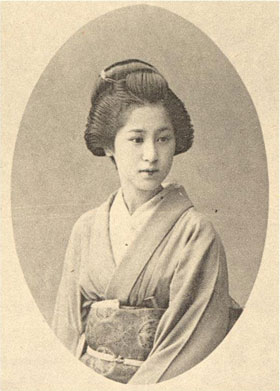
- Step 2. Call the plug-in AKVIS Coloriage AI. For this purpose select the menu item Effects -> AKVIS -> Coloriage AI in AliveColors.
-
Step 3. In the Classic mode, outline every object with the color you have chosen for it. You can select colors from the Color Library. To assign a color to small details, you should first scale the image using the buttons (+/-) or the slider in the Navigation window.
Use hot keys to adjust the brush size of the Pencil : to reduce the brush size press the key [, to increase the brush size press the key ] in the keyboard.
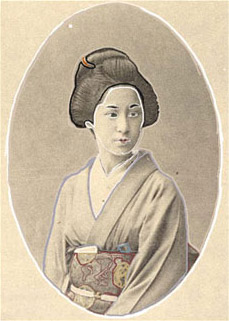
-
Step 4. Press the button
 and the portrait will be colorized:
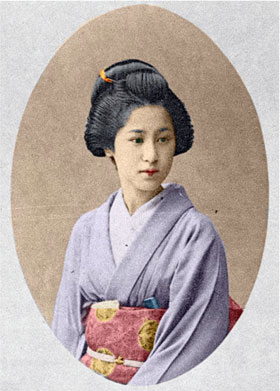
Coloriage AI v. 15.7 - Free 10-day Trial
