Color correction
This color correction tutorial has been created by S.I Serikov.
The girl on the photo has red hair and gray eyes, while in reality she is blond and blue-eyed.
We will correct it using the AKVIS Coloriage plug-in.
On the left is the original portrait; on the right is the corrected photo.
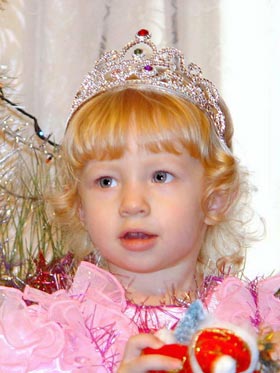
Original photo (with the distorted colors)
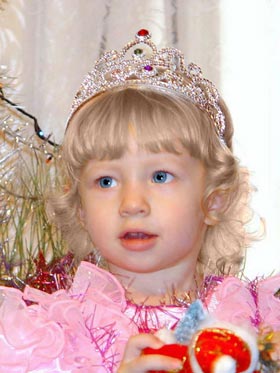
Corrected photo (with the colors like in reality)
- Step 1. Open the original portrait in your photo editing software.
- Step 2. Call the AKVIS Coloriage plug-in.
-
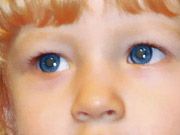
Step 3. Let’s draw an outline inside the eyes to get rid of the "red eye" effect. First outline the eyes with the Keep Color Pencil
 (arrow 1). Then use the Pencil tool
  to draw an outline within the eyes with the chosen color (arrow 2). To keep the black of the pupil we put points inside it with a gray color using the Pencil tool (arrow 3).
Note: We advise you to save the strokes in a file so that you could load them later and change the color of the eyes without spending time on drawing strokes. For this purpose press the button
to draw an outline within the eyes with the chosen color (arrow 2). To keep the black of the pupil we put points inside it with a gray color using the Pencil tool (arrow 3).
Note: We advise you to save the strokes in a file so that you could load them later and change the color of the eyes without spending time on drawing strokes. For this purpose press the button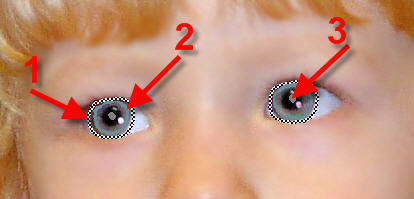
 .
.
-
Step 4. Start the colorization process by pressing the button
 and have a look at the result. If the color of the eyes does not satisfy you, you can go to the Before tab and choose a better color (use the Tube tool to change the color). You can select a bright color if you like; it depends on the result you want to get.
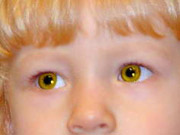
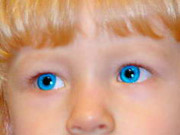
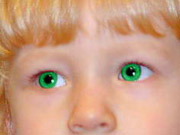
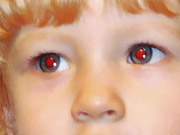
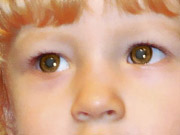
You can use AKVIS Coloriage to get rid of the "red eye" effect. On the left is an image with the red eye effect, in the middle and on the right are the corrected photos.
-
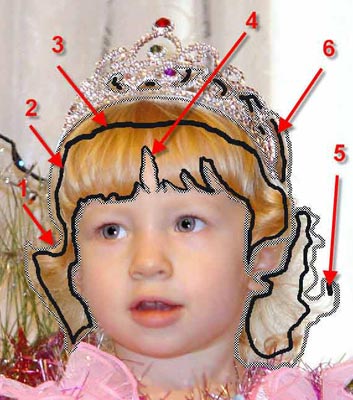
Step 5. Now we will correct the color of the hair. First, we outline the hair with the Keep Color Pencil (arrow 1). Then we use the Pencil tool to draw a closed outline with the chosen color within the hair (arrow 2). If you want to have a smooth color transition, you should draw the line far from the "keep-color" outline (arrow 3); if you want a sharper color transition you should draw the line close to the "keep-color" outline (arrow 4). Fill in the empty areas of the "keep-color" outline with color strokes (arrow 5). Outline the crown on the head of the girl with the Keep Color Penciland draw lines on the hair with the Pencil tool (arrow 6).
-
Step 6. Start the colorization process by pressing the button .
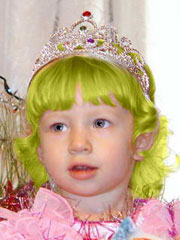
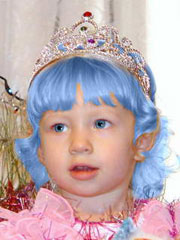
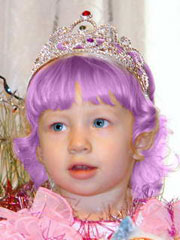
You can change the color of the hair if you want. You can select a color for hair from the special palette Color Library - People - Hair. Those who have seen a fairy say that fairies have green, blue or violet hair - see the examples below.
-
Step 7. Apply the result that you liked to your photo by pressing the button
 .
.
Coloriage AI v. 15.7 - Free 10-day Trial
