Sketch and Comics: Effect Combination
The author of the tutorial is Chuck St. Laurent. This tutorial is created using AKVIS ArtWork, AKVIS Sketch and Photoshop Elements. Any photo editor could be used in place of Photoshop Elements.
Note: This example was made in the old version of ArtWork (v.2.0). Since then the algorithm of the Comics effect has been changed, and now the result will differ.
Using AKVIS ArtWork with AKVIS Sketch we will create a sketch that retains detail in the faces. Create one copy of the picture using AKVIS ArtWork and another using AKVIS Sketch and then merge the two together using Photoshop Elements.
 |
 |
-
Step 1. Open the photo with AKVIS ArtWork – Icon in upper left corner
 . The original photo was taken at a perfume manufacturer in France.
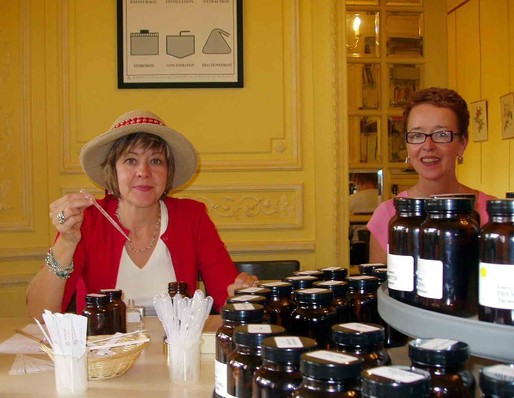
Original photo -
Step 2. Select the painting technique Comics in the drop-down menu Style in the Settings Panel and adjust the settings on the Painting tab. For this photo we want to keep a good deal of the realism and detail in the faces. We will use a high blur to smooth the colors and low thickness to reduce the comic effect and reduce the sensitivity to smooth the transitions.
Settings for this photo:
Simplicity - 50;
Radius of Simplicity - 4;
Blur - 15;
Posterizing - 100;
Sensitivity - 20;
Smoothness - 100;
Thickness - 5.Press the button
 to convert the original photo into a painting with this settings.
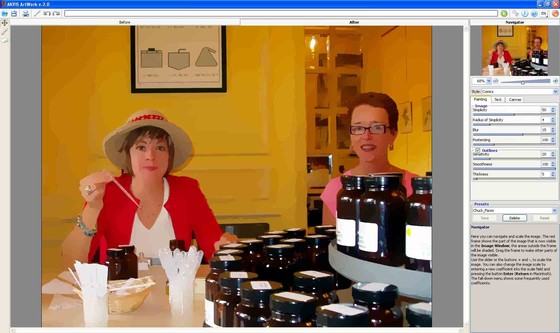
The AKVIS ArtWork window showing the settings and the result -
Step 3. Save the photo as perfume-comics.jpg using the button
 in the upper left corner and close the program AKVIS ArtWork.
-
Step 4. Open the original file with AKVIS Sketch. We will use Sketch to create a detail pencil sketch. We are not looking for a water color effect. We are more interested in how the background looks than the faces.
Use the following settings:
Watercolor = 10;
Charcoal = 5;
Coloration = 75 (choose 75 to give a soft wash look to the painting);
Check Color Pencil;
Angle = 45;
Size = 8;
Midtones Intensity = 5;
Midtones Hatching = 100;
Sharpen = 20.Press the button
in the upper right corner to process the sketch.
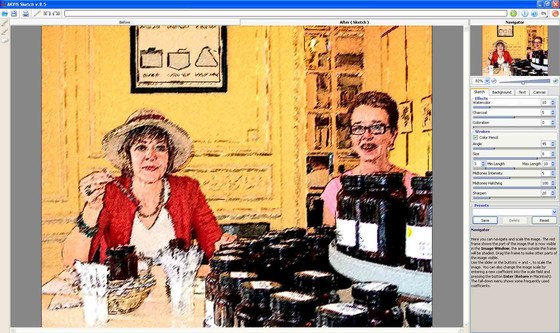
Original photo after SketchAs an alternative try using the photo processed with AKVIS ArtWork (Step 3) using the same settings. You will get some interesting differences in the background. Again don’t be concerned with the faces focus on creating a good sketch of the other images.
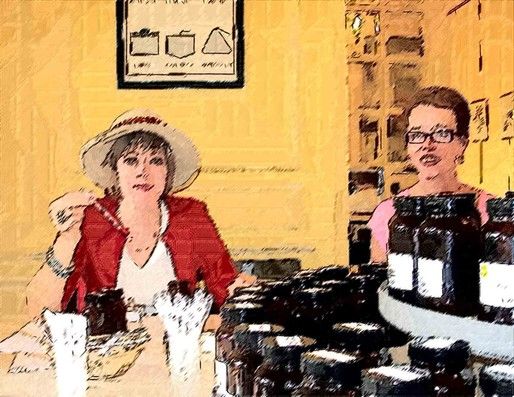
Photo after ArtWork and Sketch -
Step 5. Save the image as perfume-pencil.jpg using the button and close the program AKVIS Sketch.
-
Step 6. Open the two files perfume-pencil.jpg processed with Sketch and perfume-comics.jpg processed with ArtWork in Photoshop Elements. We are going to copy the Sketch on top of the Comic:
- Select the first file by clicking on the thumbnail or choose Window -> perfume-pencil.jpg.
- Choose Select -> All.
- Choose Edit -> Copy.
- Next select the second file by clicking on the thumbnail Window -> perfume-comics.jpg.
- Choose Edit -> Paste.
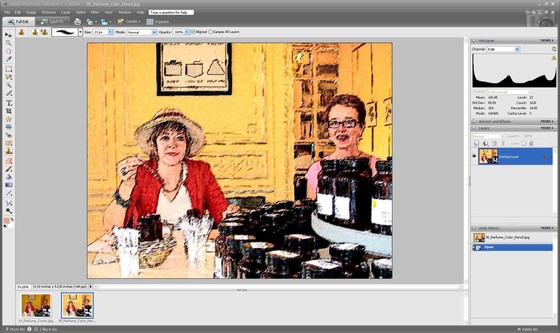
Image opened with Photoshop ElementsThis pastes the sketch photo on top of the comic photo. You should see two layers to the right of the Photoshop screen: perfume-pencil (Layer 1) and perfume-comics (Background). If you don’t see the layers window you can activate it by choosing Window -> Layer.
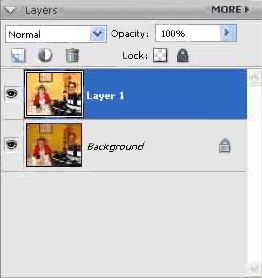
"Layers" Palette -
Step 7. Next select the Eraser tool. Choose a small size around 20 px. Press the D key to set the foreground and background colors to the default Black and White. Gently work around the edges of the faces to reveal the underlying photo. It helps to turn off the visibility of the background layer by clicking on the eye toggle next to the background layer.
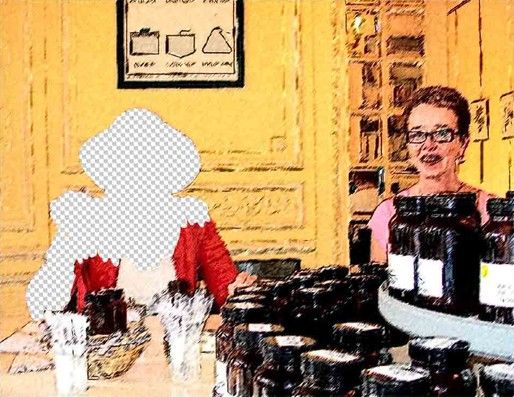
Reveal the underlying layer - Step 8. Continue uncovering the people toggling the background off and on until they are completely revealed. Before you save the file flatten the layer: Layer -> Flatten Image.
-
Step 9. Choose File -> Save As and give the file a new name so that you don’t lose either of your originals.
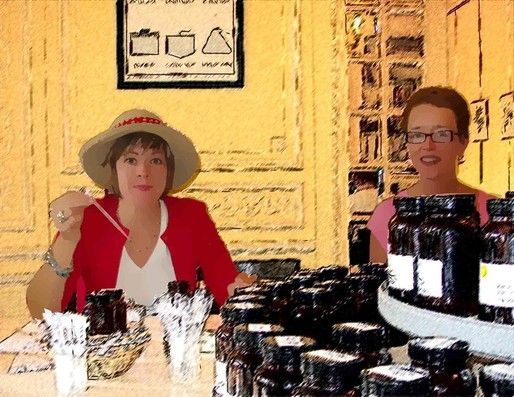
Result
ArtWork v. 15.1 - Free 10-day Trial
