La manzana brillante: el toque de un artista
Cuando se crea un dibujo de alta calidad, es necesario no sólo prestar atención a las líneas y detalles, sino también como se representan las texturas. La herramienta Direccion de los trazos junto con otras herramientas de AKVIS Sketch puede otorgarle a la estructura del objeto la apariencia de haber sido dibujado por un verdadero artista.
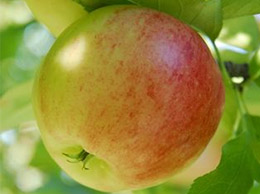
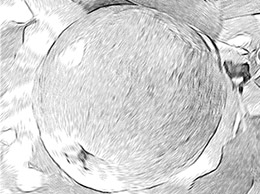
- Paso 1. Abra la imagen en el editor gráfico con el comando del menú Archivo -> Abrir.
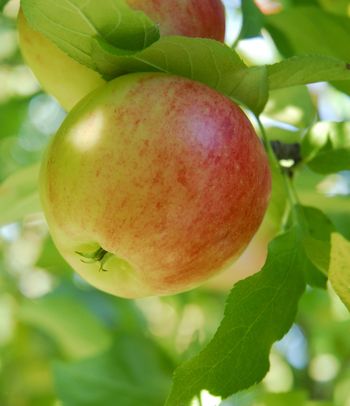
Fotografía original - Paso 2. Abra el plugin Filtro -> AKVIS -> Sketch. En la ventana de vista previa, podrá ver como una parte de la fotografía sería procesada con el preset AKVIS Default. Para procesar toda la imagen presione el botón
 .
.
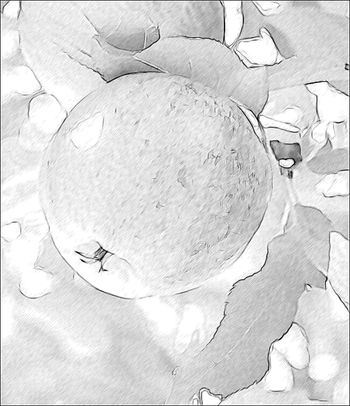
Resultado utilizando la configuración por defecto - Paso 3. Ajuste la configuración para que las pinceladas sean más claras y expresivas:
Carboncillo = 2;
Longitud mínimo/Longitud máximo = 5/13;
Intensidad de tonos medios = 6.Procese la imagen nuevamente:
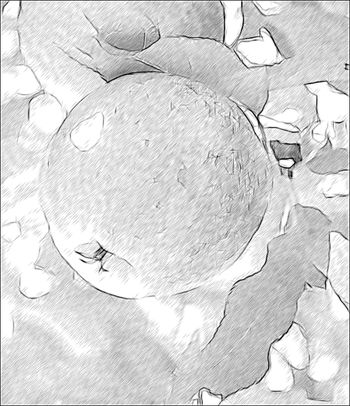
Resultado con la nueva configuración de pinceladas - Paso 4. Las pinceladas uniformes que cruzan la imagen no se parecen muy reales. Para hacer que contorneen el objeto, active la herramienta
 y dibuje algunas líneas para que sirvan de guía. Cambie el parámetro Zona del efecto a 76, para que una mayor cantidad de pinceladas sean guiadas por las líneas.
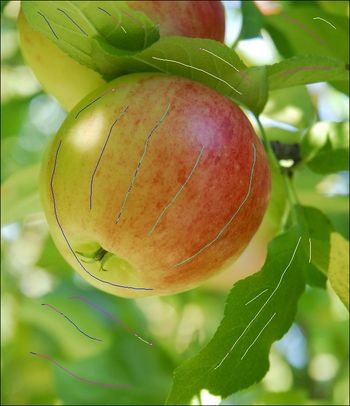
Líneas guíasPresione el botón
. El resultado diferirá del obtenido en el Paso 3:
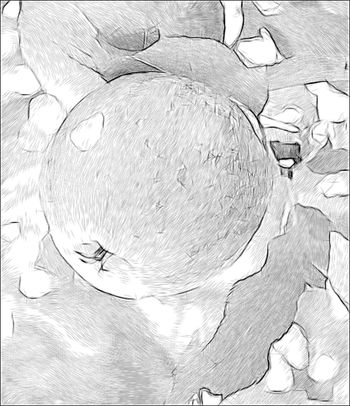
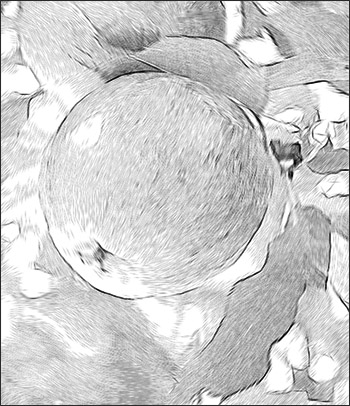
Cambio de la dirección de las pinceladas - Paso 5. Note que se formaron pequeños defectos sobre la superficie regular de la manzana donde habían manchas.
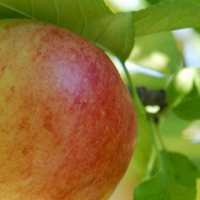
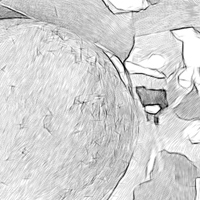
Es posible que estos defectos sean menos notorios si se utilizan las opciones del programa.
Método 1: desactive el cuadro de diálogo Preservar bordes. Las pinceladas se reorientarán hacia una dirección general, pero ahora los bordes de la imagen se han debilitado.
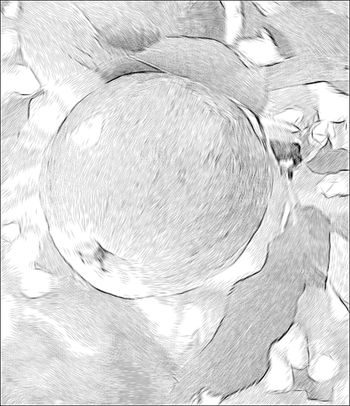
Luego de desactivar “Preservar bordes”Método 2: utilice las herramientas de desenfoque. Por lo general, los utilizan para crear un efecto, pero aquí se puede utilizarlos para corregir un defecto.
Vaya a la pestaña Fondo y elija del menú desplegable Modo: Dibujo y desenfoque, de Secuencia: Dibujo sobre desenfoque y de Método de desenfoque: Gaussiano.
Utilice la herramienta Zona de efecto
 para indicar que el área no será desenfocada. Utilice la herramienta Zona de desenfoque
  para marcar el área con los defectos - será desenfocada antes de que la fotografía sea convertida en un boceto.
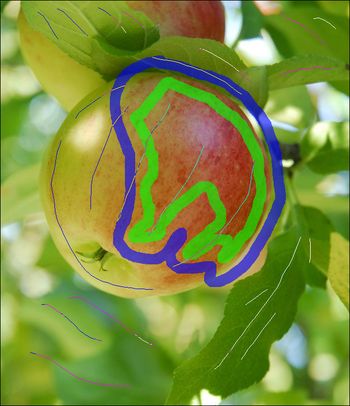
Área que será desenfocadaComience el procesamiento presionando el botón
.
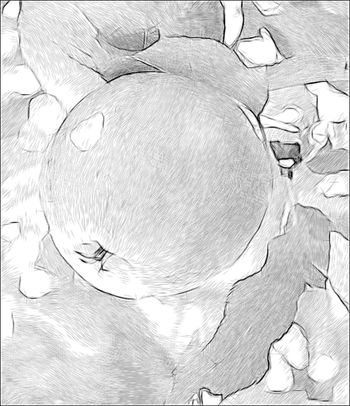
Desenfoque utilizado para remover defectos - Paso 6. Presione el botón
 para aplicar los cambios a la imagen. La ventana del plugin se cerrará y la imagen procesada aparecerá en el editor de gráficos.
Finalmente, la imagen necesitará más brillo. Haga una copia de la imagen eligiendo Capa -> Duplicar capa. Aplique el modo de fusión Subexposición lineal a la capa superior en la paleta Capas, establezca la Opacidad a 30% y elija la opción Capa -> Acoplar imagen.
Resultado
Sketch v. 28.1 - Prueba gratuita de 10 días
