Una vecchia fabbrica di birra: creare un'immagine HDR
L'autore di questo esempio è Holger Gerlach.
"Una volta, mentre navigavo in Internet, mi sono imbattuto in alcune immagini che mi hanno impressionato: colori vivaci, magnifici dettagli... ho deciso di tentare anch’io di creare immagini così. Più tardi ho compreso che la tecnologia utilizzata era chiamata Tecnologia HDRI. Da allora ho provato diversi programmi che supportavano la tecnica HDRI ma per me il migliore, perché semplice, funzionale e completo, è AKVIS Enhancer".
Questo tutorial è stato creato utilizzando la versione standalone di AKVIS Enhancer (ricordiamo che la modalità HDR è supportata solo dalla versione standalone).
|
|
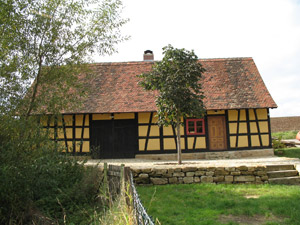
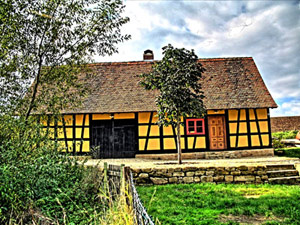
| Una delle immagini originali | Risultato: immagine HDR creata in AKVIS Enhancer |
Passaggio 1. Avviare AKVIS Enhancer standalone.
- Passaggio 2. Aprire una serie di scatti premendo su
 (per modalità HDR) e selezionare i file nella finestra di dialogo.
L'autore ha utilizzato 5 scatti.
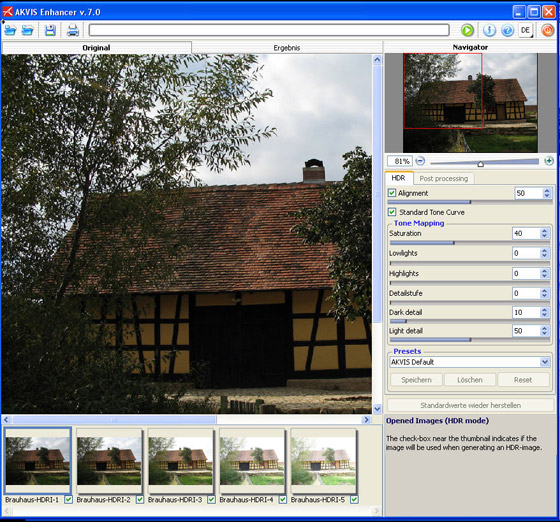
- Passaggio 3. Innanzitutto lavorare con le opzioni della scheda Parametri.
L’immagine HDR che appare nella finestra Dopo è generata con i parametri predefiniti.
Si può notare la differenza tra le immagini; ora è possibile osservare tutti i dettagli che fino ad un istante fa erano scuri.
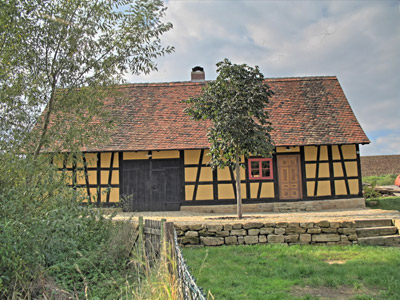
Proseguire modificando i valori dei parametri per migliorare l'immagine.
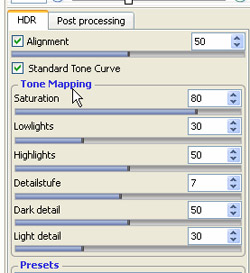
Confrontare l'immagine originale ed il risultato finale:
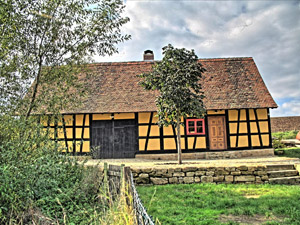
Una delle immagini originali
Risultato dopo l’applicazione di AKVIS Enhancer
(Mappatura dei toni) - Passaggio 4. Passare ora alla scheda Ulteriore elaborazione ed impostare i parametri come mostrato di seguito:
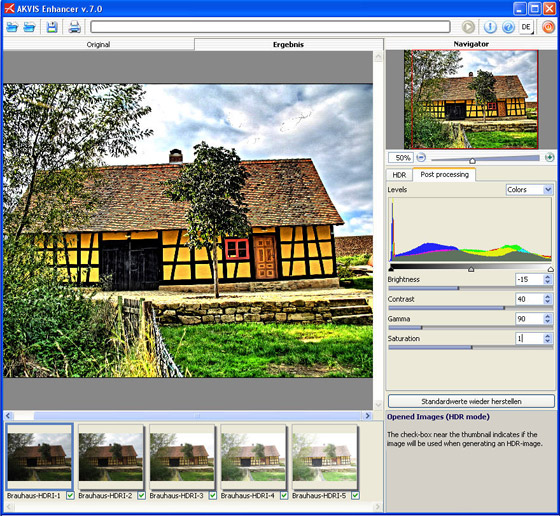
Ecco il risultato:
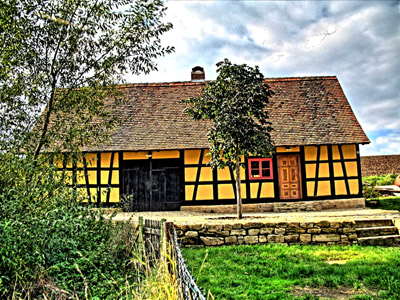
Come si può notare, nell’ultimo passaggio, sono stati modificati i parametri saturazione e contrasto, personalmente il risultato mi piace, ma i gusti variano...quindi, regolare le impostazioni a piacimento.
- Passaggio 5. Salvare il risultato premendo su
 e chiudere AKVIS Enhancer.
Una delle immagini originali Risultato: immagine HDR creata in AKVIS Enhancer
(+Ulteriore elaborazione)
Enhancer v. 17.8 - 10-giorni di prova gratuita
