Il castello di Neuschwanstein
Il Castello di Neuschwanstein è un castello bavarese del XIX secolo. Situato in Germania, a sud-ovest della Baviera nei pressi di Hohenschwangau e Füssen, fu costruito da Ludovico II, re di Baviera, ed è considerato un monumento dedicato al compositore Richard Wagner, amico ed idolo del re.
La concezione del castello fu descritta da Ludovico II in una lettera a Richard Wagner, in data 13 maggio 1868:
"È mia intenzione far ricostruire l'antica rovina del castello di Hohenschwangau, nei pressi della gola di Pöllat, nello stile autentico delle antiche fortezze dei cavalieri tedeschi… il luogo è uno dei più belli che si possano trovare, sacro e inavvicinabile, un tempio degno di Voi, divino amico, che faceste fiorire l'unica salvezza e la vera benedizione del mondo."
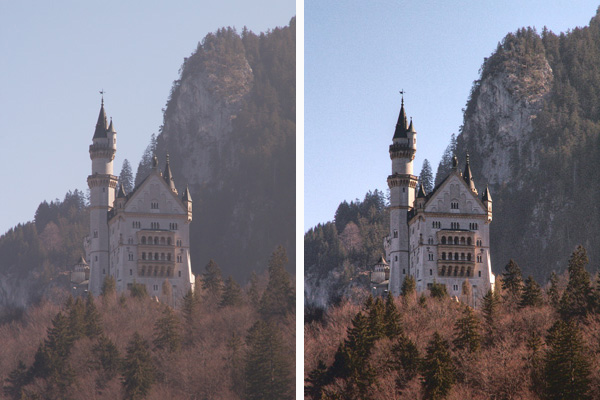
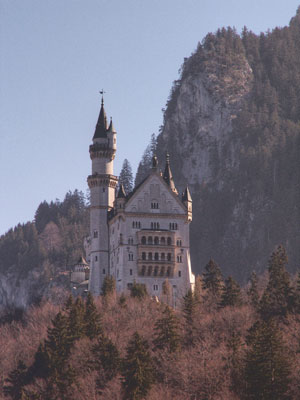
Purtroppo le nostre foto non sempre sono di alta qualità, ma si possono perfezionare. Ad esempio, abbiamo come souvenir un’immagine velata, utilizzando AKVIS Enhancer ed alcuni strumenti di Photoshop cercheremo di renderla migliore.
 |
|
| Fotografia originale | Risultato finale |
-
Passaggio 1. Aprire l’immagine in Adobe Photoshop.
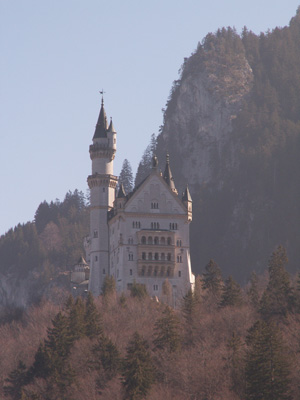
-
Passaggio 2. Lanciare il plugin AKVIS Enhancer dal menu principale Filtro -> AKVIS -> Enhancer.
Selezionare la modalità Migliorare i dettagli. Qui possiamo vedere la finestra del plugin con le impostazioni predefinite ed osservare le migliorie dell’immagine.
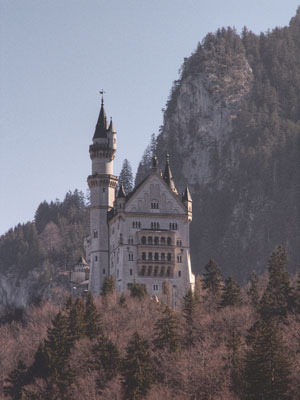
Applicare il risultato e chiudere il plugin.
-
Passaggio 3. Abbiamo rimosso la velatura, tuttavia l’immagine è diventata incolore, dobbiamo perciò renderla più luminosa. Nell’editor di foto, dal menu principale, scegliere Immagine -> Regolazioni -> Tonalità/Saturazione ed impostare il valore della saturazione a 25.
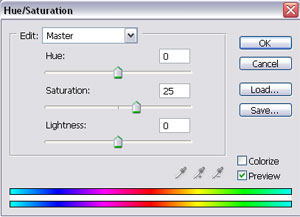
Premere il pulsante OK.
-
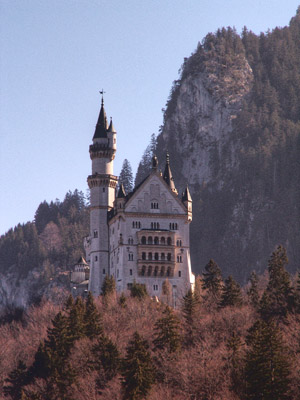
Passaggio 4. Dal menu aprire ora Immagine -> Regolazioni-> Luminosità/Contrasto ed aumentare il valore del parametro Contrasto a 20.
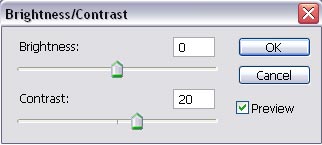
Premere il pulsante OK.
-
Passaggio 5. Come si può osservare ora l’immagine ha una tonalità rosa e bisogna rimuovere questa sfumatura. Aprire nuovamente Immagine -> Regolazioni -> Bilanciamento Colore ed impostare i valori dei parametri, come illustrato di seguito.
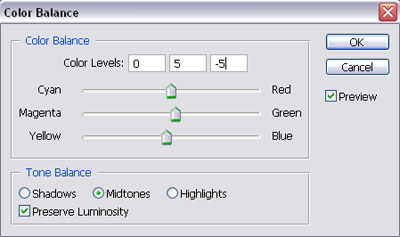
Premere il pulsante OK.
Ecco le due immagini a confronto:
|
|
|
| Immagine originale offuscata | Dopo l'applicazione di AKVIS Enhancer |
Un ottimo risultato…non vi pare?
Enhancer v. 17.7 - 10-giorni di prova gratuita
