Castelo de Neuschwanstein
Castelo de Neuschwanstein é um castelo da Baviera do século XIX. Localizado na Alemanhã, perto de Hohenschwangau e Füssen, no sudoeste da Baviera, o castelo foi construído por Ludwig II, rei da Baviera, como um retiro e como uma homenagem para Richard Wagner, o muso inspirador do rei.
A concepção do castelo foi descrita por Ludwig II numa carta a Richard Wagner, datada de 13 de maio de 1868: "É minha intenção reconstruir o antigo castelo em ruínas em Hohenschwangau, próximo do desfiladeiro de Pollat, num castelo com autêntico estilo dos antigos cavaleiros alemães... o local é o mais bonito que se poderia encontrar, sagrado e inatingível, um templo digno para o divino amigo que trouxe a salvação e a verdadeira bênção ao mundo."
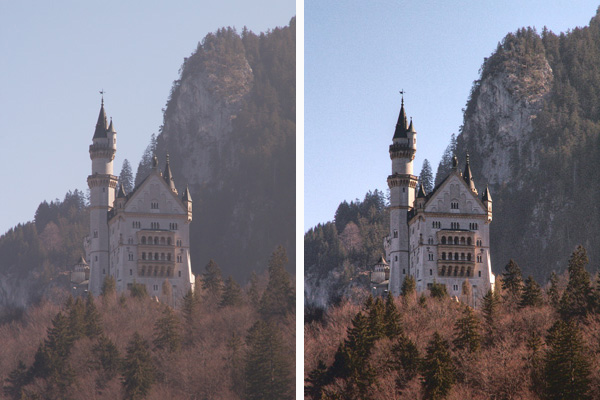
Infelizmente, as nossas fotos nem sempre são de alta qualidade, mas podemos melhora-las. Por exemplo, temos uma imagem borrada como memórias humanas. Usando AKVIS Enhancer e com a ferramenta padrão do Photoshop, vamos tentar melhorar as nossas fotos escuras em fotos melhores e mais claras.
 |
|
| Imagem original | Depois da correção |
Note, que apesar de nós estarmos usando o Adobe Photoshop e a versão do plugin do AKVIS Enhancer, você pode usar a versão autônoma do AKVIS Enhancer e usar seus recursos, incluindo a aba de Pós-tratamento (em vez das ferramentas do Photoshop).
-
Passo 1. Abrir a imagem no Adobe Photoshop.
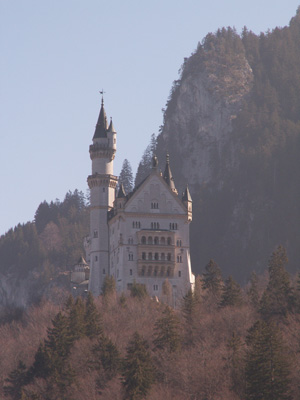
-
Passo 2. Chamar AKVIS Enhancer a partir do menu principal do seu editor de fotos: Filtro -> AKVIS -> Enhancer.
Selecionar o modo Realçar detalhes. Aqui você pode verá a janela do plugin com as suas configurações padrão.
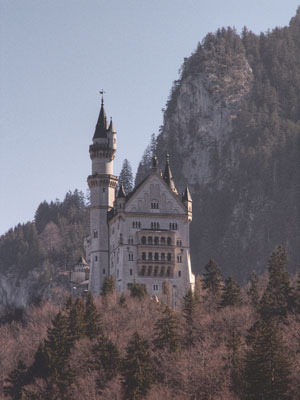
Pressionar o botão
 para aplicar o resultado e fechar a janela do plugin.
-
Passo 3. Nós removemos a fumaça, mas a imagem tornou-se sem muita cor. Nós podemos tornar nossa imagem mais brilhante. Escolher no menu principal do seu editor de foto, Imagem -> Ajustes -> Tonalidade/Saturação e definir o valor da Saturação para 25.
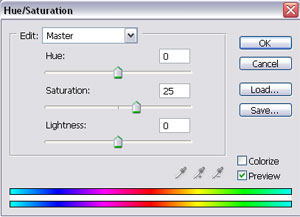
Pressionar o botão OK.
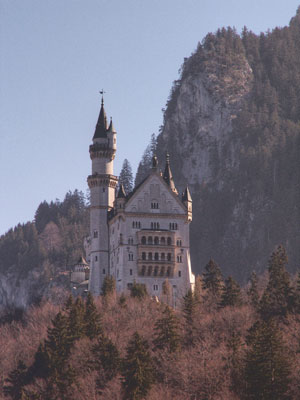
-
Passo 4. Chamar Imagem -> Ajustes-> Brilho/Contraste no menu e aumentar o valor do paramêtro do Contraste para 20.
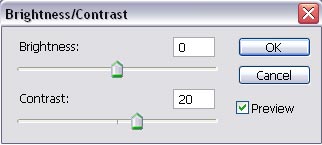
Pressionar o botão ОК.
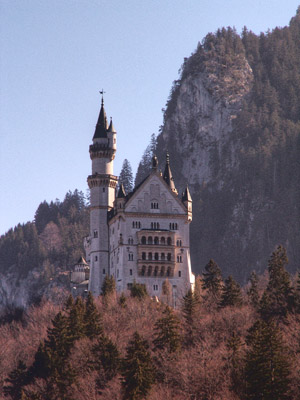
-
Passo 5. Como você pode ver, nossa foto agora tem uma tonalidade de rosa. Vamos remover este matiz agora. Chamar Imagem -> Ajustes -> Equilíbrio das cores e defina os valores dos parâmetros, conforme mostrado abaixo.
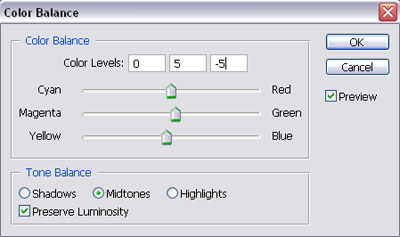
Pressionar o botão OK.
Vamos comparar as fotos:
|
|
|
| Imagem original escura | Depois de AKVIS Enhancer |
Você gostou do resultado?
Você pode tentar outros modos do AKVIS Enhancer para melhorar esta foto: por exemplo, primeiro a Correção dos tons, depois a Pré-impressão. O resultado será impressionante!
Enhancer v. 17.8 - Teste gratuito 10 dias
