Neuschwanstein Castle
Neuschwanstein Castle is a 19th century Bavarian castle. Located in Germany, near Hohenschwangau and Füssen in southwest Bavaria, the castle was built by Ludwig II, King of Bavaria, as a retreat and as an homage to Richard Wagner, the King's inspiring muse.
The conception of the castle was outlined by Ludwig II in a letter to Richard Wagner, dated May 13, 1868; "It is my intention to rebuild the old castle ruin at Hohenschwangau near the Pollat Gorge in the authentic style of the old German knights' castles...the location is the most beautiful one could find, holy and unapproachable, a worthy temple for the divine friend who has brought salvation and true blessing to the world."
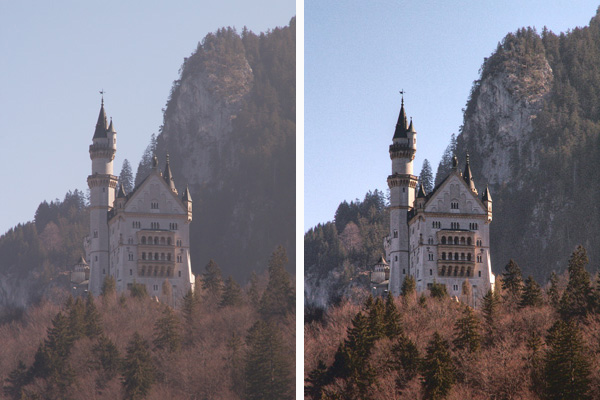
Unfortunately our photos are not always of a high quality, but we can impove them. For example we have a blurred image like human memories. Using AKVIS Enhancer and standard Photoshop tools we'll try to make our dark photos clearer and better.
 |
|
| Original Image | After Correction |
Note, that though we use Adobe Photoshop and the plugin version of AKVIS Enhancer, you can take the standalone program AKVIS Enhancer and use its features, including the Post Processing tab (instead of the Photoshop tools).
-
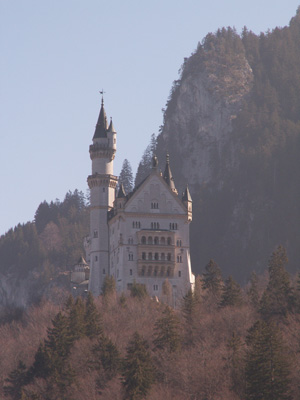
Step 1. Open an image in Adobe Photoshop.
-
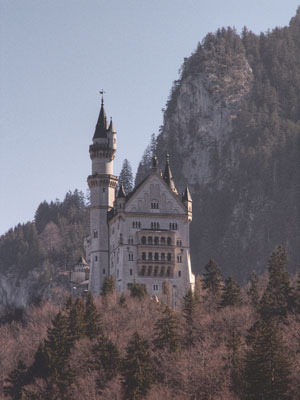
Step 2. Call AKVIS Enhancer from the main menu of your photo editor: Filter -> AKVIS -> Enhancer.
Select Improve Detail mode. Here you can see the plugin window with the default settings.
Press the button
 to apply the result and close the plugin window.
-
Step 3. We have removed the smoke, but the image became colorless. We can make our image brighter. Choose from the main menu of your photo editor Image -> Adjustments -> Hue/Saturation and set the value of the Saturation to 25.
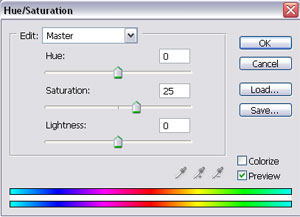
Press the button OK.
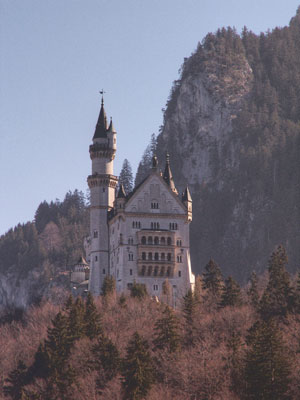
-
Step 4. Call Image -> Adjustments -> Brightness/Contrast from the menu and increase the value of the Contrast parameter to 20.
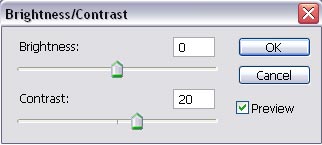
Press the button ОК.
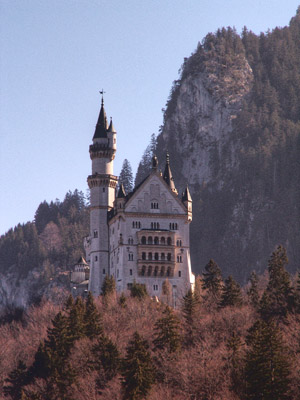
-
Step 5. As you can see our image now has a pink tint. Let’s remove this tint. Call Image -> Adjustments -> Color Balance and set the values of the parameters as shown below.
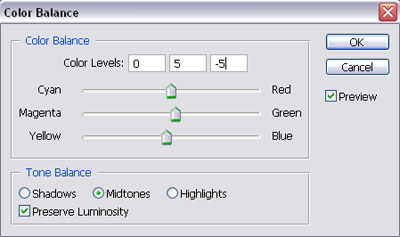
Press the button OK.
Let’s compare these photos:
|
|
|
| Original Dark Image | After AKVIS Enhancer |
Do you like the result?
You can try other modes of AKVIS Enhancer to improve this photo: for example, first Tone Correction, then Prepress. The result will be impressive!
Enhancer v. 17.8 - 10日間の評価期間
