Graphic software for Windows Mac graphic software  
Ingrese su email para suscribirse a la lista de AKVIS.
 
  
  Productos     Descargar     Tienda Online     Tutorial     Apoyo técnico     Compañia
en  fr  de  es  pt  it  jp  ru    
 

Tutorial: AKVIS Enhancer

An Old Brewery in a New Light


Esta información está disponible solamente en inglés. La version española aparecerá pronto.

The author of this example is Holger Gerlach.

"Once, while surfing the Internet, I ran across some pictures that impressed me: bright colors, finest details... I decided to try creating such images by myself. Later I learnt that the technology used was called HDRI technology. Since then I have tried different programs supporting HDRI technology but the best for me is AKVIS Enhancer".

This tutorial has been created in the stand-alone version of AKVIS Enhancer.

  • Step 1. Run AKVIS Enhancer standalone.

  • Step 2. Open a series of shots (use the button ).
    a series of shots

    Select the required files in the dialog box.

    The author used 5 shots.
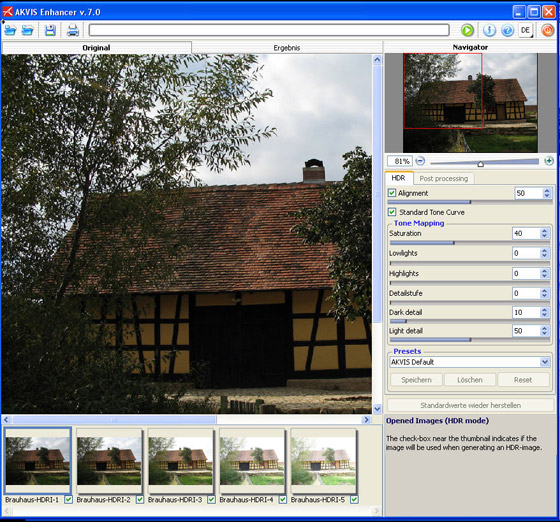
    AKVIS Enhancer standalone window
  • Step 3. First we work with the HDR tab.
    HDR tab

    Press the button Run to get a HDR image generated with the default parameters.

    Start the process

    The result will be shown in the After tab.

    You can see the difference between the images. Now you see the details that were dark.
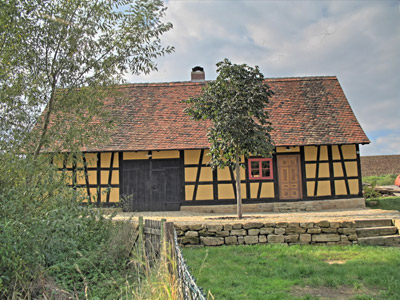
    an HDR-image generated by default parameters

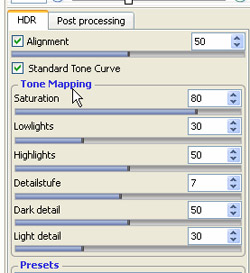
    Let's improve the image. Change the values of the parameters on the HDR tab.

    parameters of the HDR tab

    Press the button again Run.

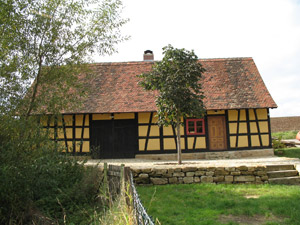
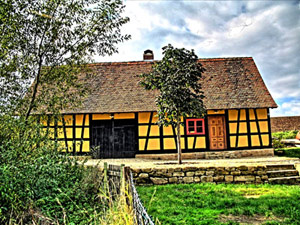
    Compare the original image and the final result:
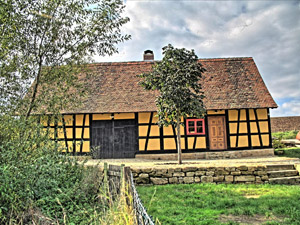
    One of the original images Result after using AKVIS Enhancer
    One of the original images Result after using AKVIS Enhancer

  • Step 4. Now switch to the Post Processing tab and set the parameters as shown below.
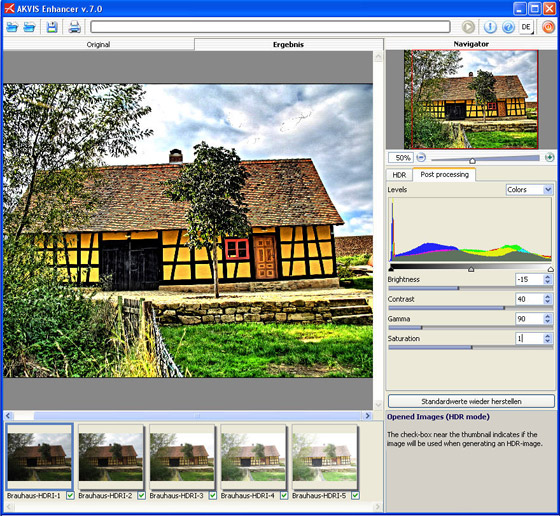
    Parameters of the Post Processing tab

      Note: If you work in the Post Processing tab you don't need to press the button Run every time you change the settings. In the Post Processing tab the image is processed automatically, once you change the parameters.

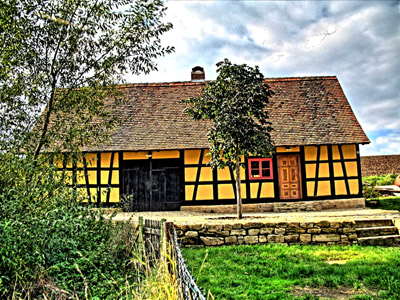
    Here is the result:

    The resulted HDR image

    As you could notice I mostly played with the Saturation and Contrast parameters in the last step. Personally, I like the result. But tastes differ.. So adjust the settings as you like.

  • Step 5. Save the result by pressing the button Save as and close AKVIS Enhancer (with the button Close).
 
AKVIS Enhancer Plug-In AKVIS Enhancer Plug-In
   — Área de trabajo — Área de trabajo
   — Enhancer modo — Enhancer modo
   — Focus modo — Focus modo
   — Batch Processing — Batch Processing
AKVIS Enhancer - HDR program AKVIS Enhancer - HDR program
   — Área de trabajo — Área de trabajo
   — Modo Enhancer — Modo Enhancer
   — Modo Focus — Modo Focus
   — HDR mode — HDR mode
   — High dynamic range image — High dynamic range image
Ejemplos Ejemplos
   — En la calle — En la calle
   — Foto de un niño — Foto de un niño
   — Camión — Camión
   — Ciudad antigua — Ciudad antigua
   — Mejorar la nitidez — Mejorar la nitidez
   — Foto oscura de una iglesia — Foto oscura de una iglesia
   — Pista de tenis — Pista de tenis
   — Tiro con el arco — Tiro con el arco
   — Capilla ortodoxa — Capilla ortodoxa
   — Naranjo — Naranjo
   — Foto a contraluz — Foto a contraluz
   — Ilustración técnica — Ilustración técnica
   — Ciudad en crepúsculo — Ciudad en crepúsculo
   — Foto subexpuesta — Foto subexpuesta
   — Un niño con el sonajero — Un niño con el sonajero
   — Niños africanos — Niños africanos
   — Un gato de Siam — Un gato de Siam
   — Quitar el smog — Quitar el smog
   — El poeta y las palomas — El poeta y las palomas
   — Un gato negro en una habitación oscura — Un gato negro en una habitación oscura
   — Mercado navideño — Mercado navideño


   Política de privacidad | Mapa Web | Buscar | English  | Français  | Deutsch  | Español  | Português  | Italiano  | 日本語  | Pусский  | © 2004-2008, AKVIS Software Inc. Todos los derechos reservados.