Graphic software for Windows Mac graphic software
Entrez votre e-mail pour souscrire à notre liste de diffusion.
 
  
  Produits     Télécharger     Magasin en ligne     Tutoriel     Support     Compagnie
en  fr  de  es  pt  it  jp  ru    
 

Tutoriel: AKVIS Enhancer

An Old Brewery in a New Light


Désolé, à présent cette information n'est disponible qu'en anglais. La version française sera bientôt affichée.

The author of this example is Holger Gerlach.

"Once, while surfing the Internet, I ran across some pictures that impressed me: bright colors, very fine details... I decided to try creating such images by myself. Later I learned that the technology used was called HDRI technology. Since then I have tried different programs supporting HDRI technology but the best for me is AKVIS Enhancer".

This tutorial has been created in the standalone version of AKVIS Enhancer.
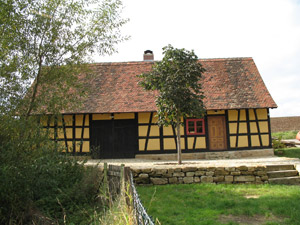
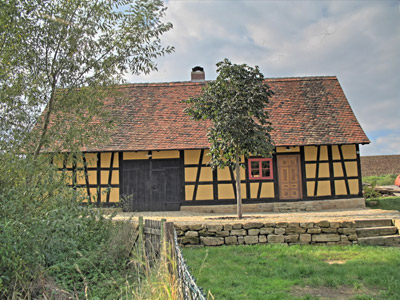
One of the original images Result: HDR-image made in  AKVIS Enhancer
One of the original images Result: HDR-image made in AKVIS Enhancer

  • Step 1. Run AKVIS Enhancer standalone.

  • Step 2. Open a series of shots (use the button ).

    Select the required files in the dialog box. The author used 5 shots.
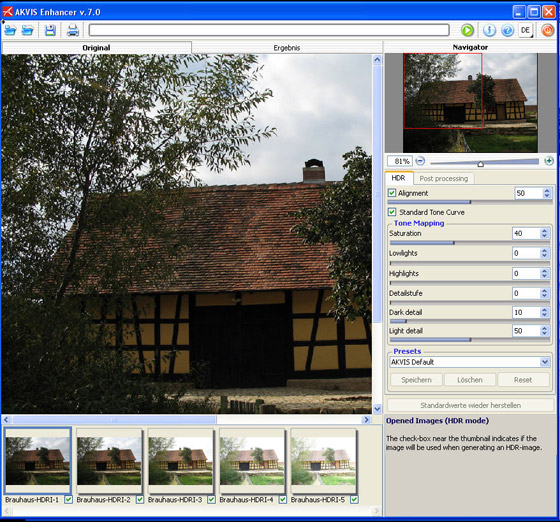
    AKVIS Enhancer standalone window
  • Step 3. First we work with the Options tab for HDR mode.

    We get a HDR image generated with the default parameters.

    The result will be shown in the After tab.

    You can see the difference between the images. Now you see the details that were dark.
    an HDR-image generated by default parameters

    Let's improve the image. Change the values of the parameters.
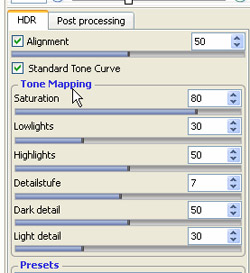
    parameters of the HDR tab

    Compare the original image and the final result:
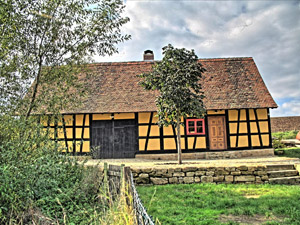
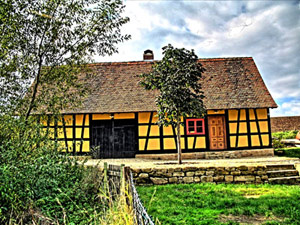
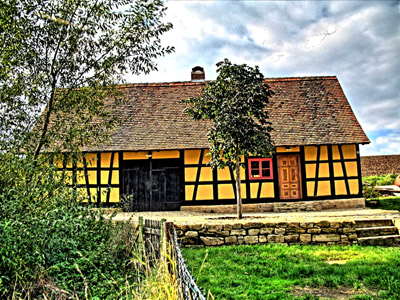
    One of the original images Result after using AKVIS Enhancer
    One of the original images Result after using AKVIS Enhancer (Tone Mapping)

  • Step 4. Now switch to the Post Processing tab and set the parameters as shown below.
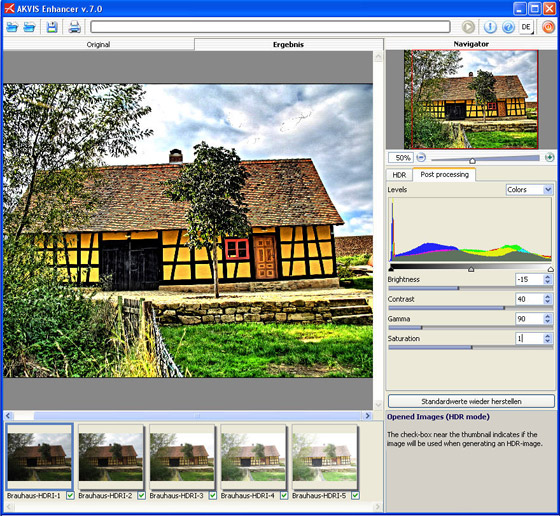
    Parameters of the Post Processing tab

    Here is the result:

    The resulted HDR image

    As you could notice I mostly played with the Saturation and Contrast parameters in the last step. Personally, I like the result. But tastes differ.. So adjust the settings as you like.

  • Step 5. Save the result by pressing the button Save as and close AKVIS Enhancer.
    One of the original images Result: HDR-image made in  AKVIS Enhancer
    One of the original images Result after using AKVIS Enhancer (+Post Processing)
 
Comment fonctionne-t-il? Comment fonctionne-t-il?
AKVIS Enhancer Plugin AKVIS Enhancer Plugin
   — Zone de travail — Zone de travail
   — Mode Enhancer — Mode Enhancer
   — Mode Focus — Mode Focus
   — Mode Smart Correction — Mode Smart Correction
   — Traitement par lots (Batch) — Traitement par lots (Batch)
AKVIS Enhancer Standalone  (+HDR) AKVIS Enhancer Standalone (+HDR)
   — Zone de travail — Zone de travail
   — Mode Enhancer — Mode Enhancer
   — Mode Focus — Mode Focus
   — Mode Smart Correction — Mode Smart Correction
   — HDR mode — HDR mode
   — Image à grande gamme dynamique(HDR) — Image à grande gamme dynamique(HDR)
   — Traitement postérieur — Traitement postérieur
Exemples Exemples
   — Dans la rue — Dans la rue
   — Enfant dans le jardin — Enfant dans le jardin
   — Camion — Camion
   — Ville ancienne — Ville ancienne
   — À la campagne (HDR) — À la campagne (HDR)
   — Améliorer la netteté — Améliorer la netteté
   — Photo sombre d'une église — Photo sombre d'une église
   — Court de tennis — Court de tennis
   — Tir à l'arc — Tir à l'arc
   — Oranger — Oranger
   — Photo prise contre le soleil — Photo prise contre le soleil
   — Illustration technique — Illustration technique
   — La ville au crépuscule  — La ville au crépuscule
   — Photo sous-exposée — Photo sous-exposée
   — Un bébé avec un hochet — Un bébé avec un hochet
   — Les enfants de l'Afrique — Les enfants de l'Afrique
   — Raviver photos sans flash — Raviver photos sans flash
   — Enlever le brouillard — Enlever le brouillard
   — Le poète et les pigeons — Le poète et les pigeons
   — Le chat noir — Le chat noir
   — Sauver une photo sombre — Sauver une photo sombre
   — Voir l'obscurité — Voir l'obscurité


   Politique de Confidentialité | Plan du Site | Recherche | English  | Français  |Deutsch  |Español  |Português  |Italiano  |日本語  |Pусский  | © 2004-2009, AKVIS Software Inc. Tous droits réservés.