Graphic software for Windows Mac graphic software
Please enter your email to be kept posted on updates and discounts:
 
  
  Products     Download     Online Store     Tutorial     Support     Company
en  fr  de  es  pt  it  jp  ru    
 

Tutorial: AKVIS Coloriage

Creating a Christmas Postcard


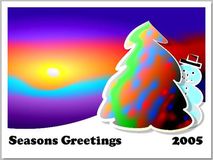
This example has been created by Michael Foutty in photo editor Xara Xtreme with help of AKVIS Coloriage plug-in.

Note: The following tutorial assumes that you have a basic understanding of working within Xara Xtreme.
Original image Colorized image

Background creation

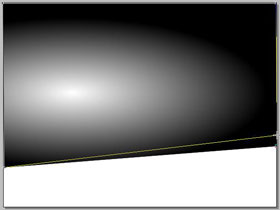
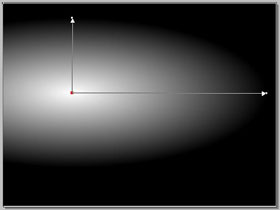
From within Xtreme create a rectangle [800x600] and set the fill color to black.

Select the Fill Tool F5.

Choose the elliptical fill from drop down menu. Adjust accordingly.
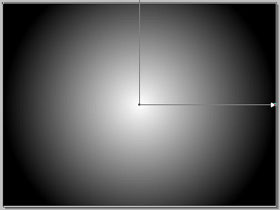
Create a rectangle elliptical fill

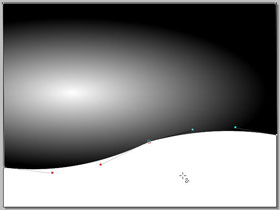
Our examples show a rolling snow covered landscape. This can easily be accomplished.

Just convert the rectangle by selecting Arrange/Convert to Editable Shapes. Next select the Shape Editor Tool and adjust the bottom of the rectangle to give the appearance of a rolling hill.

landscape a snow covered landcape

It's time to put the Coloriage plugin to work and this is done by clicking the Live Effect Tool (Ctrl+F5) found in Xara's tool box. Select the Coloriage plugin from among the list and a new window appears.

Once within the workspace you find a variety of choices and options to choose from as well as flexible edit/undo capabilities

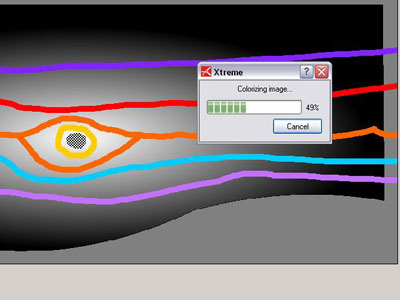
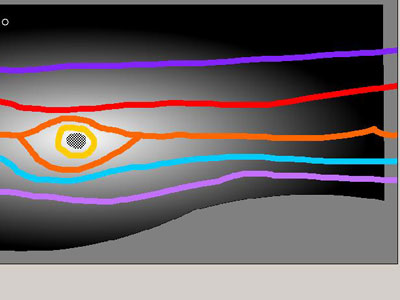
First, let's protect the intensity of the sunshine. This can be done using the Keep-color pencil and marking the small circle around the suns center.

Then apply an array of colors using the Pencil Tool. Imagine how the colors will be affected by the grayscale transparency.

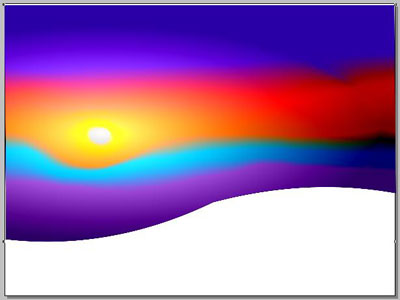
Draw strokes in the sky

When ready click the run arrow to process the image Colorize.

Should the results not be your liking simply hit the Before tab, make any erasures/adjustments then click the run arrow again.

Start the colorization process

When you are satisfied, click the commit arrow Apply and when Coloriage completes the processing you once again find yourself in Xara's workspace.

the colorful sky is ready

The Background is complete.


Now create a snow covered tree

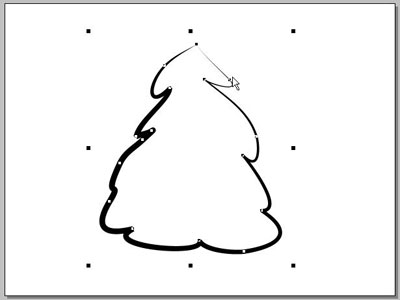
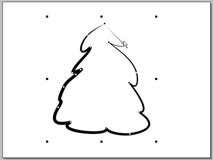
Use the Freehand and Brush Tool and design the shape.

Draw a Christmas tree

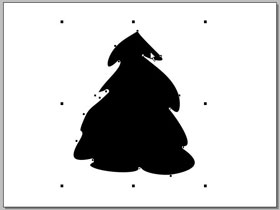
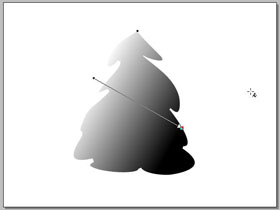
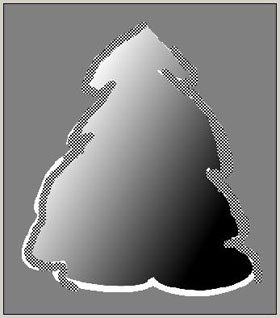
Set the background color to black; the line color to white. Select the Fill Tool (F5). This time choose the linear fill from drop down menu. Adjust accordingly.
Change the colors Create a fill

Select the tree shape and access the Coloriage plugin once again.

First, let's protect the white snow cover as we did with the intensity of the sunshine. This again can be done using the Keep-color pencil and outlining the white line areas to assure they remain pure as new fallen snow.

keep-color strokes

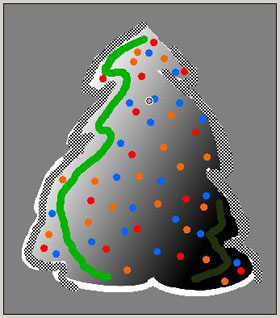
Then apply the greens for the tree using the Pencil tool. Remember how the colors will be affected by the grayscale transparency.
Now have some fun adding bits of colors to simulate glowing lights on the tree.
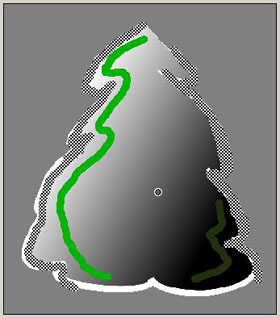
Draw green strokes Add colorful lights

When ready, process and commit the image to return to Xara.
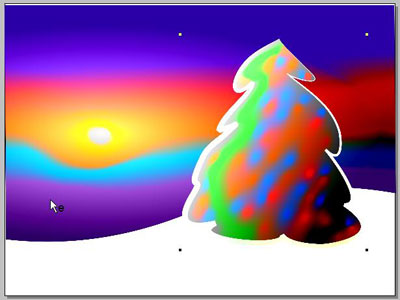
paste the Christmas tree  into the image with the colorful sky

Here is the completed image with a bit of text and a snowman to boot!

All success and happy holidays!
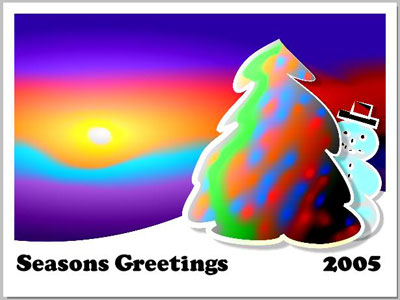
Christmas postcard
 
How It Works How It Works
   — Workspace — Workspace
   — How To Use The Program — How To Use The Program
   — Colorization Tips — Colorization Tips
   — Load strokes from file (*.strokes) — Load strokes from file (*.strokes)
Examples Examples
   — An Old Postcard — An Old Postcard
   — Changing Color of the Car Body — Changing Color of the Car Body
   — Colorizing a Black and White Photo — Colorizing a Black and White Photo
   — Selective desaturation — Selective desaturation
   — A romantic photo — A romantic photo
   — Color correction — Color correction
   — Colorizing a portrait — Colorizing a portrait
   — A technique of reiterative colorization — A technique of reiterative colorization
   — A present for the Mother's Day — A present for the Mother's Day
   — Canadian Settlers — Canadian Settlers
   — Add color to the photo of a child — Add color to the photo of a child
   — Interior design — Interior design
   — Colorize a family portrait — Colorize a family portrait
   — Change the color of clothes — Change the color of clothes
   — Colorize a group photo — Colorize a group photo
   — Creating a colorful background — Creating a colorful background
   — Colorize your memories — Colorize your memories
   — Paint your house — Paint your house
   — Raise spirits — Raise spirits
   — Partial coloring of B&W photos — Partial coloring of B&W photos
   — Expressive cat eyes — Expressive cat eyes
   — A portrait of a geisha — A portrait of a geisha
   — Colorize a bas-relief — Colorize a bas-relief
   — Photo colouring tricks — Photo colouring tricks
   — An old postcard with a Geisha — An old postcard with a Geisha
   — Touching up a colorized photo — Touching up a colorized photo
   — An anime girl — An anime girl
   — Colorize a photo for a collage — Colorize a photo for a collage
   — A Flower Show — A Flower Show
   — A pencil sketch: self-portrait — A pencil sketch: self-portrait
   — Creating a Christmas Postcard — Creating a Christmas Postcard
   — Love Story — Love Story
   — Desktop Wallpaper with a Pet — Desktop Wallpaper with a Pet
   — Colourize a Photo in Paint Shop Pro — Colourize a Photo in Paint Shop Pro
   — How to get a nice sepia photo — How to get a nice sepia photo
   — A Castle in Scotland — A Castle in Scotland
   — How to achieve a natural colorization — How to achieve a natural colorization
   — Christmas Card: B&W to Color — Christmas Card: B&W to Color
   — Movie Star Ayshwarya Ray — Movie Star Ayshwarya Ray
   — Coloring old black and white drawing — Coloring old black and white drawing
   — Flower meadow — Flower meadow
   — Children’s Photo — Children’s Photo
   — Beautiful Nataly (three plugins) — Beautiful Nataly (three plugins)
   — A Gift For The Wife — A Gift For The Wife
   — Medieval Engraving — Medieval Engraving


   Privacy Policy | Site Map | Search | English  |Français  |Deutsch  |Español  |Português  |Italiano  |日本語  |Pусский  | © 2004-2009, AKVIS Software Inc. All rights reserved.