Graphic plugins for Windows Mac graphic plugins  
Please enter your email to be kept posted on updates and discounts:
 
  
  Products     Download     Online Store     Tutorial     Support     About Company
en  fr  de  es  pt  it  jp  ru    
 

Tutorial: AKVIS Retoucher

Restoration of a daguerreotype


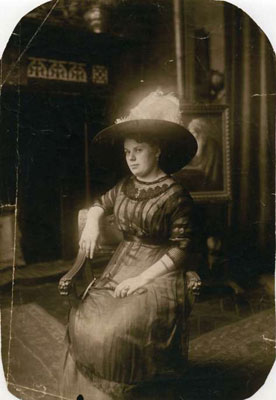
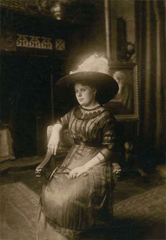
The photo has been sent to us by Oleg Rakhimov. It is a daguerreotype of his relative made in 1893.

a daguerreotype made in 1893

The daguerreotype looks quite well, that's why our restoration job will not require much effort: we will remove a few scratches and reconstruct the worn out corners of the photo.

  • Open the photo in Adobe Photoshop.
  • Before we call the image restoration plug-in AKVIS Retoucher, we should select the damaged areas. First, we scale the image to be able to select small areas.
  • Press the button Edit in Quick Mask in the Toolbar to switch to the Quick mask mode.
    Edit in Quick Mask
  • Activate the Pencil tool in the Toolbar.
    Activate  the Pencil tool
  • Start to paint over the scratches and the torn corners of the photo.
    Paint over teh defects

    The selected defects will be highlighted in semitransparent red, if you haven't changed the default settings in the Quick Mask Options window. To open this window, double-click on the Quick mask button in the Toolbar.

    Quick Mask Options
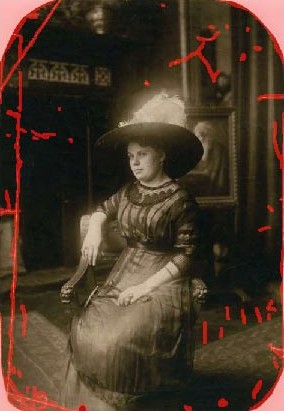
  • When all the defects are painted over, the photo will look like that:
    all defects are selected

    We press the button Edit in Standard Mode.

    Edit in Standard Mode
  • After you have switched to the Standard mode, you will see that the red semitransparent mask turned into a selection. However, it is not the defects that will be selected, but the undamaged parts of the image. Therefore, we should inverse the selection, which is done with the key combination Shift+Ctrl+I or with the command Select - Inverse.
    Selection
  • Now, when all defects are selected, you can call the plug-in AKVIS Retoucher. For this purpose select the command Filter - AKVIS - Retoucher. You will see the plug-in window with the defects highlighted in red again.
    AKVIS Retoucher program window
  • Press the button Start the retouching to start the restoration process and see the damaged areas disappearing giving place to restored fragments.
    photo retouching
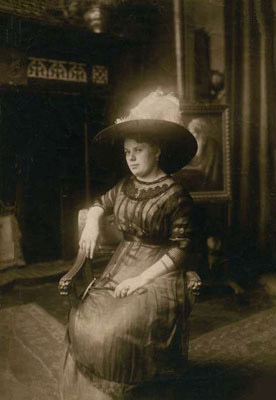
  • When the restoration process is over and there are no red areas left, press the button Apply to apply the result to the image.
    the daguerreotype after restoration
 
How It Works How It Works
Old Photo from Photoshop Samples Old Photo from Photoshop Samples
Baby Photo Restoration Baby Photo Restoration
Removing the Date Stamp Removing the Date Stamp
Badly Damaged Photo Badly Damaged Photo
Restoring a Picture (Retoucher + Stamp) Restoring a Picture (Retoucher + Stamp)
Restoration of an Old Family Photo Restoration of an Old Family Photo
Portrait of a Child Portrait of a Child
Gypsy Photo Restoration Gypsy Photo Restoration
A Sunny Smile A Sunny Smile
Torn Photo Restoration Torn Photo Restoration
Restoration of a Boy's Photo Restoration of a Boy's Photo
A Happy Kid A Happy Kid
Black and White Photo Black and White Photo
Video Editing Video Editing
For the Mother's Day For the Mother's Day
Ukrainian Family Ukrainian Family
Prepress Processing (for Printing) Prepress Processing (for Printing)
Retouching Photos in 7 Steps Retouching Photos in 7 Steps
A Daguerreotype A Daguerreotype
Remove an Unwanted Area in PSP9 Remove an Unwanted Area in PSP9
Lioness in a Cage (remove rods) Lioness in a Cage (remove rods)
Saint-Petersburg Views Saint-Petersburg Views
Remove Stains from Grandfather's Photo Remove Stains from Grandfather's Photo
Retouching and Coloring Retouching and Coloring


   Privacy Policy | Site Map | Search | English  | Français  | Deutsch  | Español  | Português  | Italiano  | 日本語  | Pусский  | © 2004-2008, AKVIS LLC. All rights reserved.