Save and Load Strokes (Classic Mode)
While coloring an image in the Classic mode in AKVIS Coloriage AI, periodically save your strokes to a file with the .strokes extension, so that you do not have to repeat your work from the beginning, if for some reason you are interrupted.
To save the color strokes, click  and indicate a folder and a file name. Later you can load the strokes from this file using
  and continue working with the image.
In case of some unexpected event (such as a power loss, etc.) the program autosaves the strokes into the coloriage-autosave.strokes file each time when you run processing  .
.
You can find the autosaved file here:
Windows: C:\Users\Public\Documents\AKVIS
macOS: /Users/Shared/AKVIS
Linux: /var/lib/AKVIS.
Saving strokes is also a way to share your experience of using the program with others.
We offer you photos to colorize using half-finished projects.
- Step 1. Download and unpack an archive with the original image and the .strokes file for it.
- Step 2. Open the image.
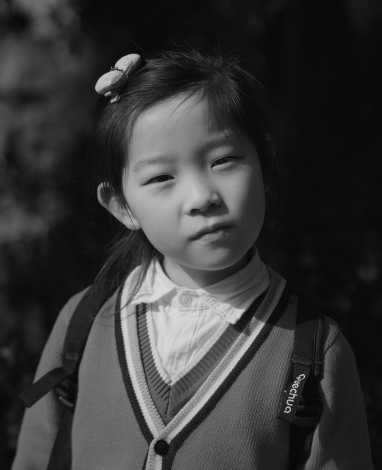
- Step 3. Click and select the .strokes file for this image, then press Open.
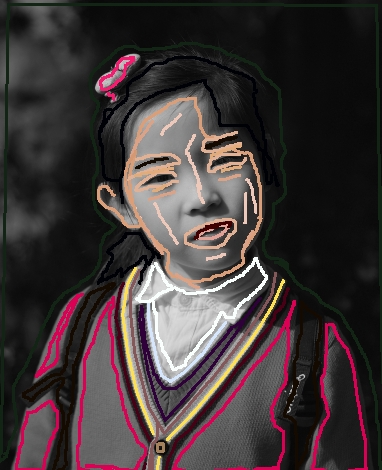
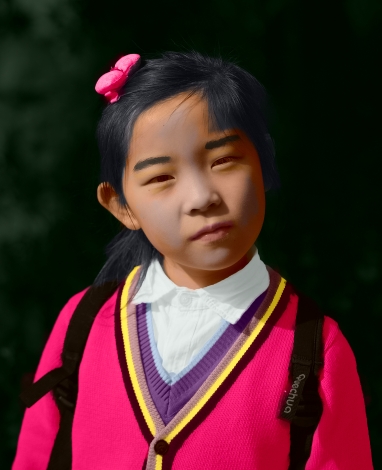
- Step 4. Click and the result of the colorization will be shown in the After tab.
- Step 5. You can change the colors of the image. For this purpose, go to the Before tab and use the Tube
 or the Magic Tube
  to change the color of the strokes. The Tube changes the color of one stroke, the Magic Tube changes the color of all strokes having one color.
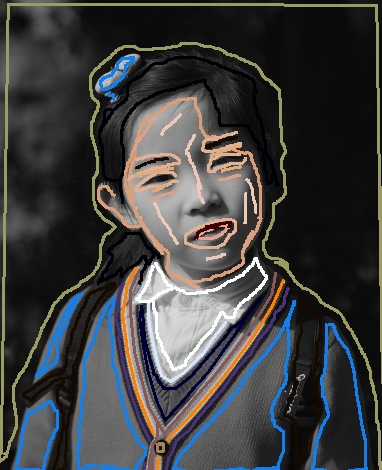
Press the button
again.
Attention! The strokes in the archive correspond to the dimensions of the initial image (width x height). If you change the dimensions of the original image, the file with the strokes will not fit the image.
Download these archives with color strokes and colorize the images in a click:
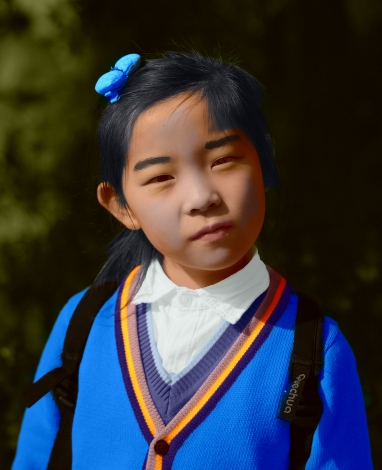
baby-photo.zip, boy-picture.zip, car-color.zip, family-photo.zip, girl-portrait.zip,
house-color.zip, interior.zip, pool-swimmers.zip, postcard.zip, settlers.zip.
Coloriage AI v. 15.7 - Free 10-day Trial
