Happy Easter!
Easter Sunday or Easter is an important spring holiday. Christians have celebrated it for over 2000 years. Over time many customs have been adopted in observance of this holiday: painting eggs, cooking special dishes, exchanging gifts such as bouquets of beautiful spring flowers or candy, etc. Let’s try to make a special card with an Easter theme.
The AKVIS Chameleon and AKVIS LightShop plug-ins were used for this tutorial. The graphics editor AliveColors was used, but it’s possible to use any other graphics editor which is compatible with AKVIS plug-ins.
 |
 |
 |
-
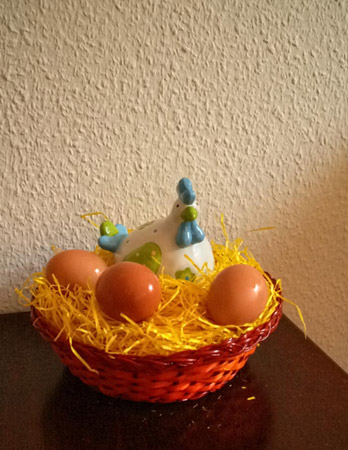
Step 1. A common symbol of Easter is painted hen’s eggs, so first find a suitable image of eggs.
-
Step 2. Make a selection of the basket with the hen and eggs.
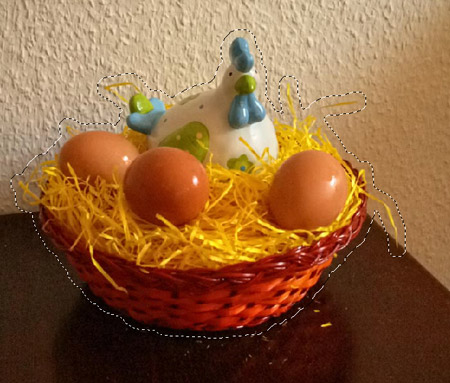
Next copy the fragment to the buffer: in the main menu choose Effects -> AKVIS -> Chameleon - Grab Fragment.
-
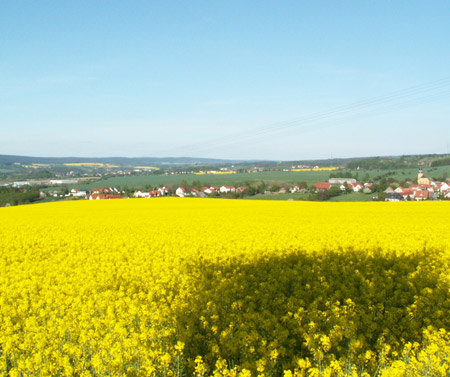
Step 3. Choose an image for the background: something bright and colorful. For example, this:
-
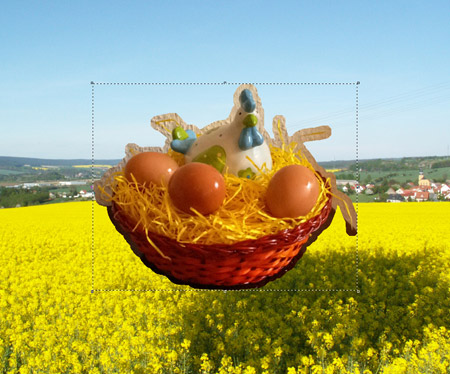
Step 4. Select Effects -> AKVIS -> Chameleon - Make Collage from the main menu. The AKVIS Chameleon plug-in’s window opens. The chosen background appears in the Image Window along with the previously selected fragment.
Montage mode is chosen by default in the Settings Panel. This is the mode which will be used for this tutorial.
-
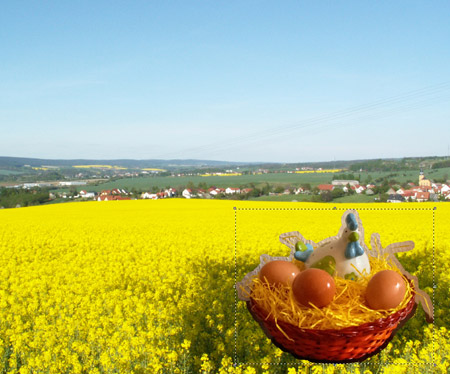
Step 5. The fragment is too big for the background. Use the Transform
 to resize the fragment (by 75%) and move it to the lower right corner.
-
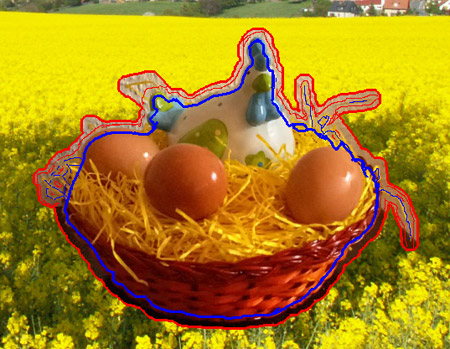
Step 6. Select the Keep Area Tool
 and draw just within the border of the basket, eggs, and hen. Select the Drop Area Tool
  and draw an outline around the basket, eggs, and hen.
-
Step 7. Press
 to start processing the collage. The result will be shown in the After tab.
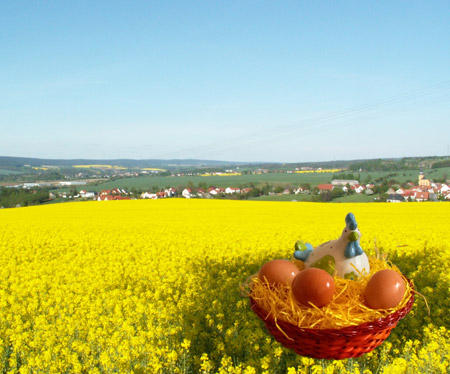
Press
 to apply the changes to the image, which will then be returned to the graphics editor.
-
Step 8. As can be seen, the sky in the image is bright and sunny, but the sun is not visible. Let’s add it with the AKVIS LightShop plug-in.
Select Effects -> AKVIS -> LightShop from the main menu. Choose the appropriate Effect (we chose 053) and adjust its settings to create a springtime sun.

-
Step 9. Add some text (we used the Hobo Std font) and the card is ready.

Chameleon v. 12.2 - 10日間の評価期間
