バレンタインデー カードの作成
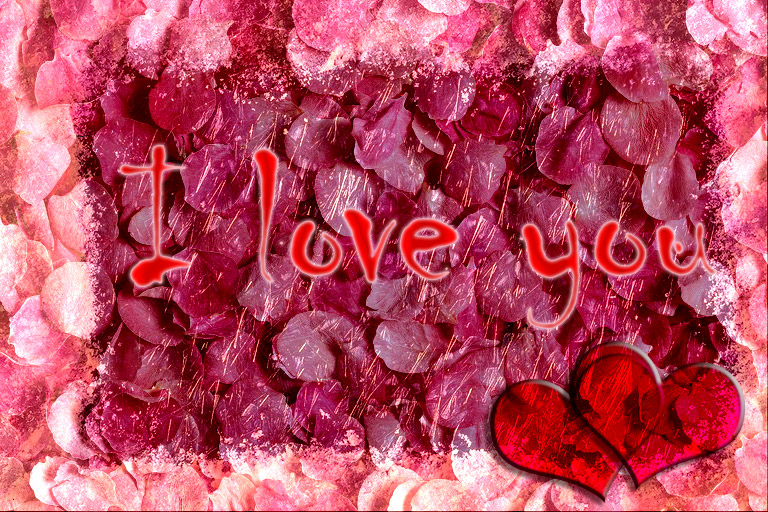
この操作例では、愛する人へ送るバレンタインデー カードの作成方法を紹介します。AKVIS Chameleon は、簡単かつ楽しくコラージュを作成できるソフトウェアなので、製作時間を苦痛と感じることはないでしょう。世界でたった一つのオリジナルなプレゼントが作れます。
必要となるのは以下のものです。
Adobe Photoshop (または AKVIS Chameleon プラグイン版が動作する他のフォトエディター)
AKVIS Chameleon プラグイン版
カードのベース(背景)になるイメージ(未来の「お相手」のために、理想的ともいえるバラの花びらを用意)
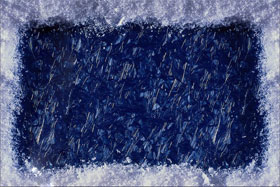
フレームとなるイメージ(この操作例では氷のフレームを使用)
少しの時間
早速バレンタインデー カードの作成を始めます。
-
ステップ 1: カード作成に使用するイメージを Adobe Photoshop で開きます。

-
ステップ 2: バラの花びらと氷のフレームを組み合わせます。
- バラの花びらのイメージをアクティブにし、[選択範囲] > [すべて選択]を選択します。
- 選択範囲をコピーするために、フォトエディターの[フィルター]メニューから[AKVIS] -> [Chameleon] - [Grab Gragment]を選択します。
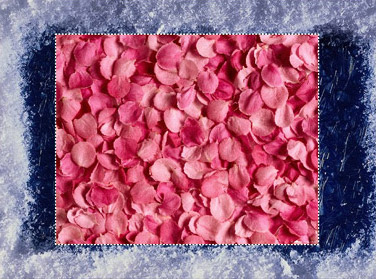
- 氷のフレームに切り替えます。[フィルター]メニューから[AKVIS] -> [Chameleon] - [Make Collage]を選択します。AKVIS Chameleon プラグイン ウィンドウが開きます。[処理前]タブには、氷のフレームが背面、バラの花びらが前面に表示されます。
- 設定パネルのドロップダウンメニューから混合モードを選択します。
- 変形ツールを使ってバラの花びらの画像が、氷のフレーム全体を覆う大きさへと調整します。
 をクリックし、コラージュ生成処理を開始します。結果は[処理後]タブに表示されます。
 をクリックして変更を適用し、フォトエディターの編集ウィンドウに戻ります。

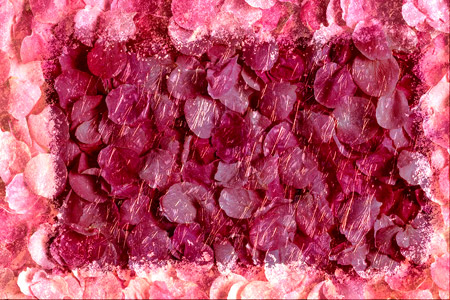
ここまでの作業で完成したイメージはこちらです。
-
ステップ 3: メッセージのないカードではまだ未完成です。バレンタインデー カードの場合、メッセージは必須といえるでしょう。メッセージは何でも良いですが、より個人的な内容の方が受け取る側にとっては嬉しいものとなります。ここでは、一般的なメッセージを挿入します。
このようなメッセージを挿入します。
- ツールパネルから横書き文字ツールを選択して使用します。
- 入力したテキストのパラメーターを設定: フォントファミリーを Chiller、フォントサイズを 150、アンチエイリアス有効、テキストの色を赤に設定します(横書き文字ツールのオプションパネルで設定)。
- イメージをクリックし、メッセージを入力します(ここでは"I love you")。メッセージは別のレイヤーに作成されます。
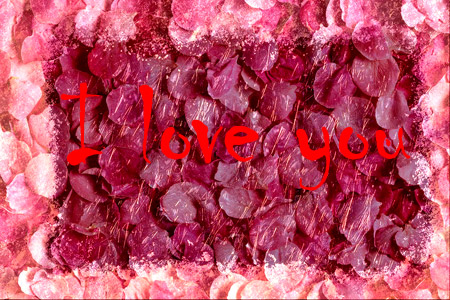
- テキストに効果を少し加えてみましょう。テキスト部分は別のレイヤーなので、光彩(外側)、光彩(内側)、サテンのレイヤー効果を適用します。[レイヤー]メニューの[レイヤースタイル]から、[光彩 (外側)]、[光彩 (内側)]、[サテン]のいずれかを選択します。

-
ステップ 4: さらにロマンチックなカードにするため、ハートを追加します。どのフォトエディターにも幾つか一般的な形が用意されているので、簡単に追加できます。
- ツールパネルからカスタムシェイプツールを選択して使用します。
- カスタムシェイプツールのオプションパネルでは、幾つかのシェイプから選択できます。Card Heart を使用します。
- 新しいレイヤーにハートを追加します。

- ハートのレイヤーについて、[ドロップシャドウ]、[シャドウ (内側)]、[べベルとエンボス]のレイヤー効果を適用します。レイヤー効果の適用は、[レイヤー]メニューの[レイヤースタイル]から、ドロップシャドウ、シャドウ (内側)、べベルとエンボスのいずれかを選択して行います。

- ハートをほんの少し傾けるために、[編集] > [Free Transform]コマンドを使用します。
- ハートのレイヤーを複製するために、 [レイヤー]メニューの[レイヤーを複製]を使用します。
- 2つ目のハートを少し右にずらすために、[編集]メニューの[Free Transform]を使用します。
メッセージとハートの位置を調整すれば、バレンタインデー カードは完成です!完成したカードを拡大するには、次のイメージをクリックします。
Chameleon v. 12.2 - 10日間の評価期間
