Moonlight sonata
あいにく, このページは英語にだけ使用可能です。
The author of the tutorial is Philipp Schuster. He has made a photo collage in Adobe Photoshop Elements 2.
The creation of the photo collage didn't take long as he used the plug-in AKVIS Chameleon.
- Step 1. Open the photos to be used in the collage in your photo editor. Here we have a photo of the sky, a photo of the Moon and a monument.



- Step 2. Activate the Magic Wand tool and set its Tolerance parameter to 40. Select the sky by clicking it with the left mouse button. Since we want to select the monument, not the sky, we should invert the selection by calling the command Select -> Inverse.
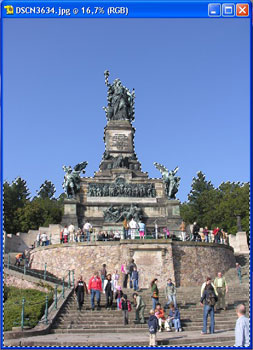
- Step 3. Copy the selection by calling AKVIS -> Chameleon - Grab Fragment from the Filter menu. Open the photo of the sky and call AKVIS -> Chameleon - Grab Fragment from the Filter menu. The AKVIS Chameleon plug-in window will open. The photo of the sky and the pasted fragment will be shown in the Before tab. Select Chameleon mode from the drop-down menu in the Settings Panel.
- Step 4. Adjust the size and position of the fragment with the Transform tool from the Toolbar. Press the button Run to begin processing the collage. The result will appear in the After tab. Press the button Apply to apply the collage to the photo. Save the photo.
- Step 5. Copy the Moon by calling AKVIS -> Chameleon -> Grab Fragment from the Filter menu.
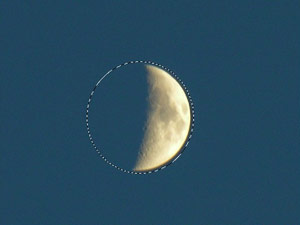
Open the collage you made earlier and call AKVIS -> Chameleon -> Make Collage. The previous collage and the fragment (Moon) will appear in the Before tab of the AKVIS Chameleon plug-in window. Select Chameleon mode from the drop-down menu in the Settings Panel.
- Step 6. Press the button Run to process the collage. The result will appear in the After tab. Apply the collage to the photo by pressing the button Apply.
- Step 7. Then call the plugin Lighting Effects by selecting the command Filter - Render. In the window of the Lighting Effects the light source is set on the Moon, the Intensity parameter is set to 14, all other parameters stay the same. Now we press the button Ok and the photo collage is ready.

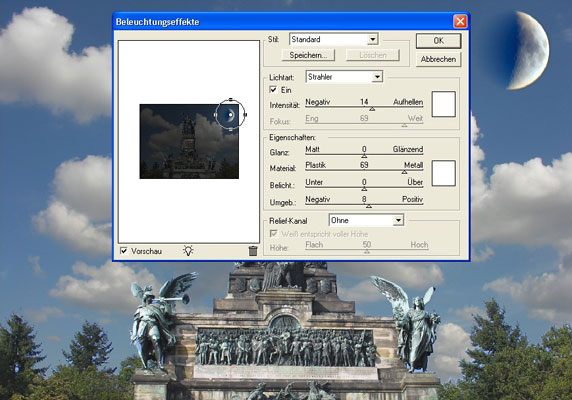
Now we press the button Ok and the photo collage is ready.
Chameleon v. 12.2 - 10日間の評価期間
