Old Image from Photoshop Samples Learn how to use AKVIS Retoucher by watching a flash movie. The step-by-step instructions will give you a glimpse into the way it works.
Click here (flash-movie, 6.4 Mb)
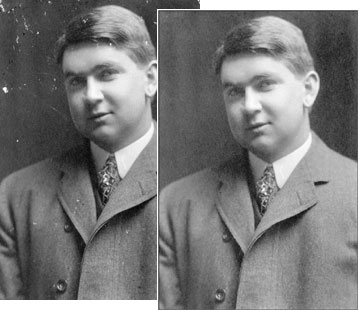
We will use AKVIS Retoucher to restore this old damaged photo —
'Old Image.jpg' from Adobe Photoshop samples.
Step 1. Open the image in Adobe Photoshop (you can use your photo editor compatible with the plug-in).
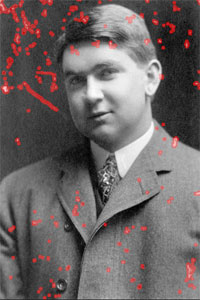
Select the defects to be removed with any selection tool. Learn more about selection tools of Adobe Photoshop, Photoshop Elements, Jasc Paint Shop Pro, Corel Photo-Paint.
In Adobe Photoshop the easiest way is to use the Quick Mask mode.
Click the Quick Mask mode button in the Toolbox. Use a hard edge pencil or brush tool to paint over the defects.
Step 2.
Switch to the Standard mode in the Toolbox and inverse the selection (Select/Inverse).
Step 3. Now, when the damaged areas are selected, open the AKVIS Retoucher window (Filter/AKVIS/Retoucher). In the Retoucher window the selection is highlighted in red.
and launch the photo restoration process by pressing the button
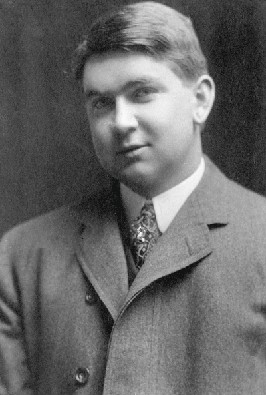
When the restoration process is over you will see the following restored photo.
Then press
to apply the restoration result.
Click to view the restored photo.
|