How to Use The Program
AKVIS HDRFactory lets you create an HDR-image from a series of shots or from one single photo.
Follow the instructions below:
- Step 1. Open an image or a series of shots.
- If you work with the standalone edition:
The dialog box Select Files to Open appears if you click on the button
 on the Control Panel or using the key combination Ctrl+O on Windows, ⌘+O on Mac.
The program supports images in the JPEG, TIFF, BMP, PNG, WEBP, and RAW formats (CRW, NEF, ORF, PEF etc - see the full list here). You can also drag the required image into the workspace of the program.
- If you work with the plug-in:
Open an image in your photo editor by calling the command File -> Open.
Call the AKVIS HDRFactory plugin in the Filter/Effects menu of the photo editor:
in AliveColors: Effects -> AKVIS -> HDRFactory;
in Adobe Photoshop: Filter –> AKVIS –> HDRFactory;
in Corel Paint Shop Pro: Effects –> Plugins -> AKVIS –> HDRFactory;
in Corel Photo-Paint: Effects -> AKVIS –> HDRFactory.In plugin as well as in the standalone edition, you can process one single image loaded from the image editor or create an HDR image from the series of shots. To work with HDRI tab in the plugin you should open the full set of photos by clicking on
.
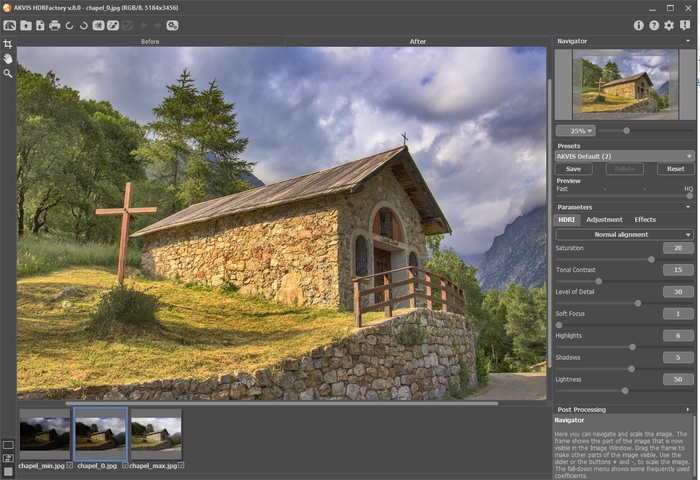
- Step 2. Select the value of the Preview parameter.
The Preview parameter is an auxiliary tool, it does not influence the real size of the image. The original image will stay the same and all details of the original image will be kept. This parameter speeds up the pre-processing stage when one tries different settings to obtain the best result.
When the HQ option is selected, the processing parameters are applied to the image in its original size. The processing time will increase but the preview quality will be as high as possible. If you select the Fast option, the preview size is smaller than the original image by 8 times. The processing time will decrease accordingly, but the result will be approximate. For intermediate values, the preview size is 2 and 4 times smaller than the original image.
Attention! Once you have adjusted the parameters, it is recommended to try the HQ processing to make sure that the best settings are chosen.
- Step 3. When you load a series of images taken with different exposures, the images will be opened to handle in the HDRI tab.
- Step 4. When a single image is loaded, it will be opened right in the Adjustment tab. Here you can make some correction or create an HDR look with one photo.
Also, here you can continue working with series of shots and apply additional processing to the High Dynamic Range image which you got in 1st tab.
- Step 5. Owners of the Home Deluxe and Business licenses can also use the Ghost Removal
 and Local Correction
  modes.
- Step 6. Using the Effects tab you can add a soft glow effect to the photo, darken or lighten the image edges, adjust image hues, add warm or cold tints.
- Step 7. If you like the new settings of the parameters, you can save them as a preset and use them later. To save the settings, enter a name for the preset in the Presets field and press the button Save.
Note: The HDRI, Adjustment, and Effects tabs have the common list of presets. When a new preset is created it will be available in all tabs and will contain all their settings.
When moving a cursor over a preset in the drop-down list, the quick result appears in the Preset Preview window.
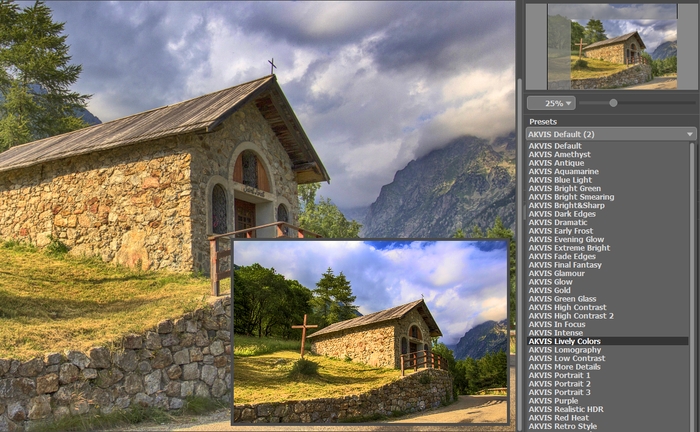
To process the image with a certain preset, select this preset from the list. The image will be automatically processed with the preset's settings.
Next time you launch the program, these settings will be used by default. If you change the parameters you can return to the initial settings of the selected preset by clicking on Reset.
To delete a preset, select it from the list and click on the button Delete.
- Step 8. For further image correction you can use the Post Processing settings (only in the standalone version).
- Step 9. In the standalone version, you can also print your result using
 .
.
- Step 10. Save the resulting image.
- If you work with the standalone program:
Click on the button
 to open the Save As dialog box. Enter a name for the file, choose the format (TIFF, BMP, JPEG, WEBP or PNG) and indicate the target folder.
- If you work with the plugin:
Apply the result by pressing
 . The AKVIS HDRFactory plugin will close and the picture will appear in the photo editor's workspace.
Call the Save As dialog box using the command File -> Save As, enter a name for the file, choose the format and indicate the target folder.
HDRFactory v. 8.1 - Free 10-day Trial
