Highlands Scenery: Generating an HDR Image
The photos have been sent to us by Denis Davydov.
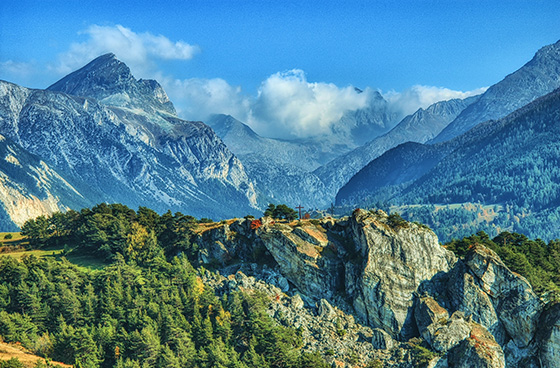
Denis sent us a series of shots under different exposures. The scenery is really beautiful. However, the colors are dark and some objects are hardly visible because they are not illuminated. Using AKVIS HDRFactory you can reveal details and improve color saturation.
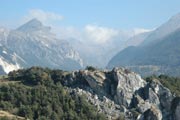
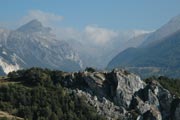
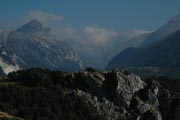
Source photos
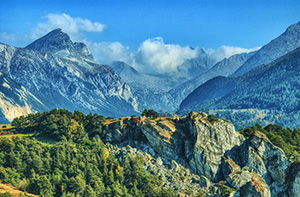
Result: HDR image
Learn how to achieve this result below:
- Step 1. Launch the program AKVIS HDRFactory.
- Step 2. Press the button
 in the Control Panel of AKVIS HDRFactory and select the required files.
Images will be loaded into the program and processed automatically using the default parameters (in this case it is the AKVIS Default preset).
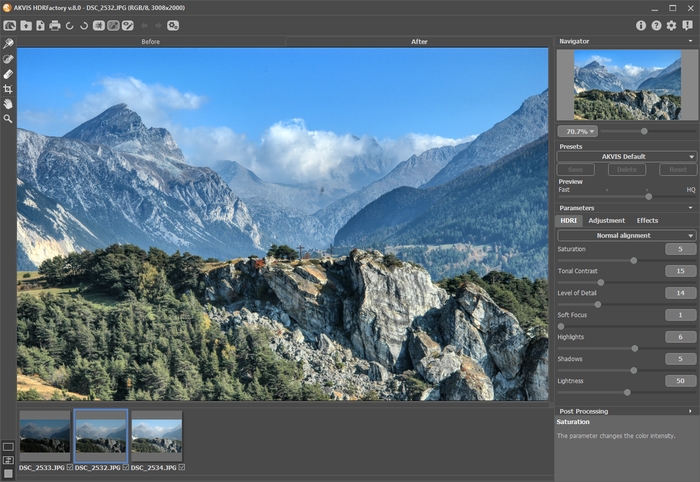
- Step 3. Adjust the Tone Mapping settings.
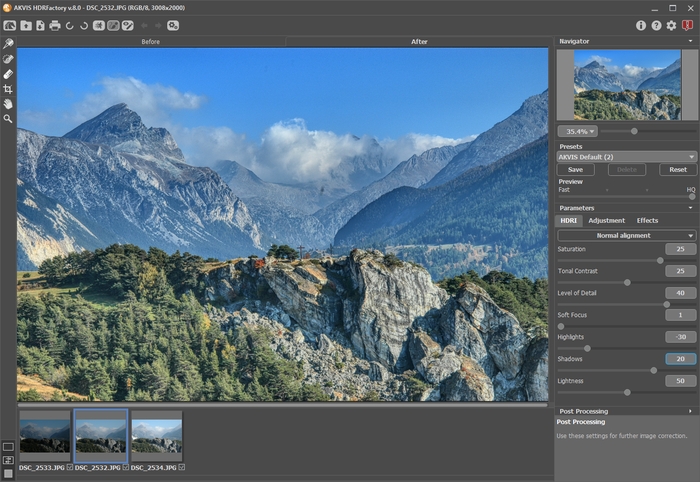
The result is good. You can save the result by pressing the button
 . But our goal is to make this image brighter and reveal some objects in the shadows.
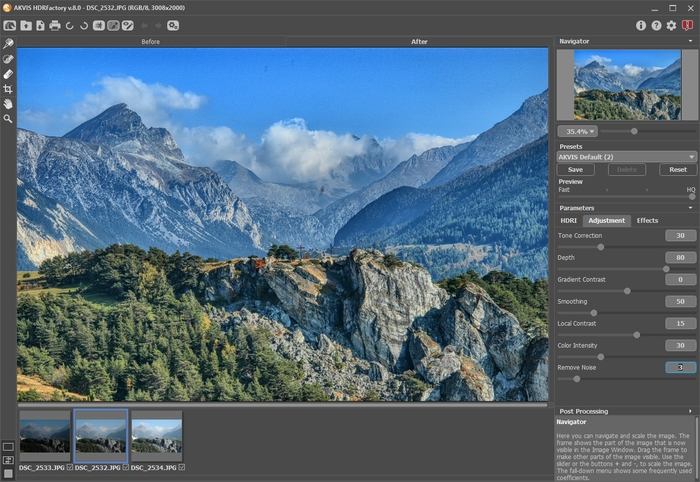
- Step 4. We can add volume to the objects by using the Adjustment tab.
You can set the values as shown in the screenshot.
- Step 5. The image has become too light. We can make it more intense and saturated.
Switch to the Post Processing parameters and set Brightness = 15, Saturation = 40, Gamma = 90.
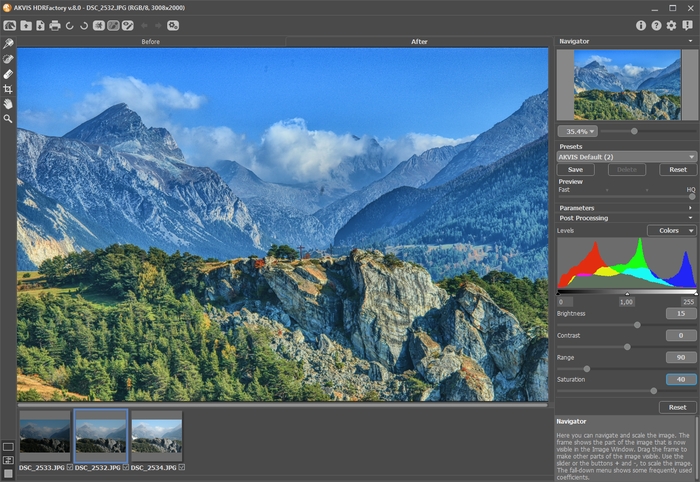
You can compare one of the original images and the result by switching between the Before and After tabs.
- Step 6. We got what we wanted. The resulting image looks great: it's acquired texture, became more intense, and is full of sunshine.
Small details and new tints were revealed, and the background is now more voluminous and expressive.
Press the button
to save the result.
HDRFactory v. 8.1 - Free 10-day Trial
