Gebirgslandschaft
Die Fotos wurden von Denis Davydov übermittelt.
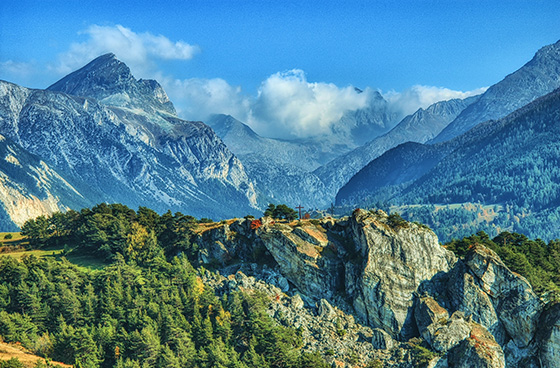
Es ist eine Reihe von Einzelaufnahmen, die von einem Motiv mit verschiedenen Belichtungszeiten gemacht wurden. Die Landschaft ist zwar schön, aber die Farben sind dunkel und einige Objekte sind wegen mangelhafter Beleuchtung ziemlich schlecht sichtbar. Mit AKVIS HDRFactory können Sie Fotodetails besser zur Geltung bringen und die Farbsättigung verbessern.
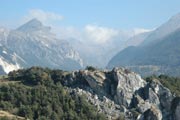
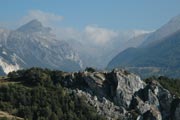
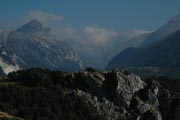
Ausgangsbilder
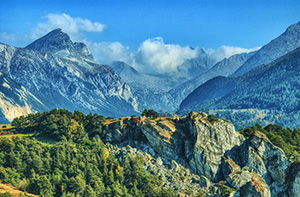
Ergebnis: HDR-Bild
Folgen Sie den Schritten:
- Schritt 1. Starten Sie das Programm AKVIS HDRFactory.
- Schritt 2. Klicken Sie auf
 in der Optionsleiste von AKVIS HDRFactory und wählen Sie die erwünschten Dateien aus.
Die Bilder werden geladen und mit Standardwerten automatisch bearbeitet (Preset AKVIS Default).
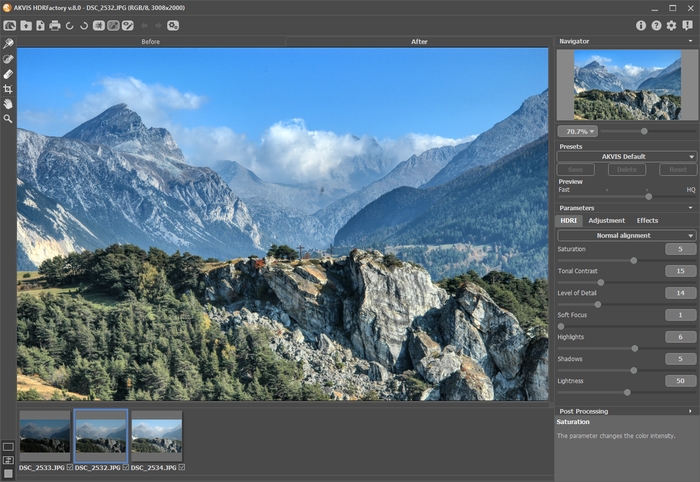
- Schritt 3. Passen Sie die Tonemapping-Parameter an.
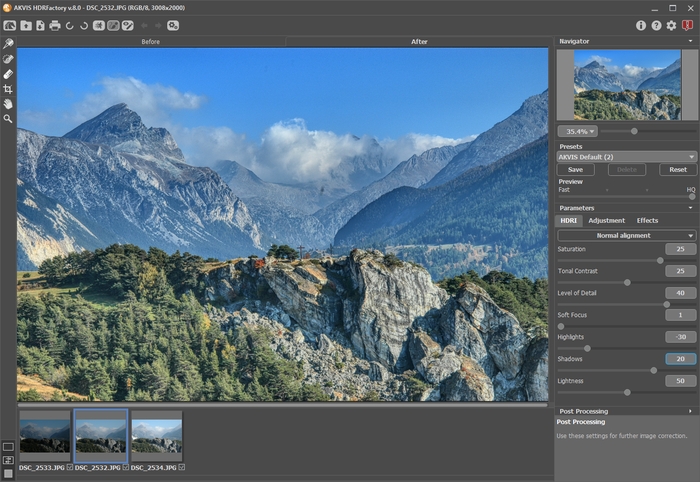
Das Ergebnis ist ziemlich gut. Sie können es mit einem Klick auf
 speichern. Doch unser Ziel ist es, das Bild heller zu machen und Details in dem Schatten besser zur Geltung zu bringen.
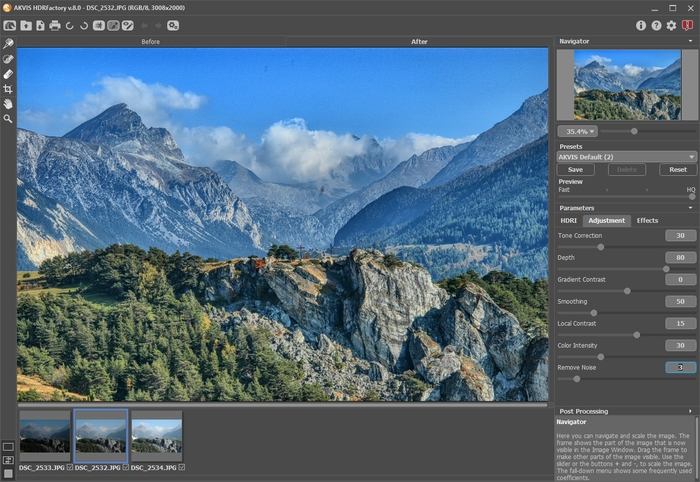
- Schritt 4. Man kann den Objekten mehr Volumen verleihen, indem man das Anpassung-Register benutzt.
Sie können die Parameter wie folgt anpassen.
- Schritt 5. Das Bild sieht nun zu hell aus. Wir können die Sättigung erhöhen.
Wechseln Sie in die Registerkarte Nachbearbeitung und passen Sie die Werte wie folgt an: Helligkeit = 15, Sättigung = 40, Gamma = 90.
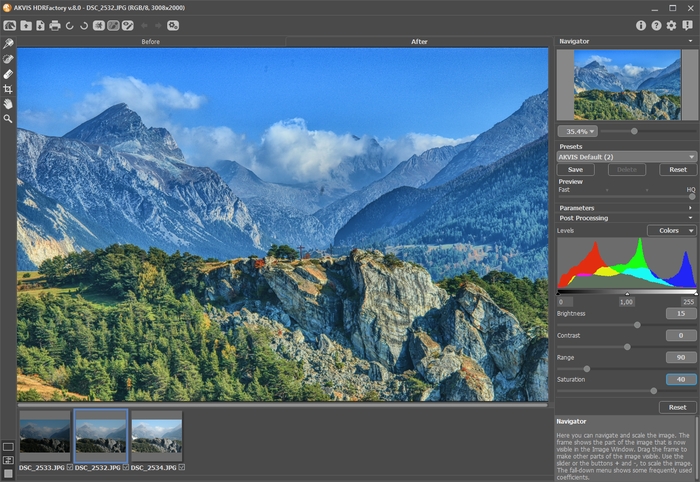
Sie können das Originalbild und das Ergebnis vergleichen, indem Sie zwischen den Registern Original und Ergebnis umschalten.
- Schritt 6. Endlich haben wir, was wir wollten. Das Ergebnis sieht perfekt aus: dem Bild wurde eine Textur hinzugefügt, die Farben wurden intensiver und das ganze Foto verbreitet nun eine sonnige Atmosphäre. Kleine Details und neue Farbtöne wurden entdeckt und der Hintergrund ruft den Eindruck räumlicher Tiefe hervor.
Klicken Sie auf
, um das Ergebnis zu speichern.
HDRFactory v. 8.0 - 10-Tage-Testversion

