Paisaje de tierras altas: Generando una imagen HDR
Las fotos han sido enviadas por Denis Davydov.
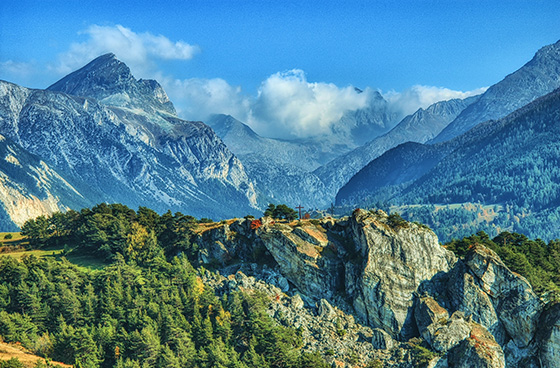
Denis nos envió una serie de fotos con exposiciones diferentes. El paisaje es realmente hermoso. Vemos que los colores son oscuros y algunos objetos son casi no visibles porque no están iluminados. Uso de AKVIS HDRFactory puede revelar detalles y mejorar la saturación de los colores.
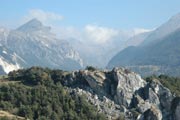
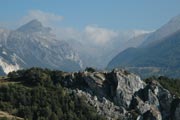
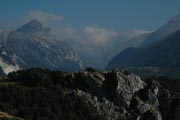
Fotos originales
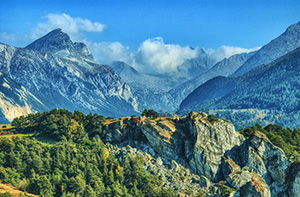
Resultado: imagen HDR
A continuación aprenda como conseguir este resultado:
- Paso 1. Ejecute el programa AKVIS HDRFactory.
- Paso 2. Pulse el botón
 en el panel de control de AKVIS HDRFactory y seleccione los archivos necesarios.
Las imágenes se cargan en el programa y son procesadas automáticamente utilizando los parámetros por defecto (en este caso, es la configuración predeterminada llamada AKVIS Default).
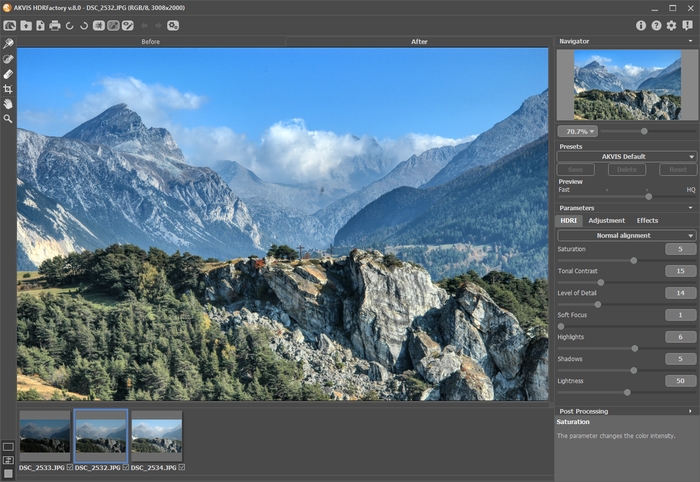
- Paso 3. Ajuste la configuración de mapeo de tonos.
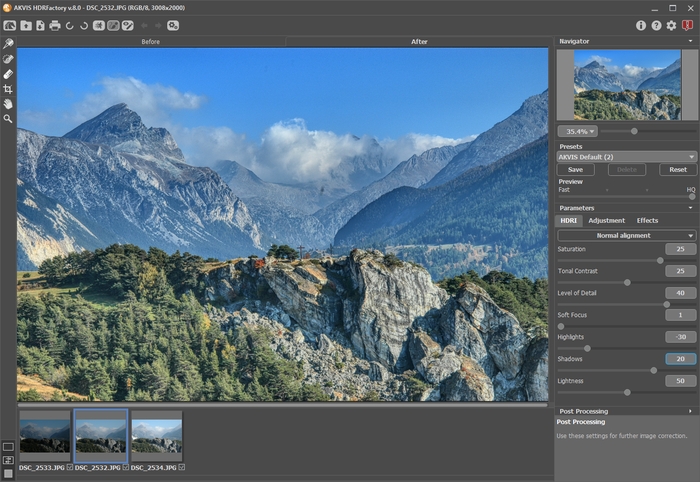
El resultado es bueno. Puede guardarlo presionando el botón
 . Pero nuestro objetivo es hacer una imagen más brillante y revelar algunos de los objetos que están en las sombras.
- Paso 4. Podemos aumentar el volumen a los objetos mediante la pestaña de Ajuste.
Puede establecer los valores como se muestra en la pantalla siguiente.
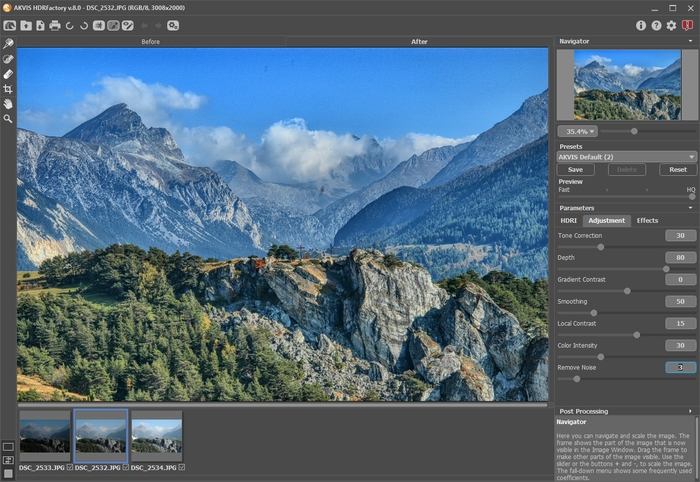
- Paso 5. La imagen se ha aclarado demasiado. Podemos hacerla más intensa y saturada.
Abra la configuración de Procesamiento posterior y ajuste los parámetros siguientes: Brillo = 15, Saturación = 40, Gamma = 90.
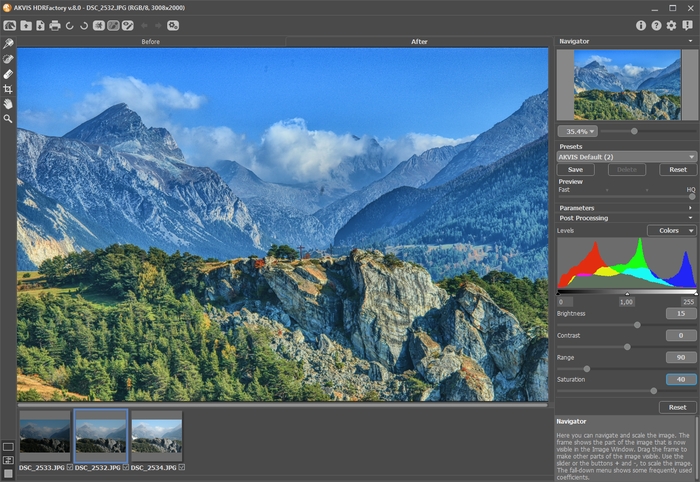
Usted puede comparar cada una de las imágenes originales y su resultado, pulando en las pestañas Antes y Después.
- Paso 6. Conseguimos lo que queríamos. La imagen resultante se ve muy bien: ha adquirido textura, se puso más intensa, y está resplandeciente. Se han revelado nuevos matices y detalles pequeños, y el fondo ahora es más voluminoso y expresivo.
Pulse el botón
para guardar el resultado.
HDRFactory v. 8.1 - Prueba gratuita de 10 días
