Ghost Removal in HDR Images
To create an HDR image, we need to take a series of photos with different exposures. However, while shooting, especially on a busy street, random objects (cars, people, or animals) can pass through the frame. Their appearance in each photo will be a little different. After the photos are combined, these objects will appear in various places, and due to the transparent nature of these "ghosts", the background will show through them.
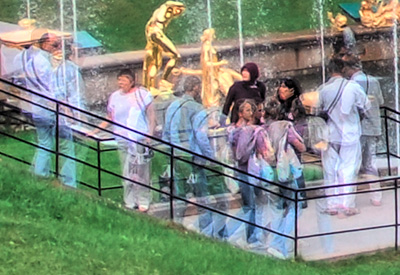
Not so long ago, removing these artifacts was a time-consuming procedure. It required a graphics editor and a large amount of time.
Now "ghosts" can be dealt easily with AKVIS HDRFactory. Watch a Video Tutorial.
Attention! This feature is only available for the Home Deluxe and Business licenses.
To remove ghosts from the resulting HDR-image follow these steps:
- Step 1. Activate the Ghost Removal mode
 and choose the tool
  .
.
- Step 2. Right-click on the image to access the tool's menu where you can change the tool size and select one of the original images to be used as a source for the problem areas ("ghosts").
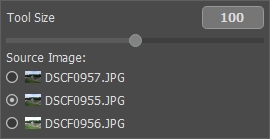
It's recommended to choose one with the best exposure, where the object is well-visible.
-
Step 3. Draw over the "ghosts" with . It's better to select an area a bit larger than the defects.
Note that you can use the tool only on the result in the After tab.
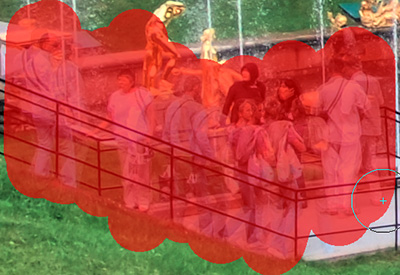
The process starts automatically after using the Ghost Removal tool
but when the area is highlighted it's hard to see the changes.
To see the result just hide the selection by clicking on
 .
.
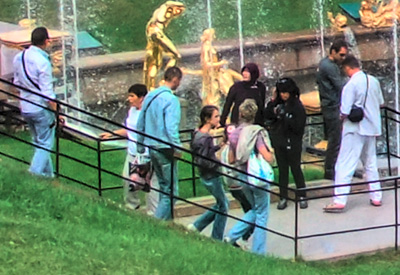
If you are not satisfied with the result, you can edit the selection with the Eraser
 or choose another source image.
HDRFactory v. 8.1 - Free 10-day Trial
