Beautiful Glass: How To Create an HDR Image
When photographing a brightly-lit window and the landscape beyond it, one finds that no matter the quality of the digital camera, it will not be able to present the entire dynamic range of brightness. Either there are visible details in the room but a bright white window, or a beautiful landscape but washed out details in the room.
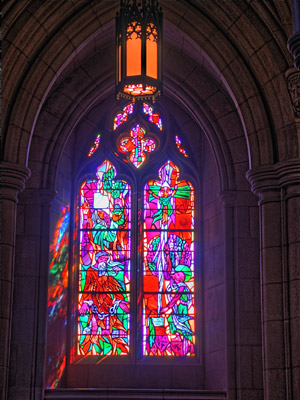
Here we have the same situation. A photo of a stained glass window, illuminated by bright sunshine, was taken in a dimly lit room. The result was either a bright and colorful stained glass window surrounded by dark walls, or a room full of detail with a bright white window.
You can extend the dynamic range of your photos, revealing details in dark and light areas, with AKVIS HDRFactory.
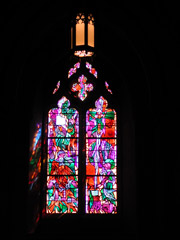
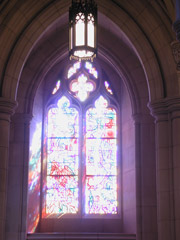
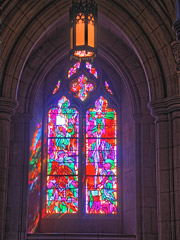
-
Step 1. Start AKVIS HDRFactory. Press
 in the Control Panel and choose two images in the dialog window: one with a colorful view, and the other with good details of the wall. After being chosen the images will be processed using the default settings.
-
Step 2. The resulting image is not bad, but looks a little blurry. Let's try to improve it by adjusting some parameters.
-
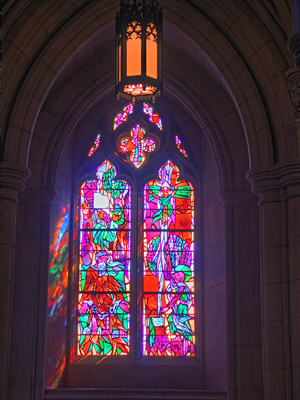
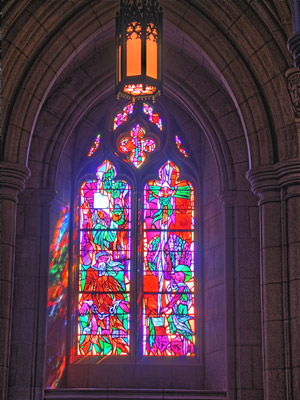
Step 3. The image looks great but we'll use the Post Processing to make it brighter.
Here is our result:
HDRFactory v. 8.1 - Free 10-day Trial
