Graphic software for Windows Mac graphic software  
Please enter your email to be kept posted on updates and discounts:
 
  
  Products     Download     Online Store     Tutorial     Support     About Company
en  fr  de  es  pt  it  jp  ru    
 

Tutorial: AKVIS Coloriage

How it works


AKVIS Coloriage can work independently as a standalone program and as a plug-in to a photo editor.


Watch a flash movie demonstrating the technique of image colorization with AKVIS Coloriage. Click here! (flash-movie, 9.4 Mb)


Follow the instructions to colorize a photo with the AKVIS Coloriage:

  • Step 1. Run the standalone edition of AKVIS Coloriage or open your photo editor (if you work with the plugin version of AKVIS Coloriage).
  • Step 2. Open an image (a file in BMP, JPEG, PNG or TIFF format).

    - If you work with the plugin:

    Open an image in your photo editor by calling the command File -> Open or using the key combination Ctrl+O.

    - If you work with the standalone edition:

    The dialog box Open source image from file appears if you double-click on the empty workspace of the program or if you click on the button on the Control Panel. You can also drag the required image into the workspace of the program.

    The original black and white photo
  • Step 3. In plug-in version only: make sure that the image is in RGB mode. If it is not the case (a black and white image can be in Grayscale mode, while a color image in CMYK or Lab mode), switch it to RGB. (For example, in Adobe Photoshop you can switch to RGB with the command Image -> Mode -> RGB).

    Attention PSP users! In Paint Shop Pro you can apply Coloriage only to the background.
    If you have several layers you'll need to merge them (the command Merge All) to be able to apply the plug-in.

  • Step 4. In plug-in version only: call the AKVIS Coloriage plug-in. For this purpose in Adobe Photoshop select the menu item Filter –> AKVIS –> Coloriage; in Jasc Paint Shop Pro select the menu item Effects –> Plugins -> AKVIS –> Coloriage; in Corel PHOTO-PAINT select the menu item Effects –> AKVIS –> Coloriage.
    The AKVIS Coloriage window
  • Step 5. Select the color for the object you want to colorize.

    AKVIS Coloriage offers several ways to select colors: in the Colors palette, in the Color library and in the Color Selection Standard Dialog box.

    To select a color from the Colors palette simply left-click on any of the palette colors. The selected color will be shown in the rectangle on the right. The gradient line above the Colors palette will show this color and its shades according to their brightness.

    Colors palette

    The Color Library contains colors that are difficult to pick out: the color of skin, hair, lips, grass, trees, stones, etc. All colors in the Color Library are divided into groups in accordance with their function. To select a color from the Color library you should:

    • Select the folder with the required group of colors from the tree by left-clicking it. The colors within the group represent a gradient.
    • Select a gradient by left-clicking it. As a result the chosen color appears in the upper gradient line under the Color library. The marker shows the color you clicked on.
    Color library
    • Select a color on the upper gradient line by left-clicking it. The marker will fix this color and the lower gradient line will show the shades of the selected color according to their brightness.
    Gradient line

    To open the Color selection standard dialog you should click on the color circle in the right upper corner of the Colors palette.

    Button

    You can also select a color from the original image. For this purpose, you should activate the Eyedropper tool and left-click any point of the image, including drawn strokes.

    Hint: The colors on the photo will look natural if you select a less saturated color. These colors appear in the lower part of the Colors palette.

  • Step 6. Select the Pencil tool from the Toolbar and draw an outline within the object that you want to paint in the selected color.

    Hint: To change the brush size of the Pencil tool use the drop-out scale that appears when you press the button of the Pencil tool. Use hot keys: to reduce the brush size press the key [, to increase the brush size press the key ].

    • Draw an outline within the object following the shape of it's boundaries. If the object has several colors, you should draw a line along the boundary of the object that should be painted into the selected color.
    • If the object is rather large or there are sharp visible boundaries within it (lighter and darker areas, for example), draw several strokes inside the object.
    • If inside the object there are details that will be painted in other colors, outline them with the main color of the object. For example, you should outline lips, eyes, buttons on a coat, etc.

    If you want to change the color of a particular object on a color photo keeping other areas unchanged, use the Pencil tool to set the color for the object and then draw a closed outline around this object using the Keep-color Pencil.

    To change the color of the drawn stroke you should select a new color, activate the Tube tool in the Toolbar and left-click on the stroke. If you want to change the color of several strokes having one color, activate the Magic Tube tool and left-click on one of these strokes.

    Select a color for the hair
  • Step 7. The resulting color of the colorized object depends on the brightness of the original color. For example, if you apply a dark color to a bright area, the resulting color will be bright, as the program will adjust the new color to the brightness of the original image.

    If you are not satisfied with the result you can make the final color lighter or darker. For this purpose you should change the brightness range of the selected color. Take into account that the brightness range compression (especially if it is strong) will inevitably result in deterioration of the detail and deepness of an image.

    The brightness range is set in the lower gradient line under the Color Library. By default the brightness range is complete, i.e. the black pixels on the image correspond to the darkest shades of the selected color, while the white pixels correspond to the lightest shades of the selected color.

    Gradient line

    To change the brightness range you should move the markers of the black and/or white points on the gradient line. Thus you set the darkest or/and the lightest possible color shade for the object. If you set a darker shade for the white marker, you will be able to color a light object into a dark color; if you set a lighter point for the black marker, you will be able to color a dark area into a light color. You can not reduce the range more than twice.

    Gradient line

    To change the brightness range for a drawn stroke you should select the required brightness range, take the Tube tool and left-click on this stroke. If you want to recolor strokes having one and the same color and brightness, select the Magic Tube tool and left-click on one of the strokes. To recolor all strokes having the same color regardless of the brightness range, use this tool with the Ctrl-key pressed on the keyboard ( on Macintosh).

    When the check-box Brightness Preview is activated, you can see how the strokes with the selected color and brightness range will look on the resulting image. If the check-box is deactivated, the strokes are drawn with the solid color regardless of the selected brightness.
    Check-box Brightness Preview on Check-box Brightness Preview? off
    Check-box Brightness Preview on Check-box Brightness Preview off

    Attention! Earlier versions of AKVIS Coloriage (before 4.0) worked only with complete brightness range and it was impossible to color a dark object into a light color and vice versa. Note that the strokes files (*.strokes) created in earlier versions of Coloriage are compatible with the present one.

  • Step 8. Repeat steps 5, 6 and 7 until you set colors for all objects. If you do not select a color for an object, it will be painted in the color(s) of the nearest area.

    Use the Eraser tool to erase the drawn strokes. To remove a stroke you should activate the Eraser tool, press the Alt key (Option in Macintosh) and left-click on the stroke. If you want to remove all strokes, press the keys Alt+Ctrl (Option+ in Macintosh) and click on the picture.
    You can change the brush size of the Eraser tool with the fall-out scale that appears when you press the Eraser tool button in the Toolbar.

    If you want to cancel the last action, press the key combination Ctrl+Z (+Z in Macintosh). You can cancel the last operation with the button Undo and restore the changes with the button Redo.

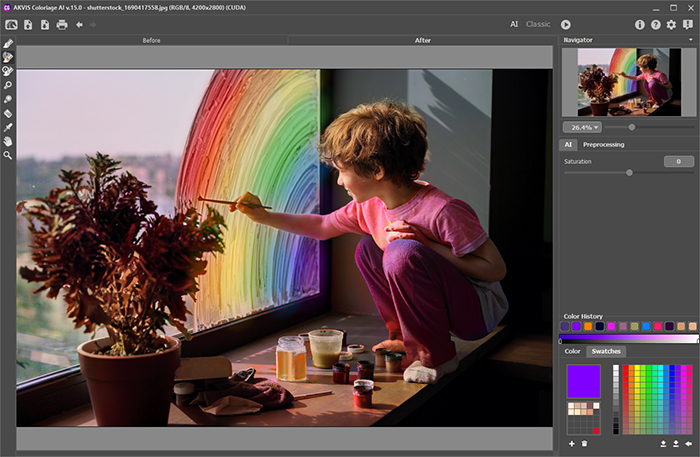
    Apply strokes to set a color for every object
  • Step 9. Press the button to start the colorization process. The colorized image is shown in the After tab.
    The colorization result
  • Step 10. If you want to edit the colorization result (remove some strokes, add new strokes, change the color of the objects), activate the Before tab again and make the necessary corrections. Press the button again.
  • Step 11. In the last stage of work you can manually edit the processed image using the soft semitransparent Recolor Brush . It will be possible on the After tab.

    Attention!

    If you switch to the Before tab and click on the Run button, the changes made with the Recolor Brush will be lost.

    Double-click on to see the settings of the Recolor Brush in a floating window. To adjust a parameter, enter a new value into the corresponding field and press the Enter key or move the slider. If you click outside the window, the list of parameters disappears.

    Recolor Brush settings
    • Diameter (1-200). The stroke width of the brush (in pixels).

    • Hardness (0-100). The hardness of the outer edge of the brush. The higher the value of the parameter, the harder is the brush edge. At Hardness = 100% the brush is as hard as a pencil; at a low value of the parameter the brush strokes are soft.

    • Strength (0-100). The intensity of the strokes. The higher the value of the parameter, the more intense are the colors of the applied strokes.

    • Keep Brightness check-box. When the check-box is enabled, the brightness of the drawn stroke is changed to comply with the background and with the overall brightness of the image (the strokes get lighter on the light zones of the image and darker on the dark zones). When the check-box is disabled, the brightness of the strokes does not depend on the brightness of the image.

    Processed image Applying the Recolor Brush
    Processed image Applying the Recolor Brush

    Edit the strokes using the Eraser tool. On the After tab you can adjust the following parameters:

    • Diameter (1-200). The width of the erased line (in pixels).

    • Hardness (0-100). The hardness of the outer edge. The higher the value of the parameter, the harder is the brush edge of the tool. At 100% the erased line has clear borders, at a lower value of the parameter the border between the processed and erased zones is smooth.

    • Strength (0-100). The intensity of the tool's influence. The higher the value of the parameter, the more intense is the erasing of the lines.

  • Step 12. You can save the color strokes drawn on the original image into a file. For this purpose you should press the button . In this case you will be able to edit the strokes in the future by loading them with the button from the file.
  • Step 13. In plug-in version only: press the button to apply the colorization result to your picture and close the plugin window. The AKVIS Coloriage plugin will close and the colored image will appear in the workspace of the photo editor.
    Result
  • Step 14. Save the processed image.

    - If you work with the plugin:

    Call the Save As dialog box using the command File -> Save As or with the key combination Shift+Ctrl+S, enter a name for the file, choose the format (TIFF, BMP, JPEG or PNG) and indicate the target folder.

    - If you work with the standalone edition:

    Click on the button to open the Save as dialog box. Enter a name for the file, choose the format (TIFF, BMP, JPEG or PNG) and indicate the target folder.

  • Step 15. The standalone edition of AKVIS-Coloriage allows printing the image. For this purpose press the button , adjust print settings in the Print dialog box and press the button Print.

    The left part of the Print dialog box is the preview area where the current position of the image on the page is shown, in the right part of the dialog box the print settings are adjusted:

    • The check-boxes Album and Portrait set the page orientation when printing. The check-box Album corresponds to the horizontal page orientation (width larger than height), the check-box Portrait - to vertical.

    • The parameters Scale, Width and Height and the check-box Fit to Page set the printed size of the image. They do not influence the image itself, only its printed copy. It is possible to change the size of the printed copy by specifying the image scale in % (any value less than 100% reduces the image, any value over 100% increases it) or by setting new values for width and height in the corresponding fields. If you just want to fit the image into the page, enable the check-box Fit to Page.

    • The image in the preview area has a frame with markers that allow changing the image size manually. Put the mouse cursor to a corner marker or to one of the sides (the cursor will transform to a two-side arrow) and drag the marker or the side. To change the position of the image on the page, bring the cursor to the center of the image, press the left mouse button and move the cursor. Besides, it is possible to define the image position on the page with the parameter Move To by clicking on one of the nine squares.

    If your computer is connected to a local network with several printers or several output devices are connected to this computer, you will have to choose one of the available printers to do the job. Click Printer Setup in the dialog box Print, select a printer in the opening dialog box and adjust the printing settings.

  • Step 16. Close the program AKVIS Coloriage by pressing the button Start.


Workspace Workspace
How It Works How It Works
Tips Tips
An Old Postcard An Old Postcard
Changing Color of the Car Body Changing Color of the Car Body
Colorizing a Black and White Photo Colorizing a Black and White Photo
Selective desaturation Selective desaturation
Color correction Color correction
Colorizing a portrait Colorizing a portrait
A technique of reiterative colorization A technique of reiterative colorization
A present for the Mother's Day A present for the Mother's Day
Canadian Settlers Canadian Settlers
Add color to the photo of a child Add color to the photo of a child
Interior design Interior design
Colorize a family portrait Colorize a family portrait
Change the color of clothes Change the color of clothes
Colorize a group photo Colorize a group photo
Creating a colorful background Creating a colorful background
Colorize your memories Colorize your memories
A romantic photo A romantic photo
Paint your house Paint your house
Raise spirits Raise spirits
Partial coloring of B&W photos Partial coloring of B&W photos
Expressive cat eyes Expressive cat eyes
A portrait of a geisha A portrait of a geisha
Colorize a bas-relief Colorize a bas-relief
Photo colouring tricks Photo colouring tricks
An old postcard with a Geisha An old postcard with a Geisha
Touching up a colorized photo Touching up a colorized photo
An anime girl An anime girl
Colorize a photo for a collage Colorize a photo for a collage
A Flower Show A Flower Show
A pencil sketch: self-portrait A pencil sketch: self-portrait
Creating a Christmas Postcard Creating a Christmas Postcard
Love Story Love Story
Desktop Wallpaper with a Pet Desktop Wallpaper with a Pet
Colourize a Photo in Paint Shop Pro Colourize a Photo in Paint Shop Pro
How to get a nice sepia photo How to get a nice sepia photo
A Castle in Scotland A Castle in Scotland
How to achieve a natural colorization How to achieve a natural colorization
Christmas Card: B&W to Color Christmas Card: B&W to Color
Movie Star Ayshwarya Ray Movie Star Ayshwarya Ray
Coloring old black and white drawing Coloring old black and white drawing
Flower meadow Flower meadow
Children’s Photo Children’s Photo
Beautiful Nataly (three plugins) Beautiful Nataly (three plugins)
A Gift For The Wife A Gift For The Wife


   Privacy Policy | Site Map | Search | English  | Français  | Deutsch  | Español  | Português  | Italiano  | 日本語  | Pусский  | © 2004-2008, AKVIS Software Inc. All rights reserved.