Fotoverbesserung: Fotos besser aussehen lassen
Dieses Tutorial wurde von Gordon Sisson erstellt. Er ist Autor von 2 Beispielen für Coloriage: (Liebesgeschichte und Kolorierung einer alten Zeichnung). Diesmal versucht Mr. Sisson ein Foto mit AKVIS Noise Buster AI (mithilfe von Enhancer und Retoucher) zu verbessern.
Gordon wählte seine eigene Aufnahme, um das Programm zu testen. Dieses Foto hat ziemlich schlechte Qualität und es scheint, als ob es sehr schwierig ist, es zu verbessern. Gordon hatte Erfahrung mit anderen AKVIS Programmen und zweifelte nicht am Erfolg.
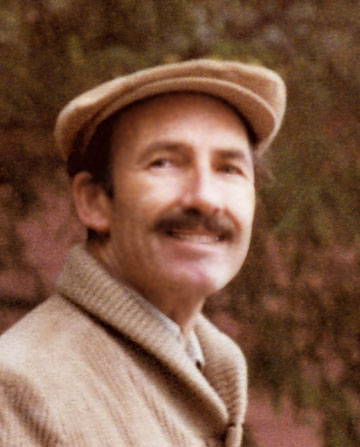
Vergleichen Sie das Ergebnis mit dem Originalbild:
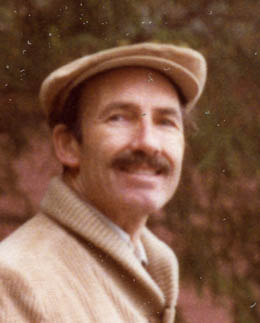
Original
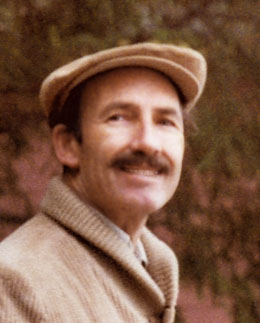
Ergebnis
- Schritt 1. Gordon scannte Sie das Bild mit rund 2500 dpi, 48-Bit-Farbe.
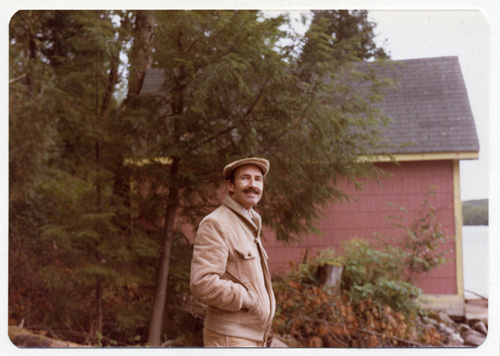
- Schritt 2. Dann stellte er das Foto frei und vergrößerte das erhaltene Bild auf das Fünffache.
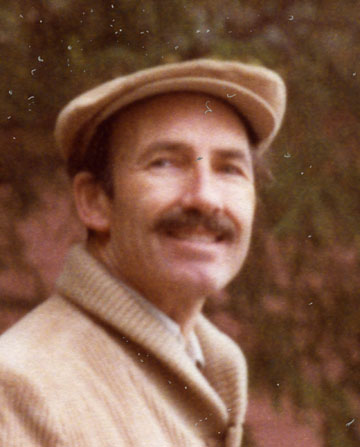
- Schritt 3. Danach reduzierte er die Auflösung auf 400 dpi.
- Schritt 4. Rufen Sie das Plugin AKVIS Noise Buster AI auf. Dank dem Vorschaufenster ist es ganz leicht, die optimalen Einstellungen anzupassen.
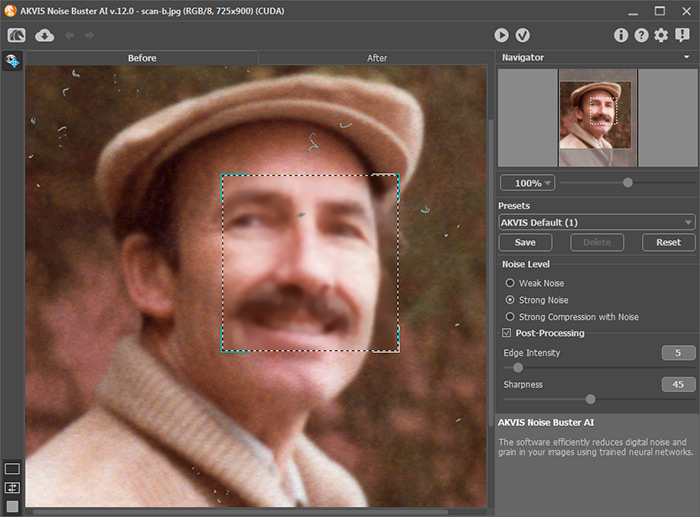
- Schritt 5. Rufen Sie AKVIS Enhancer auf (Hier klicken, um mehr über das Plugin zu lesen).
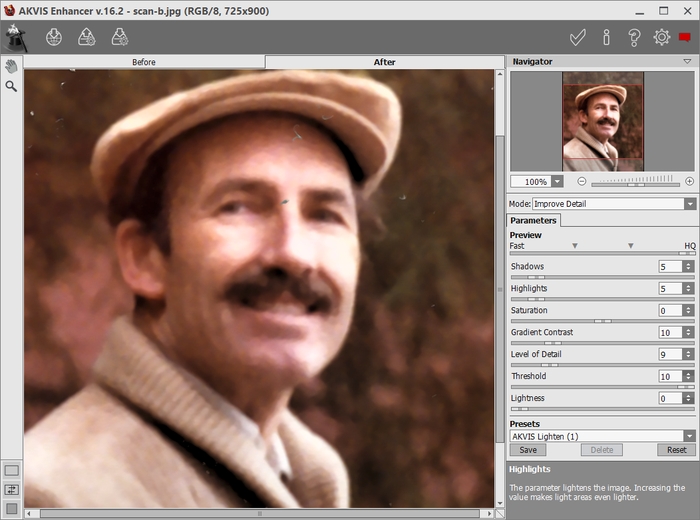
Ein weites Feld zur Einstellungsanpassung erlaubt es Ihnen, ein ausgezeichnetes Ergebnis zu erzielen.
Das Bild sieht ein bisschen verschwommen aus. Deswegen benutzt Gordon das AKVIS Refocus Plugin zur Scharfstellung, um das Foto schärfer zu machen.
Das Foto wurde schärfer, Gordon war aber nicht ganz zufrieden. Er nimmt wieder zu Hilfe des Plugins Enhancer, das Details effektiv hervorhebt. Diesmal benutzte Gordon nur die Parameter Detailstufe und Beleuchtungsstärke, die bei Schärfe-, Details- und Farbverbesserung behilflich waren.
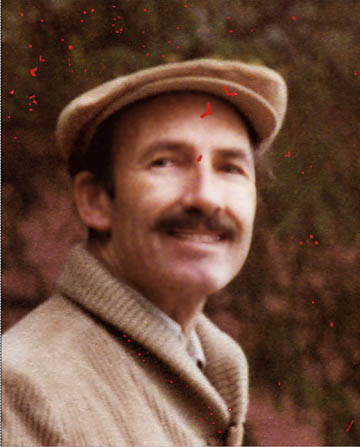
So werden unerwünschte Flecke auf dem alten Foto sichtbar. Jetzt ist AKVIS Retoucher dran (ein Plugin zur Fotoretusche).
- Schritt 6. Rufen Sie AKVIS Retoucher auf und aktivieren den Auswahlpinsel
 , um die Bereiche zu markieren, die korrigiert werden müssen.
Hier ist das Endergebnis:

Noise Buster AI v. 13.2 - 10-Tage-Testversion
