Improving a Photo: How to Make Your Photo Look Better
We have received this tutorial from Gordon Sisson, the author of two examples for the Coloriage (Love Story and Coloring old black and white drawings). This time Mr. Sisson tries our noise suppression software (with a little help from Enhancer and Retoucher) to make his photo look better. He shares his opinion:
"Wanting to test the new Noise Buster plugin, I came upon this snapshot of myself. It is not a good picture and it looks hardly worth trying to improve. With my great faith in AKVIS, I gave it a try."
Please compare the original photo and the final result:
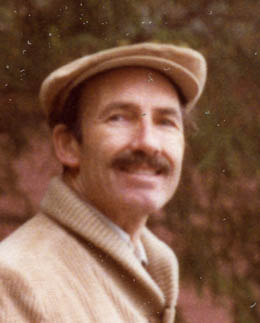 |
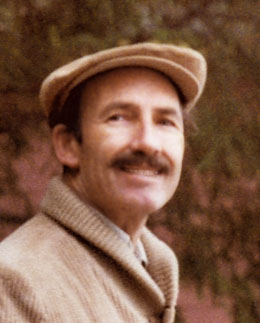 |
| Before | After |
- Step 1. Scan the picture at 2500 dpi, 48 bit color.
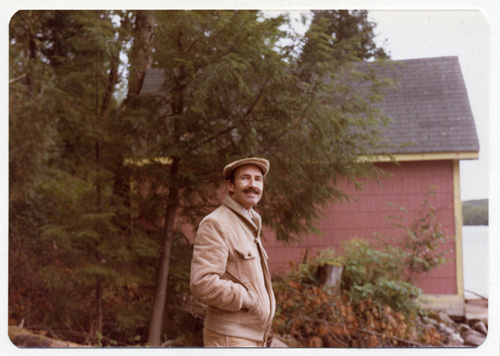
- Step 2. Select what you want from the scan and enlarge X5.
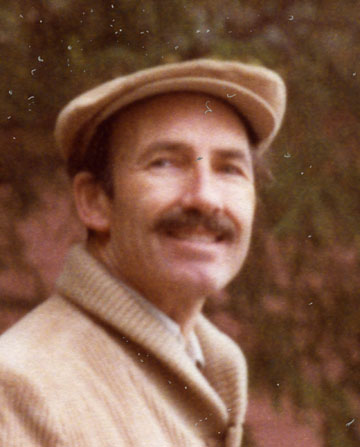
- Step 3. Reduce resolution to 400 dpi.
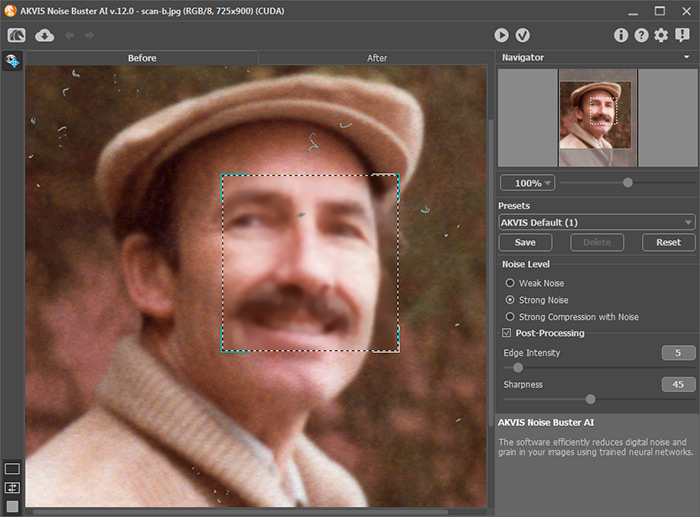
- Step 4. Call AKVIS Noise Buster plugin (or run the standalone edition) and work on the settings.
With the Quick Preview you can adjust the corrections to get the best result. This is a huge improvement but now I am really interested and I want more.
- Step 5. Call AKVIS Enhancer (click to read more about the Enhancer plug-in).
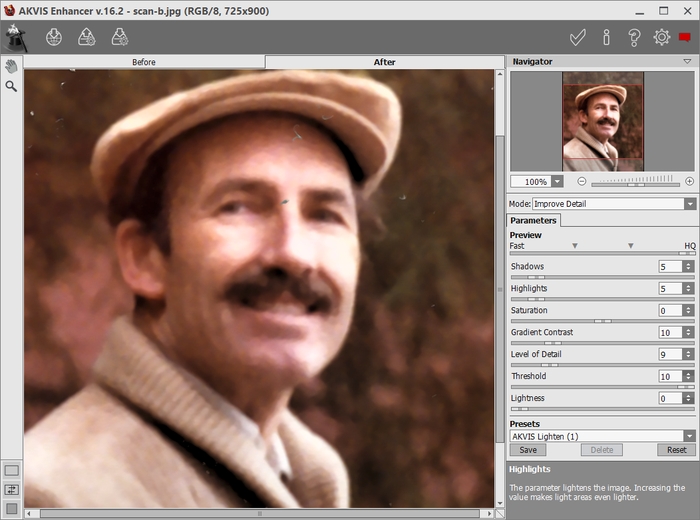
With the large display and clear guides to using the settings, you can easily adjust Enhancer to give excellent results.
Following the improvement from Enhancer, I still had a fairly soft picture, so I went to my Focus plugin AKVIS Refocus and applied a modest amount of focus.
This helped but still not sharp so I went back to Enhancer — and using only Level of detail control (and a little help from Lightness control) greatly improved the sharpness, detail and color of the picture.
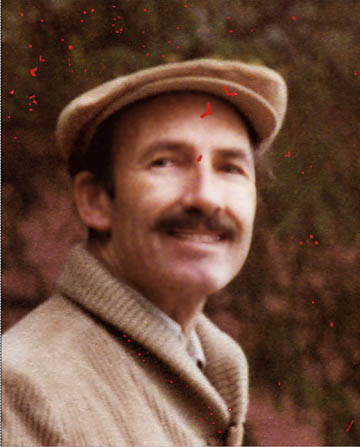
Now you can see there are still unwanted marks on this old picture. AKVIS Retoucher (a plugin for photo restoration) will help us.
- Step 6. Call AKVIS Retoucher and choose a Selection Brush
 to color the areas to be fixed.
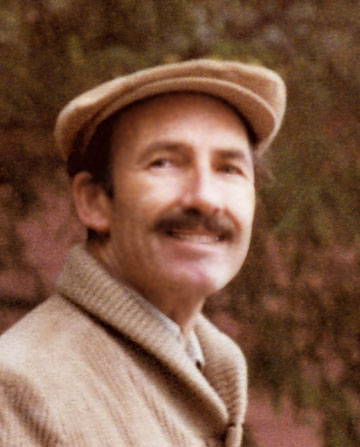
Here is the final result:

Noise Buster AI v. 13.2 - 10日間の評価期間
