Love Story
"L'amour c'est un oiseau rebelle, que nul ne peut apprivoiser.." sings Carmen. "Love is a rebellious bird that nothing can tame.."
That's true. It happens that an old love will not set you free even after 50 years.
 |
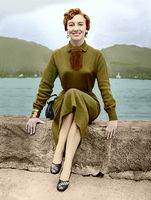 |
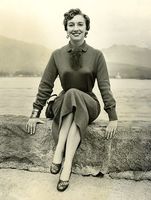
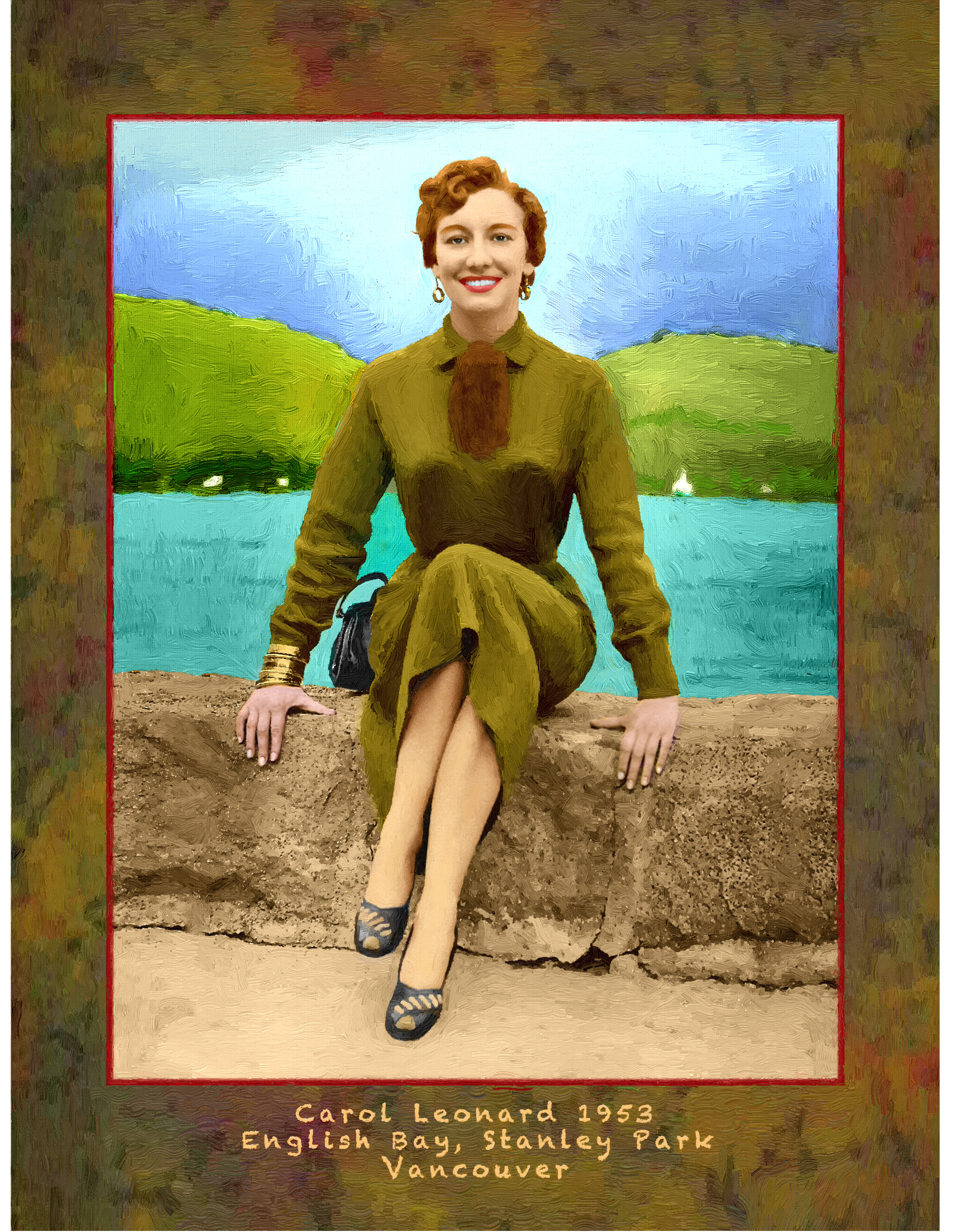
The author of the tutorial, Gordon Sisson, tells us in his letter that he was madly in love with Carol Leonard (the girl on the photo) but he was "so stupid to let her slip away".
This tutorial is not just an attempt to restore an old photo of a beautiful woman, but to recall the happy days when she was near, to hear the tides of the lake and to see the wonderful smile on the lips of his sweetheart.
Gordon hopes that she is happy and he will be glad to get in touch with Carol. (If she sees the tutorial, she can contact us). Unfortunately, he didn't save the strokes, so you can only compare the original black and white photo and the result of colorization.
The photo was taken in August, 1953 in Stanley Park, Vancouver. Gordon colorized it using AKVIS Coloriage AI.
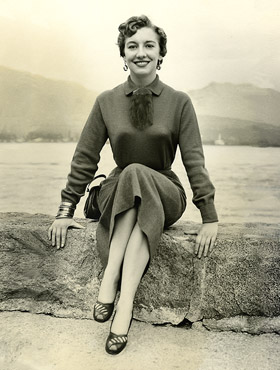
Before colorizing the photo with the AKVIS Coloriage AI plug-in Gordon improved focus and sharpened the photo.
For focus, he used a plug-in from Kodak called Focus Magic.
Note: alternatively you can use AKVIS Refocus.
After sharpening, the picture was converted back to RGB mode.
Note: you don't have to do this if you work with the standalone edition of AKVIS Coloriage AI. It converts images to RGB automatically.
Now we can start colorizing the photo with AKVIS Coloriage AI. Gordon closely followed the colorization instructions and obtained a splendid result.
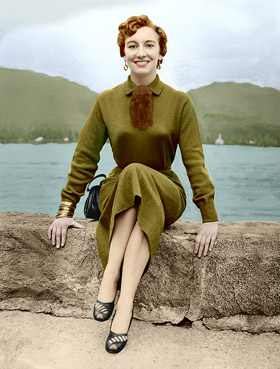
Then he converted the photo into an oil painting using AKVIS ArtWork:
Picture
(click on the painting to see it in full size)
Coloriage AI v. 15.7 - 10日間の評価期間
