Neujahrsmärchen
Dieses Tutorial wurde von Igor Froloff erstellt.
-
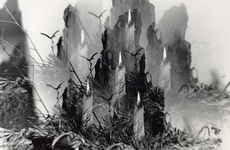
Schritt 1. Öffnen Sie das schwarz-weißes Ausgangsbild in Adobe Photoshop.
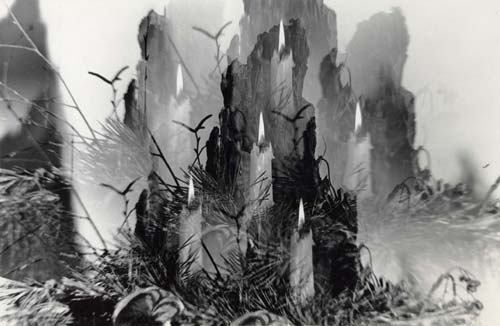
Der Autor des Tutorials hat dieses Foto vor 20 Jahre aufgenommen. Auf dem Foto ist das Weihnachtsikebana zu sehen. Beim Fotografieren wurden der Fotoapparat Zenit (Objektiv Gelios-44-M4), Film "Foto-64" und Prismenvorsatz benutzt.
-
Schritt 2. Retuschieren Sie Staub und Kratzer auf dem Foto.
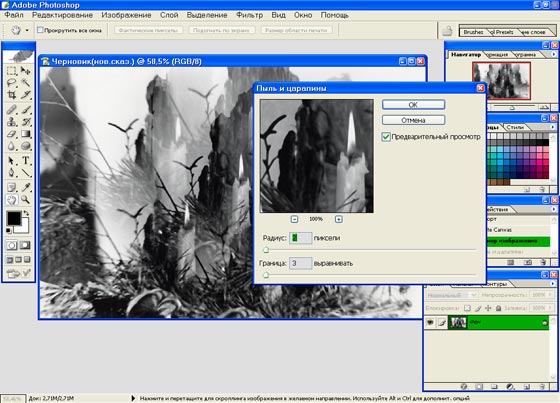
Dazu erstellen Sie eine Kopie der Ebene, indem Sie das Tastaturkürzel Strg+J benutzen. Wenden Sie den Filter Staub und Kratzer auf erstellte Ebene an, sodass alle "weißen Defekte" entfernt werden. Das Foto kann dabei ziemlich verschwommen aussehen, Sie brauchen sich hierum keine Sorgen zu machen.
Aktivieren Sie den Mischmodus Abdunkeln anhand des Pull-down-Menüs im oberen Teil der Ebenen-Palette.
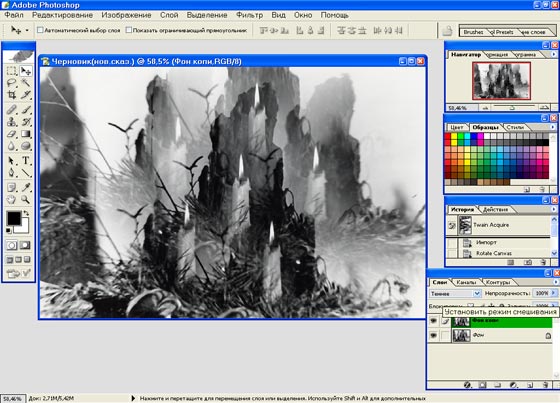
In diesem Mischmodus werden alle jeweilige Pixel-Paare der oberen und der unteren Ebene der Reihe nach verglichen und es wird die jeweils dunklere Farbe als Ergebnisfarbe gewählt. Solcherweise werden alle "weißen Defekte" durch die Pixel der oberen Ebene ersetzt. Die Originaldetails bleiben aber unverändert. Wir bekommen das verbesserte Foto, das nicht mehr verstaubt und gekratzt ist.
Größere Mängel können anhand des Kopierstempel-Werkzeuges behoben werden.
- Schritt 3. Passen Sie mal auf, auf dem Bild ist die Kerzenflamme zu sehen, die etwas anders gestaltet werden kann. Aktivieren Sie das Lasso-Werkzeug in der Werkzeugpalette und wählen Sie die Kerzenflamme aus.
-
Schritt 4. Rufen Sie den Filter Eye Candy 5: Nature Fire auf und ändern Sie die Form und Farbe der Flamme.
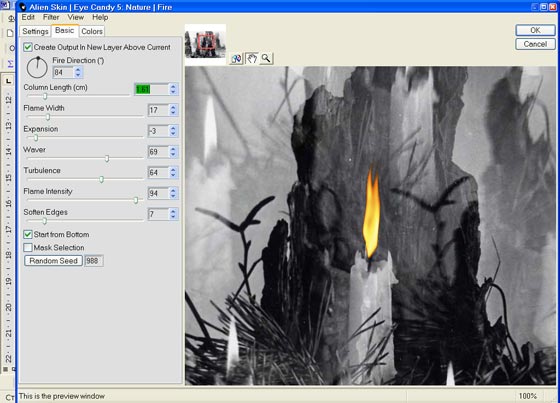
Sie können die Flamme jeder Kerze der Reihe nach auswählen und den Filter darauf anwenden. Oder Sie können die Flamme einer Kerze auswählen, den Filter darauf anwenden, die geänderte Flamme kopieren und jeder Kerze anpassen.
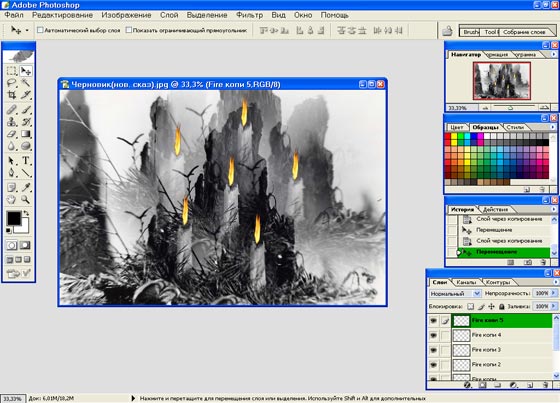
-
Schritt 5. Aktivieren Sie die Ebene mit der Kopie des Ausgangsfoto. Rufen Sie das Plugin AKVIS Coloriage auf (Filter > AKVIS > Coloriage). Die Bildeinfärbung geht los.
Auf dem Bild sehen wir etwas Dunkles, das an die Baumrinde erinnert. Finden Sie in der Farbe-Bilbliothek den Ordner Baum, wählen Sie eine Farbe und umreißen Sie den Baum mit den farbigen Markierungslinien.
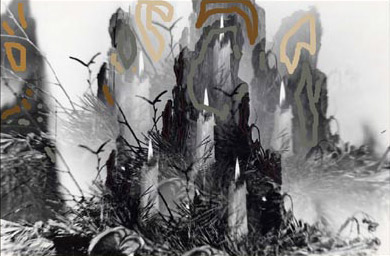
Dann gehen Sie zum Einfärben der Kerzen über. Die Paraffinkerzen sind gewöhnlich hellgelb, aber Sie können jedoch eine ganz beliebige Farbe auswählen.
Auf dem Bild sind auch Ebereschenbeeren zu sehen. Fügen Sie rote Punkte hinzu.
Die Birkenzweige markieren Sie mit dem Farberhaltungsstift
 , damit sie unverändert bleiben.
Die Tannenzweige sind ziemlich unklar, deswegen passen Sie die Farben nach Ihrem Geschmack an. Öffnen Sie die Farbbibliothek und wählen Sie eine Farbe. Beachten Sie dabei, wie diese Farbe nach der Bearbeitung aussehen wird. Wenn eine Farbe Ihnen nicht gefällt, können Sie diese jederzeit mit dem Tube-Werkzeug
 und Zaubertube-Werkzeug
  ändern.
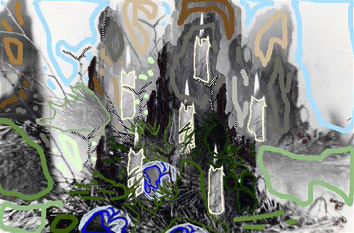
-
Schritt 6. Wenn alles fertig ist und Sie mit dem Ergebnis zufrieden sind, nehmen Sie die Änderungen an, indem Sie auf
 klicken.
-
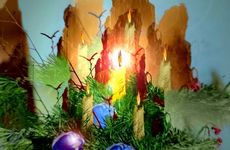
Schritt 7. Jetzt ist die Zeit für Zauber. Benutzen Sie den Filter Renderfilter -> Beleuchtungseffekte und fügen Sie eine Lichtquelle dem Bild hinzu.
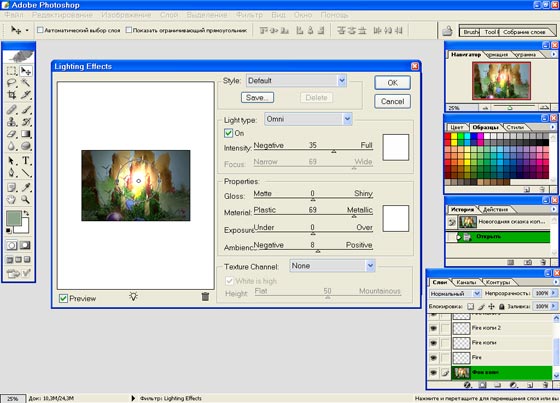
-
Schritt 8. Fügen Sie noch einen Lichtfleck hinzu, indem Sie den Filter Renderfilter -> Blendenflecke verwenden.
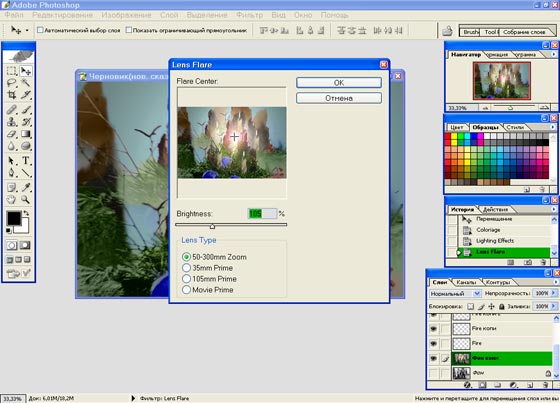
Sehr gut, aber es fehlt etwas. Vielleicht der Lichtreflex auf dem Ball? Fügen Sie diesen anhand des Filters Renderfilter -> Blendenflecke hinzu.
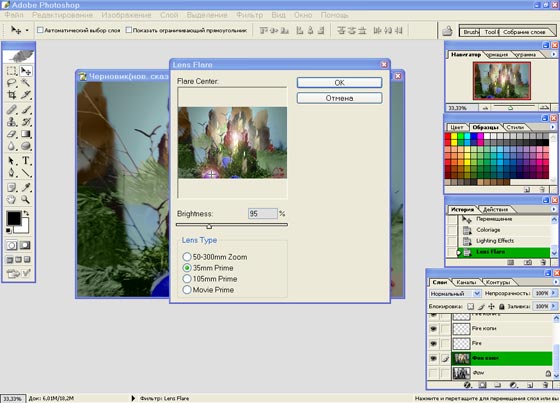
-
Schritt 9. Man kann noch die Einstellungsebenen Farbton\Sättigung und Helligkeit\Kontrast hinzufügen.
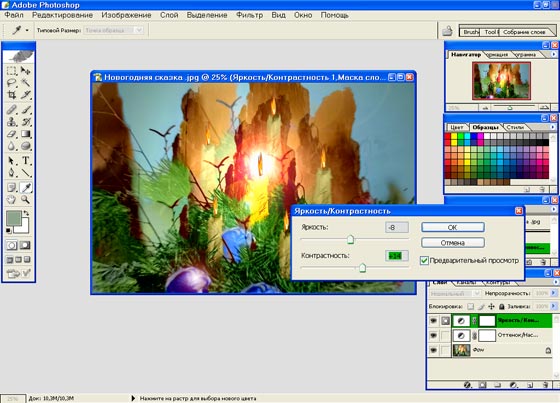
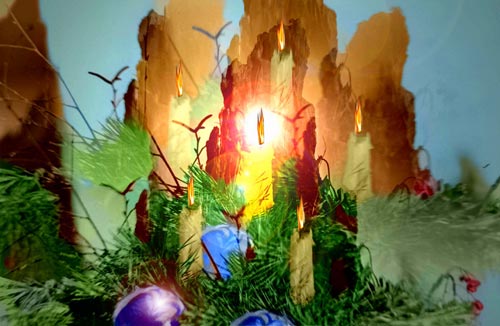
Das wäre alles. Das Bild sieht märchenhaft aus. Benutzen Sie es als Glückwunschkarte für Ihre Verwandten und Freunde.
Coloriage AI v. 15.7 - 10-Tage-Testversion
