Newfoundlands From The Sea
The author of this tutorial is Brigitta Boonen (Germany).
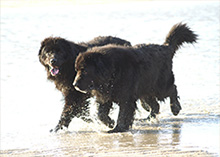
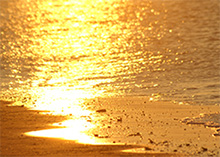
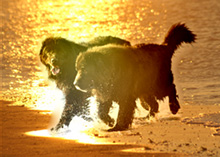
AKVIS Chameleon can be used to place an object on a new background.
 |
 |
 |
| Original Images | Result | |
Follow these steps:
-
Step 1. First, open the photo of the Newfoundlands in your graphics editor and select them with the Lasso tool.
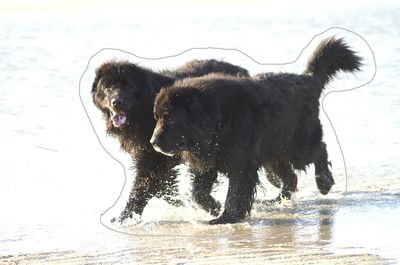
Photo of Dogs - Step 2. Choose AKVIS -> Chameleon – Grab Fragment from the Filter menu. Soon afterward you will see a message that the selected object has been copied to the clipboard.
-
Step 3. Open the image in your graphics editor which will serve as the background for the collage.
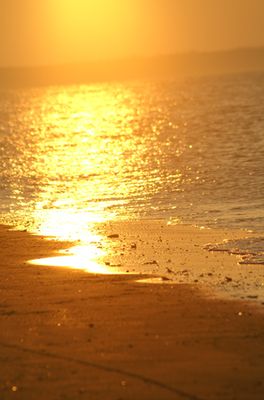
BackgroundNext choose Filter –> AKVIS -> Chameleon – Make Collage from the Filter menu.
The workspace for AKVIS Chameleon will open, displaying the background with the selected fragment.
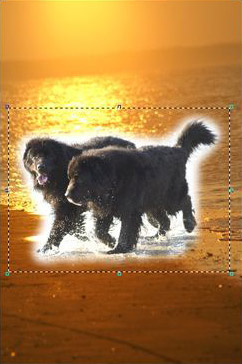
Zoom out to the see the whole image. The size and position of the fragment can be changed with the Transform tool
 .
.
Then choose Chameleon or Blend mode from the list in the Settings Panel. In these modes not only are the fragment's edges smoothed, the fragment is also adjusted to the background, changing in color and transparency. This makes the collage appear more realistic.
The Opacity option makes insertion of the fragment easier by controlling the amount of fragment "preview" transparency. It does not affect the final result. Use it when you need to position the fragment on the image at a high accuracy.
Press
 , to see the processing result.
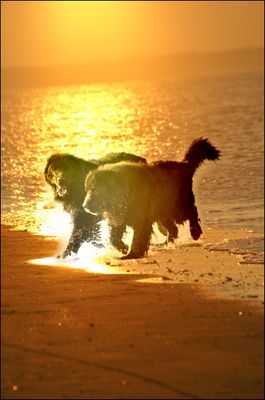
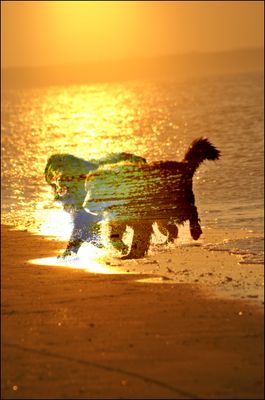
Collage: Chameleon Mode Collage: Blend Mode - Step 4. If you are satisfied with the result, press
 , to accept it and close the plug-in window. Save the collage to a file.
Chameleon v. 12.2 - 10日間の評価期間

- Step 4. If you are satisfied with the result, press