Ripe cherries
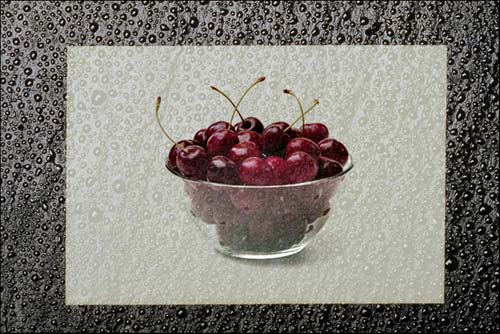
We are going to create a greeting card with ripe cherries using the Blend mode of the AKVIS Chameleon. In this mode, the program does not only smoothes the borders of the inserted object and adjusts its color range, but it also makes the object semi-transparent, so that the texture and the relief of the primary image can be seen through.
 |
 |
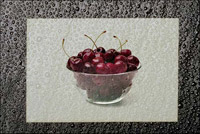 |
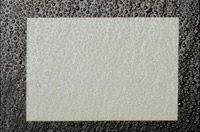
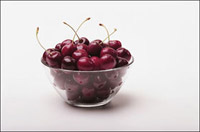
| Source Images | Result | |
-
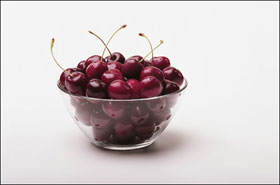
Step 1. Open a photo frame picture and a photo of cherries in your photo editor, in our case it is Adobe Photoshop. The photo frame has a texture as if it were covered with water drops.
You can use AKVIS Chameleon in its standalone edition if you wish. In this case, instead of steps 2-4, just use the pencil tools in the program to draw red and blue outlines. They are available in the plugin version too. With these tools you can draw the contours and edit them.
-
Step 2. First we should select the cherries (with a shadow).
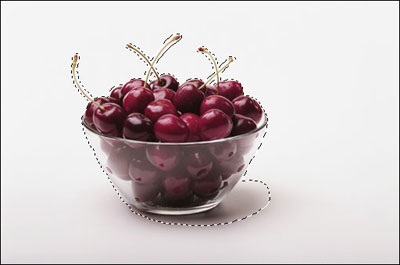
- Step 3. Copy the selected cherries by calling AKVIS -> Chameleon - Grab Fragment from the Filter menu.
-
Step 4. Switch back to the photo frame, which will be the background for the vase with cherries, and call AKVIS -> Chameleon - Make Collage from the Filter menu.
The AKVIS Chameleon window will open. The background and fragment (cherries) will be visible in the Before tab.
-
Step 5. Switch to Blend mode in the drop-down menu in the Settings Panel.
Select the Transform tool
 in the Toolbar and change the size and position of the inserted fragment.
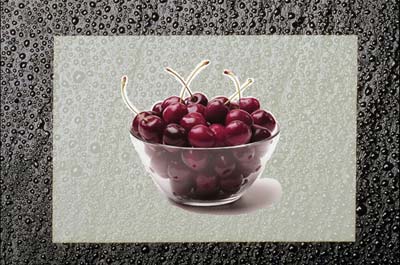
-
Step 6. Press the button
 to make the collage. The result will appear in the After tab.
Click on
 to apply the collage and return to Photoshop.
As a result we see the following greeting card with ripe cherries.
Chameleon v. 12.2 - 10日間の評価期間
