Opzioni di colore per un design d'interni
Potete colorare questa foto voi stessi, usando i materiali che vi forniamo. Scaricare l’archivio contenente l'immagine originale e il file dei tratti (*. strokes). Leggere le istruzione per imparare ad utilizzare i file .strokes con AKVIS Coloriage AI.
AKVIS Coloriage AI (nella modalità Classica) permette ai progettisti di sperimentare le varie combinazioni di colori per il design d’interni ed esterni. Prima utilizzare un qualsiasi programma per creare un design d’interni in un unico colore o in bianco e nero, poi usare AKVIS Coloriage AI per dare le giuste tinte ad ogni oggetto.
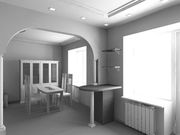
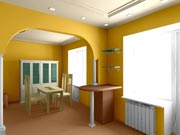
Qui di seguito è riportato un design d’interno in B&N creato in 3DS MAX.
Useremo il plugin Coloriage AI, ma il metodo di lavoro nella versione standalone di Coloriage AI è analogo.
Notare che bisogna aprire un'immagine originale nel programma ogni volta.
-
Passaggio 1. Aprire l'immagine nell’editor di grafica, per esempio in AliveColors.
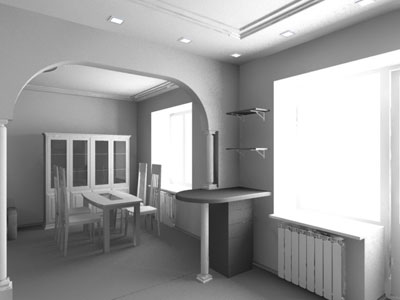
- Passaggio 2. Lanciare il plugin AKVIS Coloriage AI, selezionando il comando Effetti -> AKVIS -> Coloriage AI in AliveColors.
-
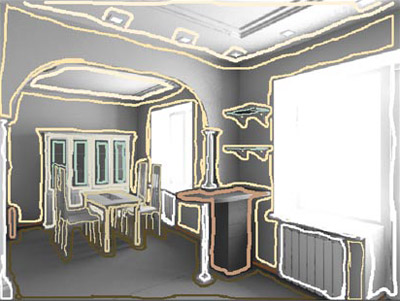
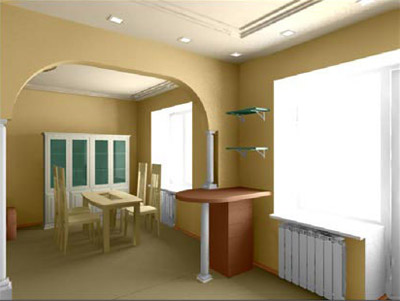
Passaggio 3. Prima di tutto rendere gli interni beige. Disegnare un contorno all'interno degli oggetti, utilizzando diverse tonalità di beige e colori che si armonizzano tra loro:
selezionare il marrone per il battiscopa e il pavimento;
dipingere le pareti in beige e il soffitto in beige chiaro;
scegliere il bianco per il radiatore, la cornice della finestra e le colonne;
selezionare il bianco latte per il buffet (non dimenticate di delineare le finestre nel buffet);
dipingere con una tonalità di verde chiaro i ripiani in vetro e le finestre del buffet;
scegliere una tonalità di legno chiaro per il tavolo e le sedie, e un tono più scuro per il banco pranzo.
-
Passaggio 4. Premere su
 , il risultato verrà mostrato nella scheda Dopo.
-
Passaggio 5. Salvare i tratti disegnati in un file. Per questo scopo premete su
 e salvare il file, ad esempio con il nome Interni Beige.
-
Passaggio 6. Premere su
 . La finestra del plugin AKVIS Coloriage AI verrà chiusa e si avrà la foto colorata con le tinte scelte. Salvare su file.
- Passaggio 7. Fare un passo indietro nel pannello Storia fino a tornare alla foto originale in B&N e richiamare AKVIS Coloriage AI.
-
Passaggio 8. Aprire il file con i tratti salvati premendo su
 e selezionare dalla lista il file Interni Beige.strokes.
-
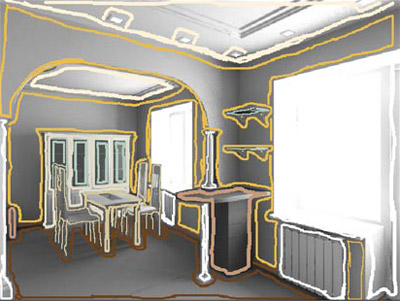
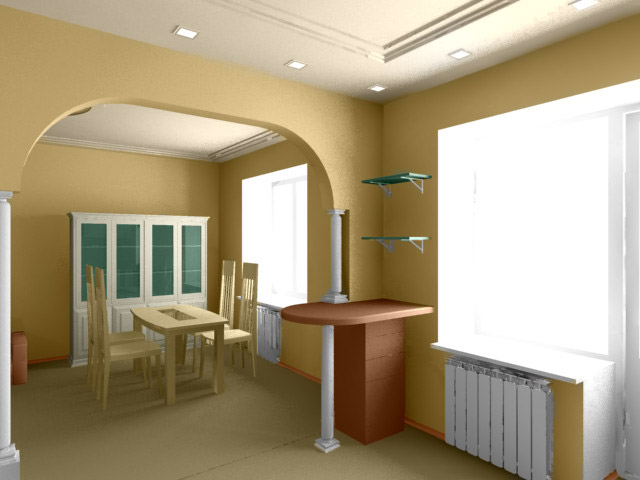
Passaggio 9. Cambiare i colori delle pareti e del pavimento. Per cambiare il colore dei muri, selezionare un giallo-arancio brillante dalla tavolozza, attivare lo strumento Tubetto magico
 e fare un clic, col tasto sx del mouse, su un tratto qualsiasi della parete.
Come risultato, tutte le tracce dello stesso colore diventeranno giallo-arancio. Modificare il colore del pavimento e il battiscopa con un marrone più saturo, che si armonizzi con il colore chiaro delle pareti.
-
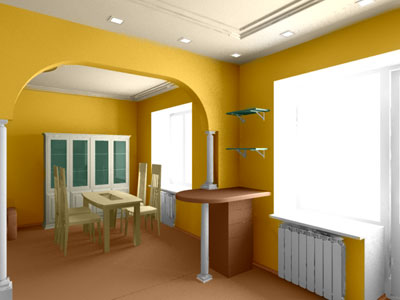
Passaggio 10. Premere su ed osservare il risultato della nuova gamma di colori nella scheda Dopo.
-
Passaggio 11. Applicare il risultato cliccando su . Salvare la nuova immagine in un altro file.
- Passaggio 12. Tornare indietro nel pannello Storia fino a raggiungere nuovamente la foto originale in B&N e lanciare AKVIS Coloriage AI.
-
Passaggio 13. Premere su e selezionare dall’elenco il file Interni Beige.strokes.
-
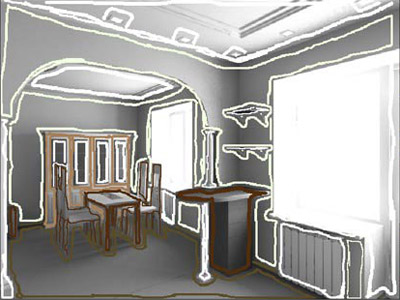
Passaggio 14. Questa volta eseguiremo queste operazioni:
Utilizzare lo strumento Tubetto magico
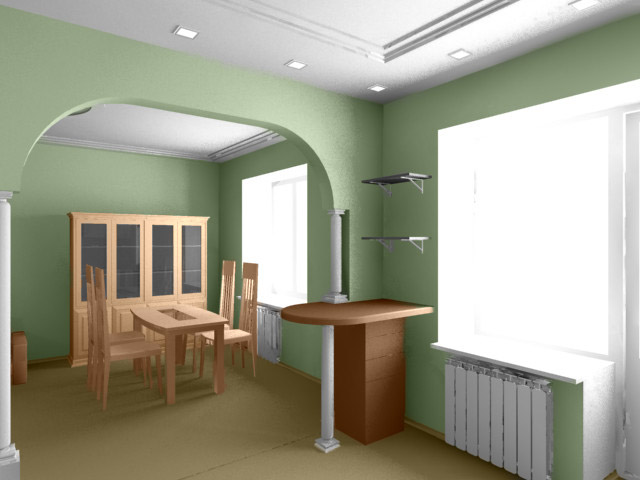
per cambiare il colore delle pareti beige in verde chiaro,
Dipingere il soffitto di bianco;
Cambiare il colore dei mobili.
-
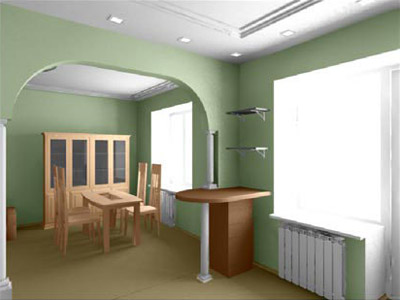
Passaggio 15. Premere su ed osservare il risultato della terza versione del design d'interni nella scheda Dopo.
-
Passaggio 16. Applicare i nuovi colori premendo su .
Confrontare le foto colorate e scegliere la gamma di tonalità che piace di più per il design d’interni.

Coloriage AI v. 15.7 - 10-giorni di prova gratuita
