Color options for the interior design
You can colorize this photo yourself using the half-finished materials that we give you. Download an archive containing the original image and the file with the strokes (*.strokes). Read the instruction to see how it works.
AKVIS Coloriage AI allows designers to experiment with the color schemes for the interior and exterior design. First you use any program to create an interior design in one color or in black and white, then you use AKVIS Coloriage AI to set a color for every object and detail.
 |
 |
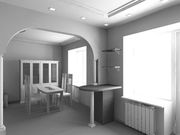
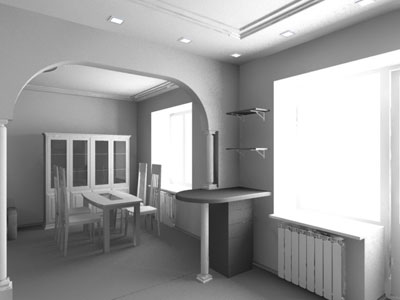
Below is an interior design in black and white created in 3DS MAX.
-
In this tutorial we use the plugin version, but you can take the standalone program and do the same. You will need to open the original image each time, to get the results with various color range.
-
Step 1. Open the image in your photo editor, for example, in AliveColors.
- Step 2. Call the plug-in AKVIS Coloriage AI by selecting the command Effects –> AKVIS –> Coloriage AI in AliveColors.
-
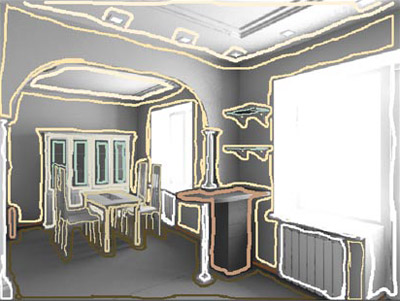
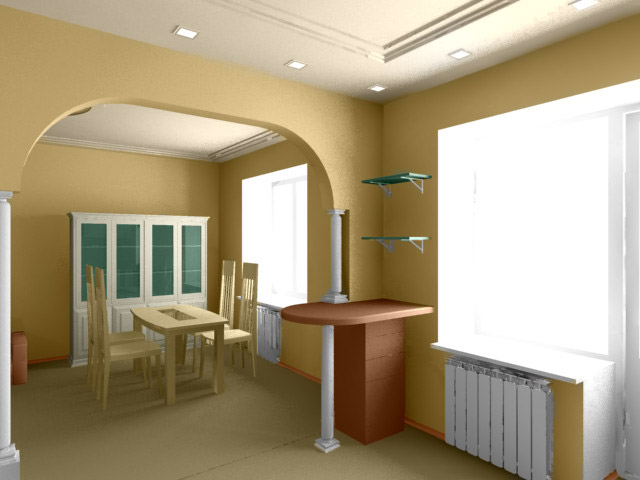
Step 3. First we will render the interior in beige. Draw a contour within the objects using different hues of beige and the colors that harmonize with it:
select brown for the plinth and the floor;
paint the walls in beige and the ceiling in a light beige;
select white for the radiator, the window-frame and the columns;
select milk-white for the buffet (do not forget to outline the windows in the buffet);
select a greenish tone for the glass shelves and windows of the buffet;
choose some light hue of the tree color for the table and the chairs, and a darker tone for the lunch counter.
-
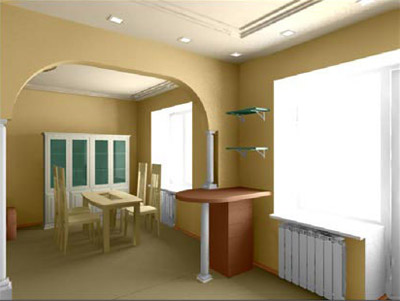
Step 4. Press the button
 and see the colorization result in the After tab.
-
Step 5. Save the drawn strokes in a file. For this purpose press the button
 and save the file, for example, under the name Interior-beige.
-
Step 6. Press the button
 . The plugin window of AKVIS Coloriage AI will close and you will see your black and white photo colorized in the chosen colors. Save the photo in a file.
- Step 7. Go one step back in the History panel to the original black and white photo and call AKVIS Coloriage AI again.
-
Step 8. Open the file with the saved strokes by pressing the button
 and by selecting the file Interior-beige.strokes from the list.
-
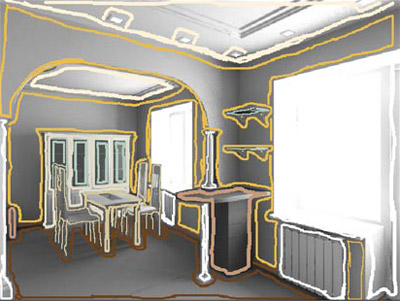
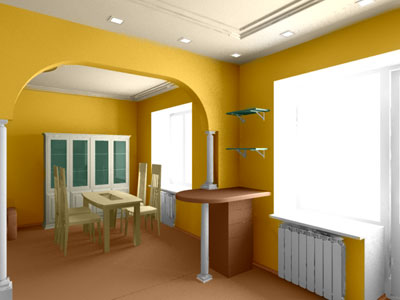
Step 9. Change the color of the walls and of the floor. To change the color of the walls, select the bright yellow-orange from the palette, activate the Magic tube tool
 and left-click on any stroke on the wall.
As a result, all strokes of this color will change to yellow-orange. Change the color of the floor and the plinth to a more saturated brown that will harmonize with the bright color of the walls.
-
Step 10. Press the button and see the new color range in the After tab.
-
Step 11. Apply the result by pressing the button . Save the new version of the interior color range in a new file.
- Step 12. Go one step back in the History panel to the original black and white photo and call AKVIS Coloriage AI again.
-
Step 13. Press the button in the plugin window and select the file Interior-beige.strokes from the list.
-
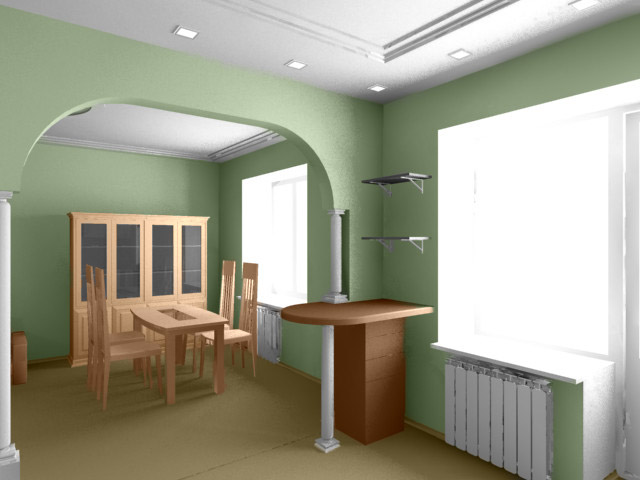
Step 14. This time we will do the following:
Use the Magic tube tool
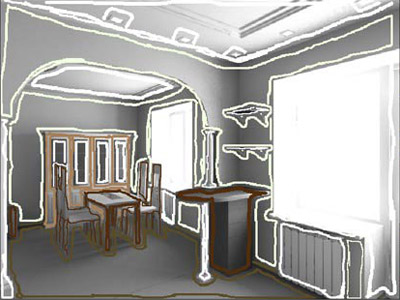
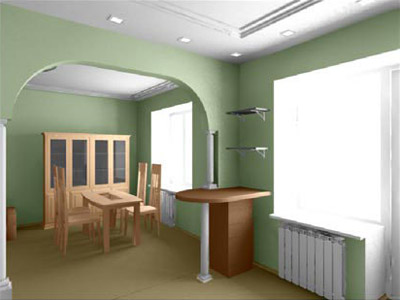
to change the color of the beige walls to light-green,We will paint the ceiling in white;
Change the color of the furniture.
-
Step 15. Press the button and see the third version of the interior design in the After tab.
-
Step 16. Apply the colorization result by pressing the button .
Compare the colorized photos and choose the color range for your interior design that you like.
Coloriage AI v. 15.7 - 10日間の評価期間
