Opções de cores para projeto de interiores
Você pode colorir esta foto usando os materiais semiacabados que nós lhe damos. Baixe um arquivo contendo a imagem original e o arquivo com os traços (*.strokes). Leia as instruções para ver como ele funciona.
AKVIS Coloriage AI (no modo Clássico) permite aos projetistas experimentarem os esquemas de cores para projetos de interiores e exteriores. Primeiro você usa qualquer programa para criar um projeto de interior em uma cor ou em preto e branco, então você usa AKVIS Coloriage AI para definir uma cor para cada objeto e detalhe.
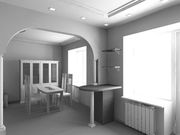
Projeto de interiores
em preto e branco
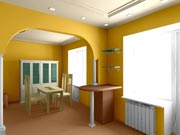
Projeto de interiores a cores
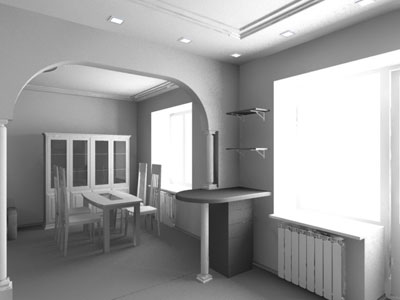
Abaixo está um projeto interior em preto e branco criado em 3DS MAX.
-
Passo 1. Abra a imagem em seu editor de fotografias, por exemplo, no AliveColors.
- Passo 2. Chame o plugin AKVIS Coloriage AI, selecionando o comando Effects –> AKVIS –> Coloriage AI no AliveColors.
-
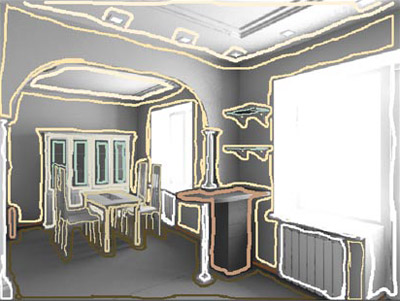
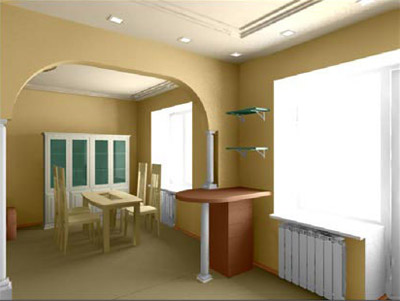
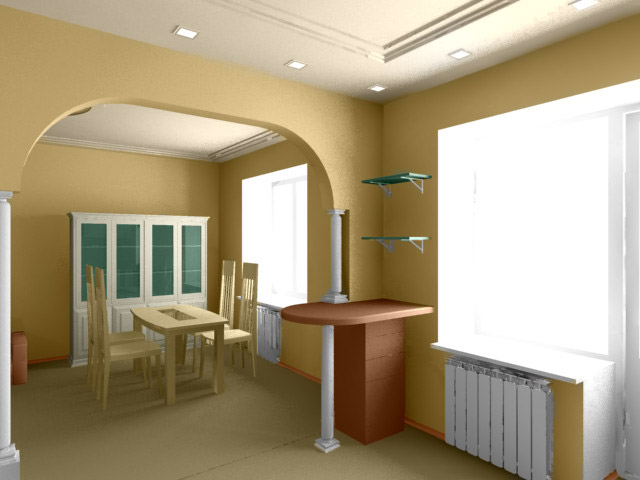
Passo 3. Primeiro vamos tornar o interior na cor bege. No modo Clássico desenhe um contorno dentro dos objetos usando diferentes tons de bege e as cores que harmonizem com ele:
selecione marrom para o rodapé e o chão;
pinte as paredes em bege e o teto em um bege claro;
selecione branco para o radiador, a moldura da janela e colunas;
selecione branco leite para o buffet (não se esqueça de delinear as janelas do buffet);
selecione um tom esverdeado para as prateleiras de vidro e janelas do buffet;
escolha uma tonalidade madeira clara para a mesa e as cadeiras e um tom mais escuro para o aparador.
-
Passo 4. Pressione o botão
 e veja o resultado da colorização na aba Depois.
-
Passo 5. Salve os traços desenhados em um arquivo. Para este efeito, pressione o botão
 e salve o arquivo, por exemplo, sob o nome Interior-bege.
-
Passo 6. Pressione o botão
 . A janela do plug-in AKVIS Coloriage AI fechará e você verá sua foto preto e branco colorizada com as cores escolhidas. Salve a foto em um arquivo.
- Passo 7. Retroceda um passo atrás na paleta História voltando para a foto original preto e branco e chame AKVIS Coloriage AI novamente.
-
Passo 8. Abra o arquivo com os traçados salvos pressionando o botão
 e selecionando o arquivo Interior-beige.strokes da lista.
-
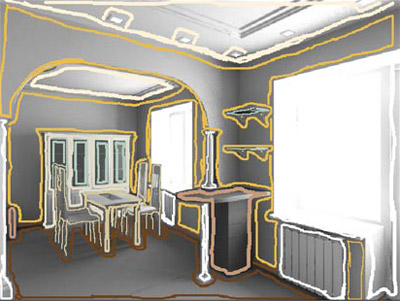
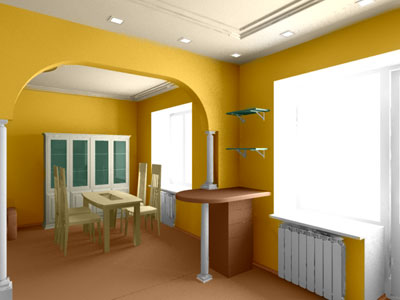
Passo 9. Mude a cor das paredes e do chão. Para mudar a cor das paredes, selecione o amarelo-laranja brilhante a partir da paleta, ative a ferramenta Tubo mágico
 e clique com o botão esquerdo do mouse sobre qualquer traço na parede. Como resultado, todos os traços desta cor mudarão para amarelo-laranja da paleta. Mude a cor do piso e do rodapé para um marrom mais saturado que harmonize com a cor brilhante das paredes.
-
Passo 10. Pressione o botão e veja a nova gama de cores na aba Depois.
-
Passo 11. Aplique o resultado pressionando o botão . Salve a nova versão da gama de cores interiores em um novo arquivo.
- Passo 12. Vá um passo para trás na paleta História voltando para a foto original preto e branco e chame AKVIS Coloriage AI novamente.
-
Passo 13. Pressione o botão na janela do plug-in e selecione o arquivo Interior-beige.strokes da lista.
-
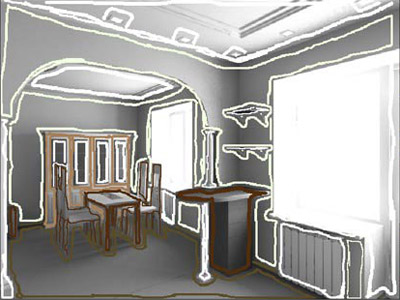
Passo 14. Desta vez, vamos fazer o seguinte:
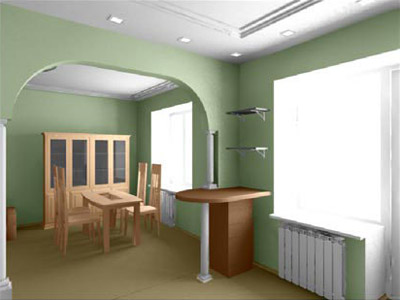
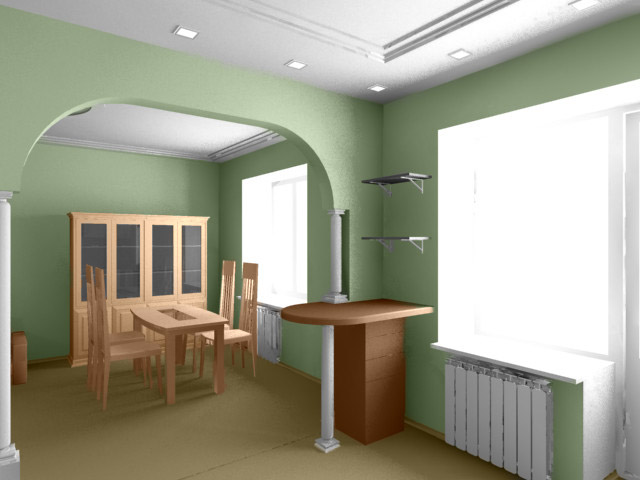
utilize a ferramenta Tubo mágico para mudar a cor das paredes de bege para verde claro;
vamos pintar o teto de branco;
mudar a cor do mobiliário.
-
Passo 15. Aperte o botão e veja a terceira versão do projeto interior na aba Depois.
-
Passo 16. Aplique o resultado da colorização apertando o botão .
Neste tutorial sumos a versão plug-in, mas você pode usa a versão autônoma do programa e fazer o mesmo. Terá que abrir a imagem original cada vez para obter resultados com várias gamas de cores.
Compare as fotos colorizadas e escolha a gama de cores do projeto de interior que mais gostar.

Coloriage AI v. 15.7 - Teste gratuito 10 dias
