Adding Detail To A Drawing And Then Colorizing It With AKVIS Coloriage


Entrar seu e-mail para subscrição em novidades.
 
 
  Produtos     Download     Online Store     Tutorial     Suporte     Quem Somos      Conta de usuário
en  fr  de  es  pt  it  jp  ru    
 

Tutorial: AKVIS Coloriage

Adding Detail and Color a Drawing


Neste momento algumas páginas estão disponíveis somente em Inglês e em Espanhol.
Você pode obter uma licença para qualquer programa AKVIS, se traduzir os arquivos do nosso acervo
para o Português (do espanhol ou do inglês) para saber mais escreva para o team@akvis.com

The author of this tutorial is K. J. Hartmann.

Often after making an outline or sketch in a hurry, you later want to add color. This can be done on a computer, if you have scanned the image or made it with a graphics editor.

Of course, color can be added with an image editor, but the task can be time-consuming.

As you will see, with AKVIS Coloriage color can be added to an image quite easily:
Black and White Outline Color Drawing

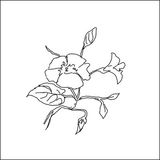
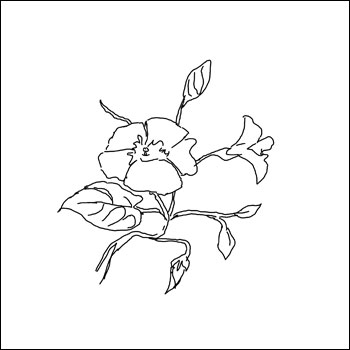
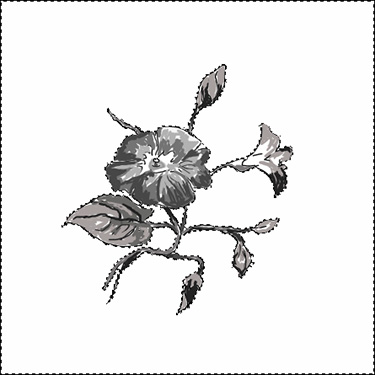
First I drew an outline of a flower

Pencil Sketch
Figure 1

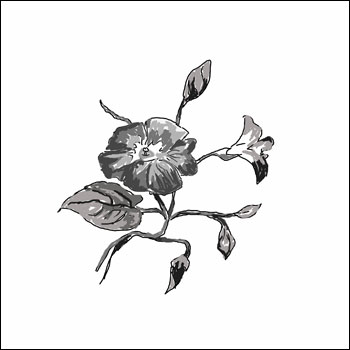
and filled it with different shades of grey, giving it volume.

Image of Flower
Figure 2

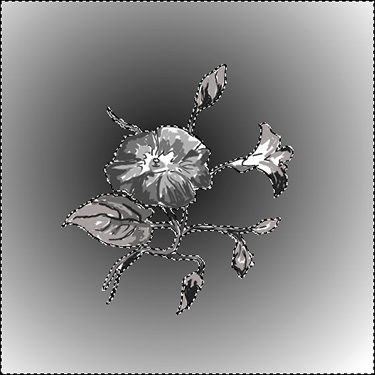
Then I clicked the Magic Wand outside of the flower (fig. 3), to highlight the white area.

Selection
Figure 3

I used the Gradient tool (shown by the arrows in fig. 4) to fill the area with varying shades of grey in a direction leading outward from the center.

Filling the Background
Figure 4

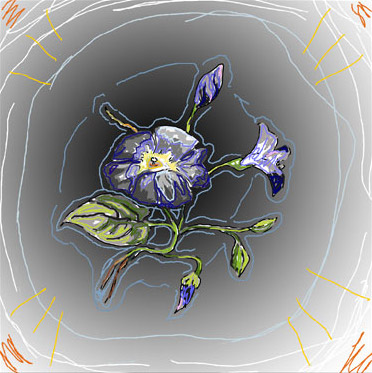
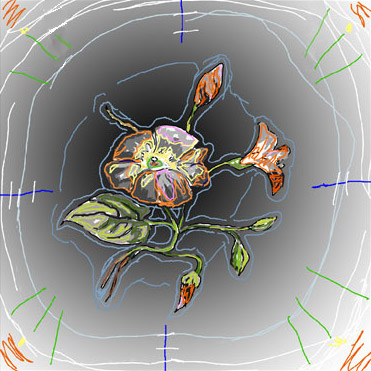
Then I called AKVIS Coloriage from the filter menu: Filter -> AKVIS -> AKVIS Coloriage and painted the drawing, choosing a color with the pipette from the Color Palette and drawing lines along the contours of the object. I also drew a boundary where one color should be separated from another (fig. 5). During processing the program will change the colors of the image, taking into account the brightness of the original image.

Important: After all parts of the image had been assigned a color, I clicked on the icon to the left of the Control Panel and saved the strokes to a file.

Color Strokes
Figure 5

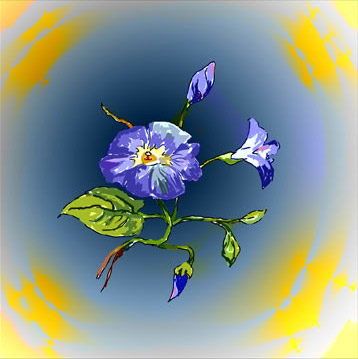
Now the image can be processed by pressing the button with a triangle . The result is shown in figure 6.

Drawing, Painted with AKVIS Coloriage
Figure 6

Here is another demonstration of AKVIS Coloriage.

I returned to the black and white image of the flower and once again called the AKVIS Coloriage plugin. After pressing the to load saved strokes, the image appears as in figure 5.

Next I went to the color palette to change some colors, and applied the changes with the Magic Tube tool . The repainted strokes are shown in figure 7.

Repainted
Figure 7

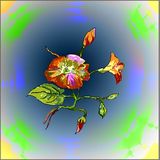
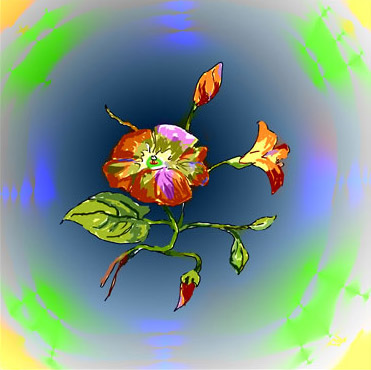
In figure 8 you can see the new result:

Color Drawing
Figure 8
 
Como Funciona Como Funciona
   — Àrea de trabalho — Àrea de trabalho
   — Utilizando o programa — Utilizando o programa
   — Seleccionar cores — Seleccionar cores
   — Dicas — Dicas
   — Usando arquivo de traçados (*.strokes) — Usando arquivo de traçados (*.strokes)
   — Opções — Opções
Exemplos Exemplos
   — Um antigo cartão postal — Um antigo cartão postal
   — Mudando a cor do corpo do carro — Mudando a cor do corpo do carro
   — Remover cor de uma área da foto — Remover cor de uma área da foto
   — Um detalhe colorido — Um detalhe colorido
   — Uma foto romântica — Uma foto romântica
   — Truques de colorização de fotos — Truques de colorização de fotos
   — Colorir uma foto em preto e branco — Colorir uma foto em preto e branco
   — Colorindo um retrato — Colorindo um retrato
   — Colorindo suas memórias — Colorindo suas memórias
   — Um presente para o Dia da Mãe — Um presente para o Dia da Mãe
   — Colonos canadense — Colonos canadense
   — Colorir uma foto restaurada — Colorir uma foto restaurada
   — Colorir um retrato de família — Colorir um retrato de família
   — Mudar a cor do vestuário — Mudar a cor do vestuário
   — Colorir uma foto de colonos  — Colorir uma foto de colonos
   — Criando um fundo colorido — Criando um fundo colorido
   — Elevar espíritos — Elevar espíritos
   — Colorir um baixo relevo — Colorir um baixo relevo
   — Um antigo cartão postal com uma gueixa — Um antigo cartão postal com uma gueixa
   — Uma téquinica da colorização — Uma téquinica da colorização
   — Colorir estilo mangá/anime — Colorir estilo mangá/anime
   — Colorir uma foto para uma colagem — Colorir uma foto para uma colagem
   — Exposição de flores — Exposição de flores
   — Desenho a lápis: um auto retrato — Desenho a lápis: um auto retrato
   — Criando um Cartão de natal — Criando um Cartão de natal
   — Estoria de Amor — Estoria de Amor
   — Papel com um animal domestico — Papel com um animal domestico
   — Colorir uma foto no Paint Shop Pro — Colorir uma foto no Paint Shop Pro
   — Como obter uma bela foto sépia — Como obter uma bela foto sépia
   — Um castelo na Escócia — Um castelo na Escócia
   — Como conseguir um colorido natural — Como conseguir um colorido natural
   — Cartão de Natal — Cartão de Natal
   — Retrato de uma artista indiana — Retrato de uma artista indiana
   — Colorindo velho desenhos branco e preto — Colorindo velho desenhos branco e preto
   — Flor do campo — Flor do campo
   — Foto de crianças — Foto de crianças


No começo da página


   Política de privacidade | Mapa do Site | Pesquisar na site    
   Contacte-nos | Twitter | Facebook | YouTube Channel    
| English  |Français  |Deutsch  |Español  | Português  |Italiano  |日本語  |Pусский  | © 2004-2012 AKVIS. Todos os direitos reservados.