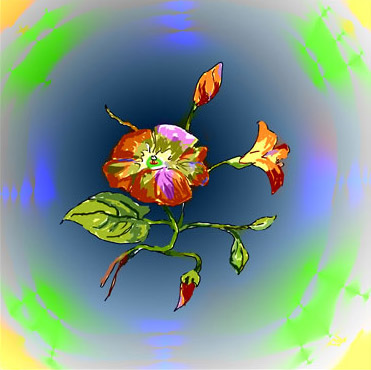
Adding Detail To A Drawing And Then Colorizing It With AKVIS Coloriage


Ingrese su email para suscribirse a la lista de AKVIS.
 
 
  Productos     Descargar     Tienda online     Tutorial     Apoyo técnico     Compañia      Área de clientes
en  fr  de  es  pt  it  jp  ru    
 

Tutorial: AKVIS Coloriage

Adding Detail and Color a Drawing


Esta información está disponible solamente en inglés. La version en español aparecerá pronto.

The author of this tutorial is K. J. Hartmann.

Often after making an outline or sketch in a hurry, you later want to add color. This can be done on a computer, if you have scanned the image or made it with a graphics editor.

Of course, color can be added with an image editor, but the task can be time-consuming.

As you will see, with AKVIS Coloriage color can be added to an image quite easily:
Black and White Outline Color Drawing

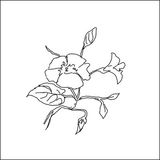
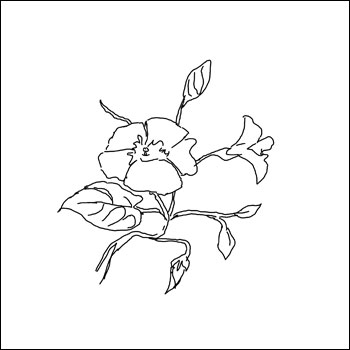
First I drew an outline of a flower

Pencil Sketch
Figure 1

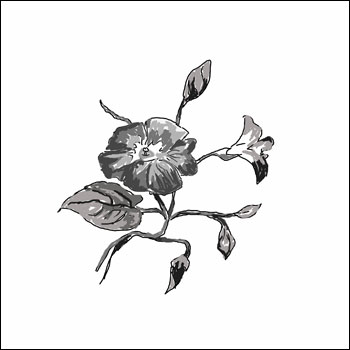
and filled it with different shades of grey, giving it volume.

Image of Flower
Figure 2

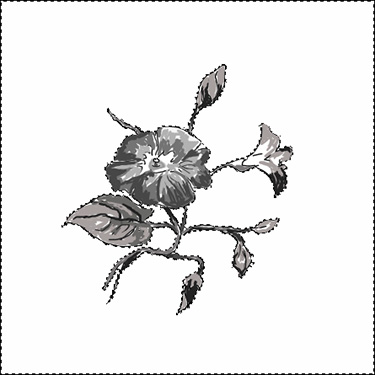
Then I clicked the Magic Wand outside of the flower (fig. 3), to highlight the white area.

Selection
Figure 3

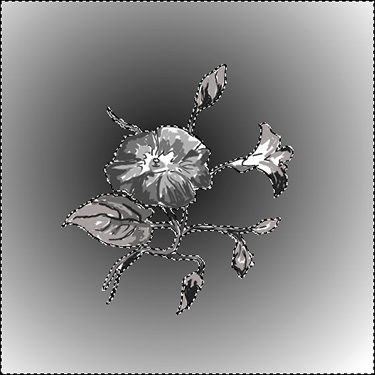
I used the Gradient tool (shown by the arrows in fig. 4) to fill the area with varying shades of grey in a direction leading outward from the center.

Filling the Background
Figure 4

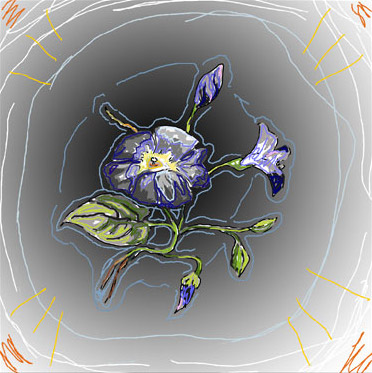
Then I called AKVIS Coloriage from the filter menu: Filter -> AKVIS -> AKVIS Coloriage and painted the drawing, choosing a color with the pipette from the Color Palette and drawing lines along the contours of the object. I also drew a boundary where one color should be separated from another (fig. 5). During processing the program will change the colors of the image, taking into account the brightness of the original image.

Important: After all parts of the image had been assigned a color, I clicked on the icon to the left of the Control Panel and saved the strokes to a file.

Color Strokes
Figure 5

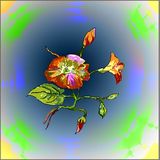
Now the image can be processed by pressing the button with a triangle . The result is shown in figure 6.

Drawing, Painted with AKVIS Coloriage
Figure 6

Here is another demonstration of AKVIS Coloriage.

I returned to the black and white image of the flower and once again called the AKVIS Coloriage plugin. After pressing the to load saved strokes, the image appears as in figure 5.

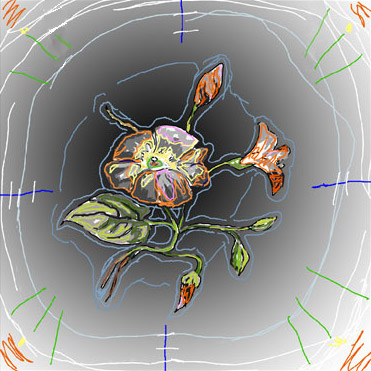
Next I went to the color palette to change some colors, and applied the changes with the Magic Tube tool . The repainted strokes are shown in figure 7.

Repainted
Figure 7

In figure 8 you can see the new result:

Color Drawing
Figure 8
 
¿Cómo funciona? ¿Cómo funciona?
   — Área de trabajo — Área de trabajo
   — Utilizar el programa — Utilizar el programa
   — Seleccionar colores — Seleccionar colores
   — Consejos — Consejos
   — Archivo con las líneas (*.strokes) — Archivo con las líneas (*.strokes)
   — Opciones — Opciones
Ejemplos Ejemplos
   — Una tarjeta postal — Una tarjeta postal
   — Cambiar el color de un coche — Cambiar el color de un coche
   — Desaturación selectiva — Desaturación selectiva
   — Coloración parcial — Coloración parcial
   — Una mujer con lila — Una mujer con lila
   — Colorear una foto en blanco y negro — Colorear una foto en blanco y negro
   — Colorear un retrato — Colorear un retrato
   — El método de coloración reiterado — El método de coloración reiterado
   — Recuerdos de la infancia — Recuerdos de la infancia
   — Un regalo para el Día de la Madre — Un regalo para el Día de la Madre
   — Corrección de colores — Corrección de colores
   — Colonos del Canadà — Colonos del Canadà
   — Colorear la foto del niño — Colorear la foto del niño
   — Colores para el interior — Colores para el interior
   — Colorear un retrato de familia — Colorear un retrato de familia
   — Cambiar el color de un vestido — Cambiar el color de un vestido
   — Colorear un retrato en grupo — Colorear un retrato en grupo
   — Crear un fondo multicolor — Crear un fondo multicolor
   — Pintar la fachada de casa — Pintar la fachada de casa
   — Fondo mosáico — Fondo mosáico
   — Los ojos expresivos del gato — Los ojos expresivos del gato
   — Retrato de una Geisha — Retrato de una Geisha
   — Colorear un bajo relieve — Colorear un bajo relieve
   — Tarjeta postal con geisha — Tarjeta postal con geisha
   — Retoque final de una foto coloreada — Retoque final de una foto coloreada
   — Imagen Anime — Imagen Anime
   — Una foto para collage — Una foto para collage
   — La feria de las flores — La feria de las flores
   — Dibujo a Lápiz: Auto-retrato — Dibujo a Lápiz: Auto-retrato
   — Fondo con una mascota — Fondo con una mascota
   — Tarjeta Navideña — Tarjeta Navideña


volver arriba


   Política de privacidad | Mapa Web | Buscar    
   Contáctenos | Twitter | Facebook | YouTube Channel    
| English  |Français  |Deutsch  | Español  |Português  |Italiano  |日本語  |Pусский  | © 2004-2012 AKVIS. Todos los derechos reservados.