Graphic software for Windows Mac graphic software
Inserisci la tua e-mail per essere informato delle novità:
 
  
  Prodotti     Download     Online Store     Tutorial     Supporto     Chi siamo
en  fr  de  es  pt  it  jp  ru    
 

Tutorial: AKVIS Coloriage

Add color to the photo of a child


Siamo spiacenti, questa pagina al momento è disponibile solo in lingua inglese.
La versione italiana sarà presto disponibile.
Se desiderate ottenere la licenza per la traduzione per favore scriveteci.

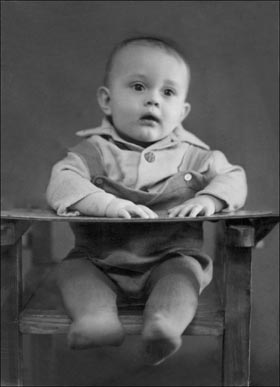
You can colorize this photo yourself using the half-finished materials that we give you. Download an archive containing the original image and the file with the strokes (*.strokes). Read the instruction here to see how AKVIS Coloriage works.

We are going to colorize a photo that was first restored and retouched with the plug-in AKVIS Retoucher and AKVIS Stamp. The retouching process is described in the tutorial to the AKVIS Retoucher plug-in.

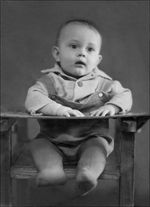
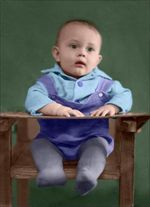
    Original image Colorized image
  • Step 1. Open the restored photo of a child in your photo editor.
  • a black and white photo of a child
  • Step 2. Call the plug-in AKVIS Coloriage. For this purpose in Adobe Photoshop or in Adobe Photoshop Elements select the menu item Filter – AKVIS – Coloriage; and in Corel PHOTO-PAINT - the menu item Effects – AKVIS – Coloriage.
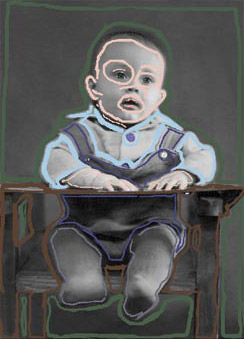
  • Step 3. Draw an outline within every object with the color chosen for this object.

    Select the colors for the child's chair, skin, hair and lips from the Color Library.

    When you set the color for the face, you should outline the eyes and the lips. Otherwise, when you set bright colors for these areas, the green of the eyes and the red of the lips will spread to the skin around them.

    Do not forget to set a color for the buttons, otherwise the buttons on the shirt will be colorized in the color of the shirt, and the buttons on the suit will have the color of the suit. Outline the buttons with the color of the shirt and the suit accordingly.

    Indicate colors for every object
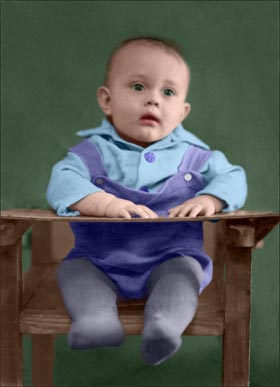
  • Step 4. Press the button Colorize and you will see the colorized photo in the After tab.
    the colorized photo of a boy
  • Step 5. Press the button Apply to apply the colorization result to the photo.
    the colorized photo
 
Come Funziona Come Funziona
   — Area di lavoro — Area di lavoro
   — Come usare il programma — Come usare il programma
   — Caricare i tratti dal file (*.strokes) — Caricare i tratti dal file (*.strokes)
Esempi Esempi
   — Una vecchia cartolina — Una vecchia cartolina
   — Cambiare il colore della carrozzeria — Cambiare il colore della carrozzeria
   — Una foto in bianco e nero — Una foto in bianco e nero
   — Colorare un ritratto — Colorare un ritratto
   — Quadretto Canadese — Quadretto Canadese
   — Una Ragazza “Anime” — Una Ragazza “Anime”
   — Una storia d'amore — Una storia d'amore
   — Cartolina di Natale — Cartolina di Natale
   — Colorare vecchi disegni in bianco e nero — Colorare vecchi disegni in bianco e nero


   Privacy Policy | Mappa del Sito | Cerca nel sito | English  |Français  |Deutsch  |Español  |Português  | Italiano  |日本語  |Pусский  | © 2004-2009, AKVIS Software Inc. Tutti i diritti riservati.