Effect Parameters
In the Effect Parameters panel you can adjust the settings for the entire effect, with all its elements.
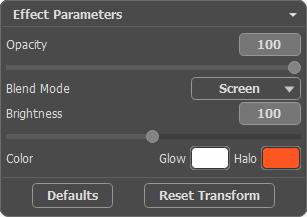
Let's look at every parameter in detail.
-
Opacity (1-100). This parameter sets the opacity of the light effect. The default value of the parameter is 100, which means that the light effect is not transparent. If you reduce the value of the parameter, the light effect becomes transparent.
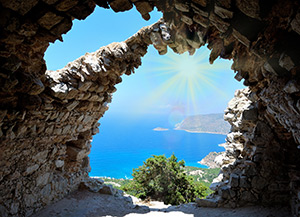
Opacity = 50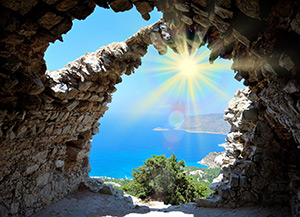
Opacity = 100 -
Blend Mode. You can adjust the way the light effect blends with the image. The program offers 7 modes; the default mode for the Effect is Pass Through, for Elements and Sparkle Brush - Normal.
- Pass Through - in this mode all visible elements in the effect interact with each other and with the background image using the blend mode chosen in the Element Properties panel.
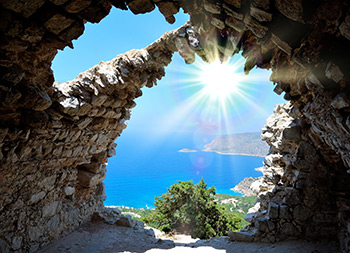
- Normal – in this mode the light effect is applied to the image as it is.
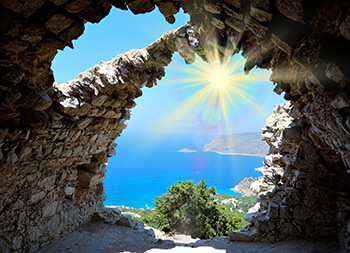
- Plus – in this mode the color and the opacity of the light effect and the image are summarized. When you apply a light effect on a black background, its original colors do not change; when you apply it to a white background, its colors become white; when you apply a light effect over any other color, the colors of this light effect get lighter.
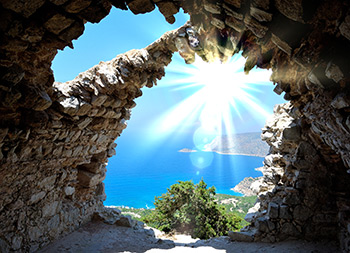
- Multiply - in this mode the color and the opacity of the light effect and the image multiply. As a result the color of the light effect gets darker. By multiplying any color on black, you get black; by multiplying any color on white, you get the original colors (they do not change).
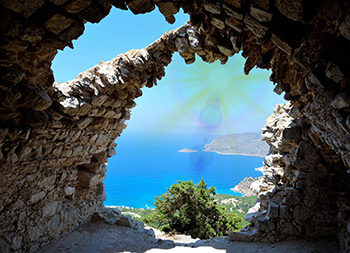
- Screen – it is a mode opposite to Multiply. In this mode the inverted values of the light effect and the image are multiplied componentwise. The resulting color is always lighter; black color of the background does not influence the color of the light effect, while white color converts any color to white.
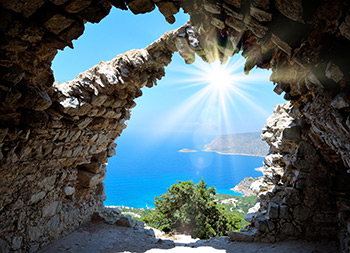
- Overlay - the calculation formula for the resulting color depends on the difference in brightness between the pixels of the light effect and those of the image. If the image is brighter than the light effect, the Screen mode is used; if the image is less bright than the light effect, the pixels blend using the Multiply mode. The neutral color for this mode is – 50% gray.
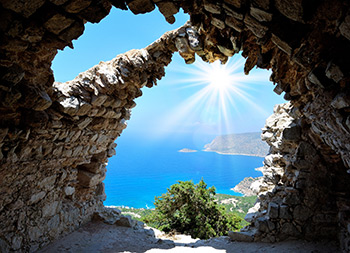
- Lighten - in this mode the resulting color is made up of the highest values for every channel (RGB) of the two colors (that of the image and of the light effect). If the pixels of the light effect are lighter than the pixels of the image, they will not change; if they are darker - they are replaced with the pixels of the image. The neutral color for this mode is black; applying a light effect on white gives white.
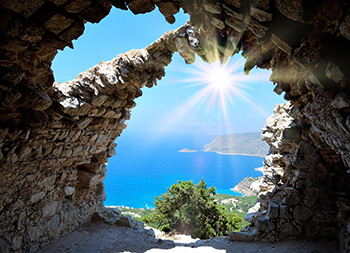
- Pass Through - in this mode all visible elements in the effect interact with each other and with the background image using the blend mode chosen in the Element Properties panel.
-
Brightness (1-200). This parameter changes the intensity of the light effect. It influences the size of glow and halo of the effect.
The original brightness corresponds to 100; if you set a value larger than 100, the brightness increases, if you set a value lower than 100 – the brightness decreases.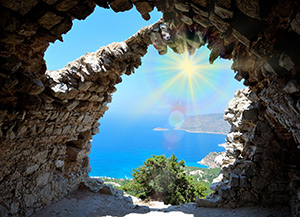
Brightness = 50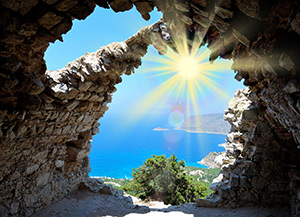
Brightness = 150 -
Color. You can select default colors for all elements in the effect.
Glow changes the color of the main part of the elements, Halo defines the outline color.
To choose a color from the Select Color dialog box, double click on the corresponding plate. To pick a color from the image or from the applied light effect, left-click on the plate, and the cursor will be transformed into an eyedropper.

Default Colors
Changed Colors
Note: The parameters Brightness and Color cannot be changed for these elements: Halo, Light Spots, and Oval Spots of Light.
Press Defaults to reset the parameters back to their default values.
Click on Reset Transform to reset the changes made with the Transform tool  .
.
LightShop v. 8.1 - Free 10-day Trial
