Light Effects Elements: Rays
The Rays element has the form of identical diverging beams of rays coming out of a single center and gradually fading.
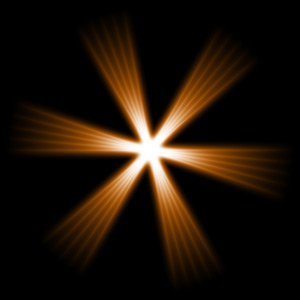
You can transform the light effect using the tool  . In the Element Properties panel you can change the Position & Size and Color for the element.
You can also adjust the special parameters of Rays:
-
Rays (1-48). The parameter changes the number of main rays (beams) in the element.
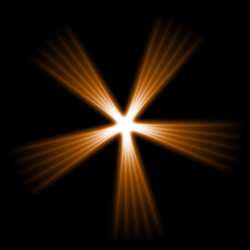
Rays = 5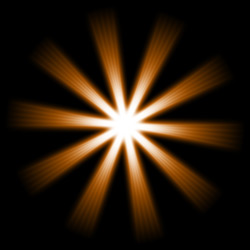
Rays = 10 -
Ray Width (0-100). The parameter changes the width of main rays in the element. The higher the value, the larger the distance between the inner rays in the beams is.
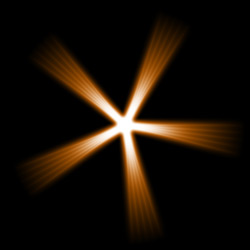
Width = 25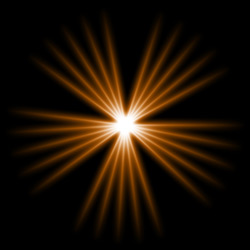
Width = 75 -
Inner Rays (1-24). The parameter defines the number of internal rays in each ray in the element.
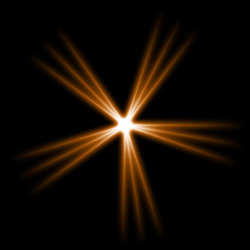
Inner Rays = 3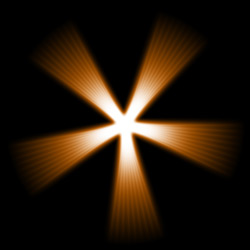
Inner Rays = 9 -
Halo Width (1-100). Increasing the value of the parameter increases the area of the halo around the element.
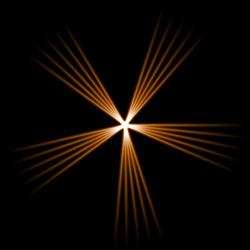
Halo Width = 10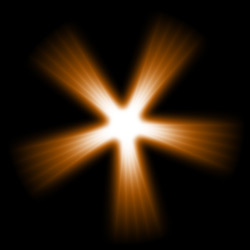
Halo Width = 50 -
Strength (5-40). The parameter changes the brightness of the halo and affects the softness of the element's edges.
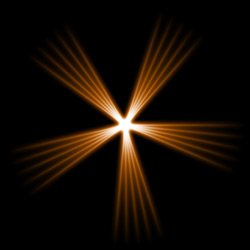
Strength = 5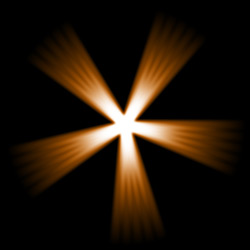
Strength = 15
LightShop v. 8.1 - Free 10-day Trial
