Parametri dell'effetto
Nel pannello Parametri effetto è possibile regolare le impostazioni per l'intero effetto, con tutti i suoi elementi.
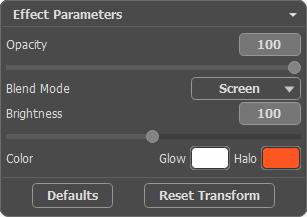
Diamo un'occhiata in dettaglio a tutti i parametri.
-
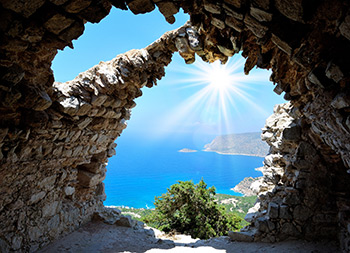
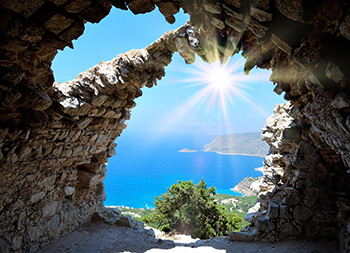
Opacità (1-100). Questo parametro imposta l'opacità dell'effetto di luce. Il valore predefinito è 100, ciò significa che l'effetto di luce non è trasparente. Più si riduce il valore maggiormente diventa trasparente.
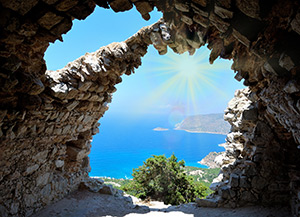
Opacità = 50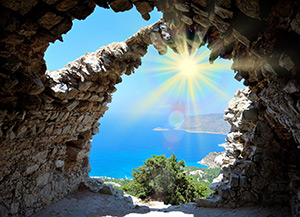
Opacità = 100 -
Metodo di fusione. Questo parametro imposta il modo in cui l'effetto di luce si fonde con l'immagine originale. Il programma dispone di 7 metodi di fusione, il modo predefinito per Effetto è Attraversa, per Elementi e Pennello scintille - Normale.
- Attraversa - in questa modalità tutti gli elementi visibili dell'effetto interagiscono tra loro e con l'immagine di sfondo utilizzando il metodo di fusione scelto nel pannello Proprietà elemento.
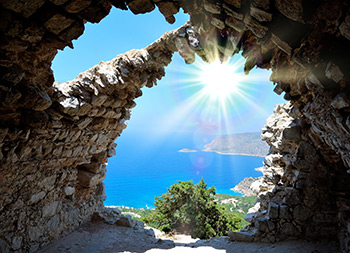
- Normale - in questa modalità l'effetto di luce viene applicato così com'è.
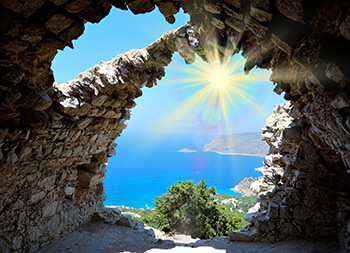
- Aggiungi - in questa modalità di fusione il colore, l'opacità dell'effetto e l'immagine vengono sommati. Ciò significa che l'effetto di luce se viene applicato su uno sfondo nero manterrà i colori originali; mentre se si applica su uno sfondo bianco, i colori diventano bianchi e si notano di più; quando si applica su qualsiasi altra tinta, i colori diventano più chiari.
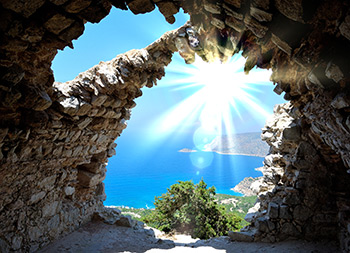
- Moltiplica - in questa modalità il colore, l'opacità dell'effetto e l'immagine si moltiplicano. Di conseguenza il colore dell'effetto diventa più scuro. Moltiplicando qualsiasi colore con il nero, si ottiene nero; moltiplicando qualsiasi colore con il bianco, si conserva il colore originale (non cambia).
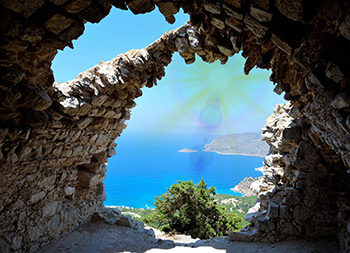
- Scolora - si tratta della modalità opposta a Moltiplica. Qui i valori invertiti dell'effetto e l'immagine sono moltiplicati. Il colore risultante è sempre più chiaro se lo sfondo è nero, ma non influenza il colore dell'effetto che rimane invariato, al contrario, uno sfondo bianco converte qualsiasi colore al bianco.
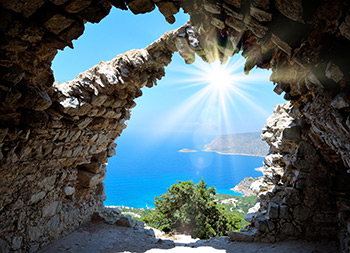
- Sovrapponi - la formula di calcolo per il colore risultante dipende dalla differenza di luminosità tra i pixel dell'effetto e l'immagine. Se l'immagine è più chiara rispetto all'effetto, viene utilizzata la modalità Scolora, se è più scura, i pixel si fondono utilizzando la modalità Moltiplica. Il colore neutro è al 50% grigio.
- Schiarisci - in questa modalità il colore risultante è costituito dai valori più alti per ogni canale (RGB) tra i colori dell’immagine e dell’effetto. Se i pixel dell’effetto sono più chiari di quelli dell'immagine, nulla cambierà, se sono più scuri, verranno sostituiti con i pixel dell’immagine. Il colore neutro è nero; l'applicazione di un effetto sul bianco tende al bianco.
- Attraversa - in questa modalità tutti gli elementi visibili dell'effetto interagiscono tra loro e con l'immagine di sfondo utilizzando il metodo di fusione scelto nel pannello Proprietà elemento.
-
Luminosità (1-200). Questo parametro cambia l'intensità dell'effetto di luce. Essa influenza la dimensione del bagliore e halo.
L'originale luminosità corrisponde a 100, se si imposta un valore superiore ad esso, la luminosità aumenta, se si imposta un valore inferiore si riduce.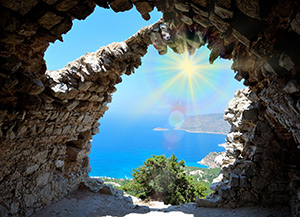
Luminosità = 50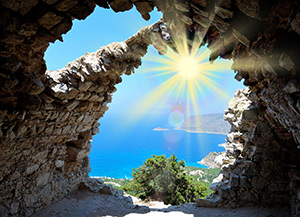
Luminosità = 150 -
Colore. È possibile selezionare i colori predefiniti per tutti gli elementi dell'effetto. Bagliore cambia il colore della parte principale degli elementi, Alone definisce il colore di contorno.
Per scegliere un colore dalla finestra di dialogo Seleziona colore, fare doppio clic sulla casella rettangolare corrispondente. Per prelevare un colore dall'immagine o dall'effetto di luce applicato, cliccare sulla casella con il tasto sinistro del mouse, il cursore si trasformerà in un contagocce.
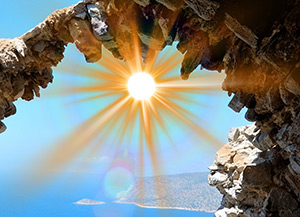
Colori predefiniti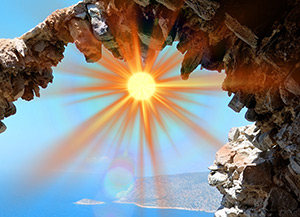
Colori variati
Nota: I parametri Luminosità e Colore non possono essere modificati per questi elementi: Alone, Punti di luce e Punti di luce ovali.
Premere Predefinito per ripristinare le impostazioni di default.
Fare clic su Ripristina trasforma per annullare le modifiche apportate con lo strumento Trasforma  .
.
LightShop v. 8.1 - 10-giorni di prova gratuita
