Creating Light Effects
The program offers a rich collection of ready-to-use light effects. An effect can be applied in its original form, or can be modified. Using one of these presets you can create and save your own unique effect.
Each light effect is composed of simple elements. To create a light effect just combine a number of elements and adjust their position and parameters.
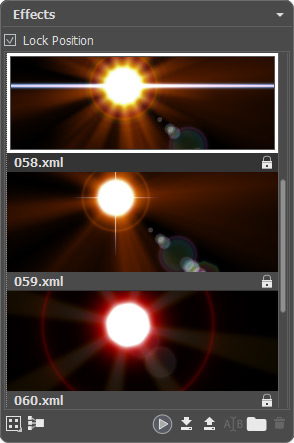
Effects Panel
Follow the instructions to create a light effect:
-
Step 1. When an image is loaded into the program, the last used effect is displayed in the Image Window.
To add another effect to the image choose it in the Effects panel, and double click on it or use the icon
 at the bottom part of the panel.
You can customize the effects view in the panel: click on
 and choose between the options (small or large icons).
-
Step 2. In the Elements panel edit the list of the elements composing the light effect.
You can add new elements and delete them, hide and show, move up and down.
- Step 3. Adjust the parameters for the chosen elements in the Element Properties panel. All changes are displayed in real time.
-
Step 4. Adjust the entire effect using the Effect Parameters and the tool
 .
.
-
Step 5. You can save your light effect into the Effects list to use it in the future. You will be able to quickly apply it in its original form, or use it as a basis for generating new effects.
Click on
 to save the preset. In the dialog box specify the group, the name and the path where to save the effect.
Note: You cannot overwrite the build-in AKVIS light effects - they are locked
 .
.
To import an effect to the program, click on  and choose an xml file. The effect will be added to the current group.
To create a new group, click on  . You can drag an effect to another group.
All commands are also available by right-clicking within the Effects panel.
LightShop v. 8.1 - Free 10-day Trial
